arcade角色面向左或右造型示例

以下是部分代码预览:

"""
Sprite Facing Left or Right
角色面向左或右造型示例,这个程序需要街机模块支持。2019-2-28最新版本安装方法:
在命令提示符中输入以下命令:pip install arcade==2.0.0b4
如果缺少ffmpeg,则再次用pip命令安装即可。
Arcade模块是用来制作街机游戏的一个库。
"""

import arcade      # 导入街机模块
import os          # 导入os模块

SPRITE_SCALING = 0.5 # 常量定义,角色比例

SCREEN_WIDTH = 800   # 常量定义,屏幕宽度
SCREEN_HEIGHT = 600  # 常量定义,屏幕高度
SCREEN_TITLE = "角色面向左或右造型示例"

MOVEMENT_SPEED = 5

TEXTURE_LEFT = 0
TEXTURE_RIGHT = 1

class Player(arcade.Sprite):

    def __init__(self):
        super().__init__()
        # 缺省是朝右方向的
        self.set_texture(TEXTURE_RIGHT) #  TEXTURE_RIGHT就是1
        
    def update(self):
        self.center_x += self.change_x
        self.center_y += self.change_y

class MyGame(arcade.Window):
    """
    Main application class.
    """

    def __init__(self, width, height, title):
        """
        Initializer
        """

        # 调用父类初始化方法
        super().__init__(width, height, title)

        # 设置工作目录
        file_path = os.path.dirname(os.path.abspath(__file__))
        os.chdir(file_path)

        # 所有角色列表的定义
        self.all_sprites_list = None

        # 玩家角色的定义
        self.player_sprite = None

        # 背景颜色的设置
        arcade.set_background_color(arcade.color.AMAZON)

    def setup(self):
        """ 设置游戏,初始化变量. """

        # 实例化所有角色列表
        self.all_sprites_list = arcade.SpriteList()

        # 实例化玩家对象
        self.player_sprite = Player()
        self.player_sprite.center_x = SCREEN_WIDTH / 2  # 屏幕x中央
        self.player_sprite.center_y = SCREEN_HEIGHT / 2 # 屏幕y中央
        self.all_sprites_list.append(self.player_sprite)# 添加到所有角色列表

    def on_draw(self):
        """
        Render the screen.
        """

        # 开始重画所有
        arcade.start_render()

        # 正式地画所有角色.
        self.all_sprites_list.draw()

    def update(self, delta_time):
        """ Movement and game logic """

        # 所有角色更新坐标等等
        self.all_sprites_list.update()

    def on_key_press(self, key, modifiers):
        """按键检测 """      

    def on_key_release(self, key, modifiers):
        """松键检测 """

def main():
    """ Main method """
    window = MyGame(SCREEN_WIDTH, SCREEN_HEIGHT, SCREEN_TITLE)
    window.setup()
    arcade.run()


if __name__ == "__main__":
    main()


如需要查看完整代码,请

成为会员后,登陆才能继续浏览!联系微信scratch8即可办理会员。
(会员专属:能浏览所有文章,下载所有带链接的Python资源。)

发表在 arcade, python | arcade角色面向左或右造型示例已关闭评论

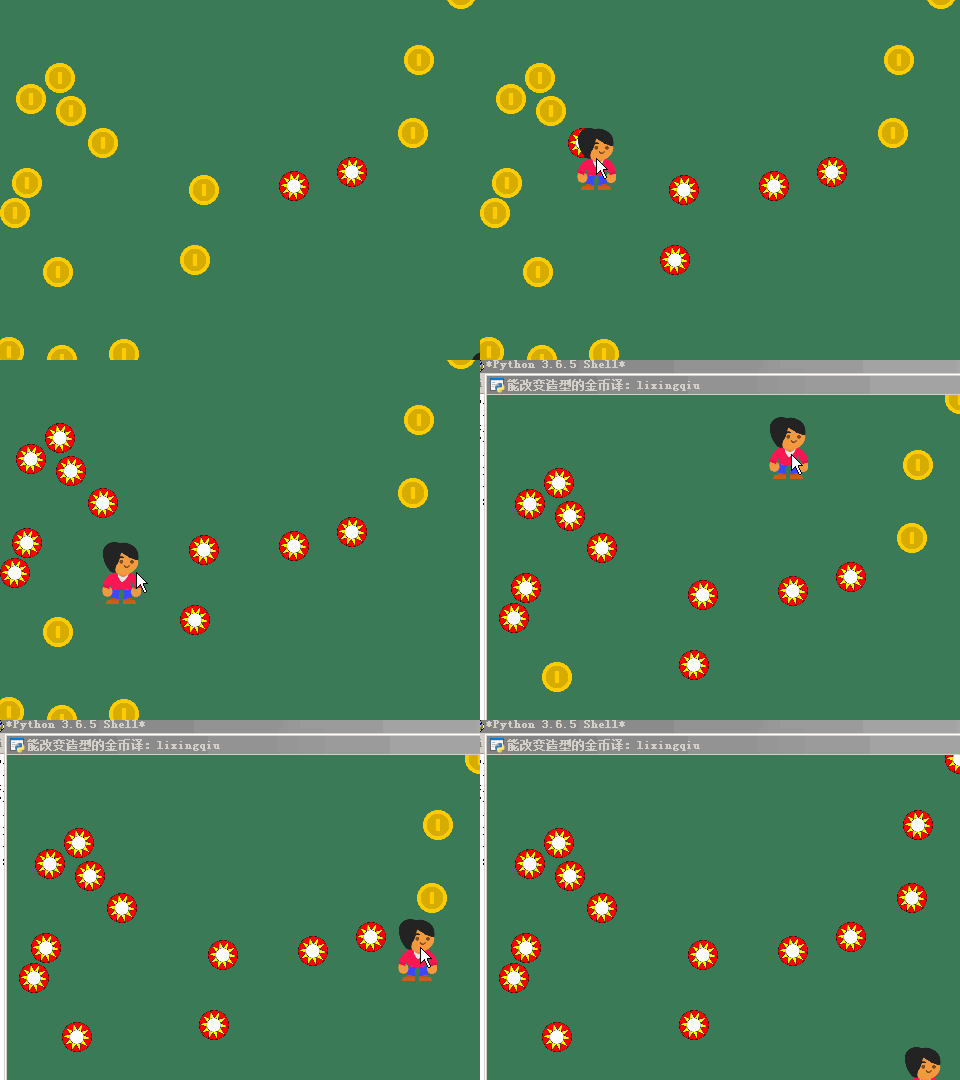
arcade演示爆炸效果的例子

"""
演示爆炸效果的例子
"""
import random
import arcade
import os

SPRITE_SCALING_PLAYER = 0.5
SPRITE_SCALING_COIN = 0.2
SPRITE_SCALING_LASER = 0.8
COIN_COUNT = 50

SCREEN_WIDTH = 800
SCREEN_HEIGHT = 600
SCREEN_TITLE = "演示爆炸效果的例子,译:lixingqiu"

BULLET_SPEED = 5

EXPLOSION_TEXTURE_COUNT = 60


class Explosion(arcade.Sprite):
    """ 创建可爆炸的角色 """ 

    def __init__(self, texture_list):
        super().__init__("images/explosion/explosion0000.png")

        # 第一帧
        self.current_texture = 0      # 这相当于造型索引号
        self.textures = texture_list  # 这相当于每帧图片列表

    def update(self):

        # 更新每帧的图片,到了最后一帧后就会删除自己。
        self.current_texture += 1
        if self.current_texture < len(self.textures):
            self.set_texture(self.current_texture)
        else:
            self.kill()


class MyGame(arcade.Window):
    """ Main application class. """

    def __init__(self):
        """ Initializer """
        # 调用父类的初始化器
        super().__init__(SCREEN_WIDTH, SCREEN_HEIGHT, SCREEN_TITLE)

        # 设置工作目录 not by lixingqiu
        file_path = os.path.dirname(os.path.abspath(__file__))
        os.chdir(file_path)

        # 定义要用到的角色列表们
        self.player_list = None
        self.coin_list = None
        self.bullet_list = None
        self.explosions_list = None

        # 定义玩家变量
        self.player_sprite = None
        self.score = 0

        # 不显示鼠标指针
        self.set_mouse_visible(False)

        # 加载声音对象
        # self.gun_sound = arcade.sound.load_sound("sounds/laser1.wav")
        # self.hit_sound = arcade.sound.load_sound("sounds/phaseJump1.wav")
        # 设置背景颜色
        arcade.set_background_color(arcade.color.AMAZON)

    def setup(self):

        """ 设置与实例化游戏中要用到的变量 """

        # 角色列表
        self.player_list = arcade.SpriteList()
        self.coin_list = arcade.SpriteList()
        self.bullet_list = arcade.SpriteList()
        self.explosions_list = arcade.SpriteList()

        # Pre-load the animation frames. We don't do this in the __init__ because it
        # takes too long and would cause the game to pause.
        # 预装爆炸效果的动画帧图,不在初始化方法中加载的原因是这要花太多的时间会引起游戏卡
        self.explosion_texture_list = []

        for i in range(EXPLOSION_TEXTURE_COUNT):
            # 加载从 explosion0000.png 到 explosion0270.png 的所有图片为爆炸效果动画帧            
            texture_name = f"images/explosion/explosion{i:04d}.png"
            self.explosion_texture_list.append(arcade.load_texture(texture_name))

        # 设置玩家的初始得分
        self.score = 0

        # 实例化玩家对象
        self.player_sprite = arcade.Sprite("images/character.png", SPRITE_SCALING_PLAYER)
        self.player_sprite.center_x = 50
        self.player_sprite.center_y = 70
        self.player_list.append(self.player_sprite)

        # 创建金币
        for coin_index in range(COIN_COUNT):

            # 实例化一个金币对象
            coin = arcade.Sprite("images/coin_01.png", SPRITE_SCALING_COIN)

            # 放置到随机坐标
            coin.center_x = random.randrange(SCREEN_WIDTH)
            coin.center_y = random.randrange(150, SCREEN_HEIGHT)

            # 增加到金币列表
            self.coin_list.append(coin)

        # 设置背景颜色
        arcade.set_background_color(arcade.color.AMAZON)

    def on_draw(self):
        """
        Render the screen.
        """

        # 此命令要在所有命之前
        arcade.start_render()

        # 画所有的角色
        self.coin_list.draw()
        self.bullet_list.draw()
        self.player_list.draw()
        self.explosions_list.draw()

        # 显示得分情况文本
        arcade.draw_text(f"Score: {self.score}", 10, 20, arcade.color.WHITE, 14)

    def on_mouse_motion(self, x, y, dx, dy):
        """
        鼠标指针移动事件
        """
        self.player_sprite.center_x = x

    def on_mouse_press(self, x, y, button, modifiers):
        """
        单击鼠标时调用此方法
        """

        # 枪声
        # arcade.sound.play_sound(self.gun_sound)

        # 创建一子弹
        bullet = arcade.Sprite("images/laserBlue01.png", SPRITE_SCALING_LASER)

        # 图像是朝向的,所以要旋转它 
        bullet.angle = 90

        # 给它一个y速度
        bullet.change_y = BULLET_SPEED

        # 放到玩家坐标
        bullet.center_x = self.player_sprite.center_x
        bullet.bottom = self.player_sprite.top

        # 加到子弹角色列表
        self.bullet_list.append(bullet)

    def update(self, delta_time):
        """ Movement and game logic """

        # 调用子弹列表和爆炸效果列表更新
        self.bullet_list.update()
        self.explosions_list.update()

        # 遍历每颗子弹做碰撞检测
        for bullet in self.bullet_list:

            # 子弹和所有金币的碰撞检测
            hit_list = arcade.check_for_collision_with_list(bullet, self.coin_list)

            # 如果碰到了,生成爆炸效果
            if len(hit_list) > 0:
                explosion = Explosion(self.explosion_texture_list)
                explosion.center_x = hit_list[0].center_x
                explosion.center_y = hit_list[0].center_y
                self.explosions_list.append(explosion)
                bullet.kill()

            #每个金币都删除并加分
            for coin in hit_list:
                coin.kill()
                self.score += 1

                # 击中声效
                # arcade.sound.play_sound(self.hit_sound)

            #  子弹离屏,删除它
            if bullet.bottom > SCREEN_HEIGHT:
                bullet.kill()


def main():
    window = MyGame()
    window.setup()
    arcade.run()


if __name__ == "__main__":
    main()
发表在 arcade, python | arcade演示爆炸效果的例子已关闭评论

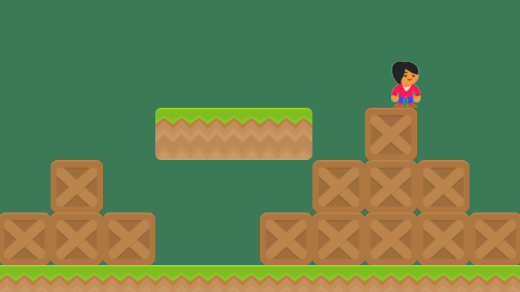
有敌人的平台游戏演示

"""
有敌人的平台游戏演示
"""

import arcade
import os

SPRITE_SCALING = 0.5
SPRITE_NATIVE_SIZE = 128
SPRITE_SIZE = int(SPRITE_NATIVE_SIZE * SPRITE_SCALING)

SCREEN_WIDTH = 800
SCREEN_HEIGHT = 600
SCREEN_TITLE = "有敌人的平台游戏演示"

 
# Physics
MOVEMENT_SPEED = 5
JUMP_SPEED = 14
GRAVITY = 0.5


class MyGame(arcade.Window):
    """ Main application class. """

    def __init__(self):
        """
        Initializer
        """
        super().__init__(SCREEN_WIDTH, SCREEN_HEIGHT, SCREEN_TITLE)

        # 角色列表定义
        self.wall_list = None
        self.enemy_list = None
        self.player_list = None

        # 玩家的相关属性定义
        self.player_sprite = None
        self.physics_engine = None
        self.view_left = 0
        self.view_bottom = 0
        self.game_over = False

    def setup(self):
        """ Set up the game and initialize the variables. """

        # 角色列表定义
        self.wall_list = arcade.SpriteList()
        self.enemy_list = arcade.SpriteList()
        self.player_list = arcade.SpriteList()

        # 实例化地面
        for x in range(0, SCREEN_WIDTH, SPRITE_SIZE):
            wall = arcade.Sprite("images/grassMid.png", SPRITE_SCALING)

            wall.bottom = 0
            wall.left = x
            self.wall_list.append(wall)

        # 画墙
        for x in range(SPRITE_SIZE * 3, SPRITE_SIZE* 8, SPRITE_SIZE):
            wall = arcade.Sprite("images/grassMid.png", SPRITE_SCALING)

            wall.bottom = SPRITE_SIZE * 3
            wall.left = x
            self.wall_list.append(wall)

        # 实例化箱子
        for x in range(0, SCREEN_WIDTH, SPRITE_SIZE * 5):
            wall = arcade.Sprite("images/boxCrate_double.png", SPRITE_SCALING)

            wall.bottom = SPRITE_SIZE
            wall.left = x
            self.wall_list.append(wall)

        # 实例化一个地上的敌人
        enemy = arcade.Sprite("images/wormGreen.png", SPRITE_SCALING)

        enemy.bottom = SPRITE_SIZE
        enemy.left = SPRITE_SIZE * 2

        # 设置敌人的初始速度
        enemy.change_x = 2
        self.enemy_list.append(enemy)

        # 实例化一个敌人角色
        enemy = arcade.Sprite("images/wormGreen.png", SPRITE_SCALING)

        enemy.bottom = SPRITE_SIZE * 4
        enemy.left = SPRITE_SIZE * 4

        # 设置敌人的左右边界
        enemy.boundary_right = SPRITE_SIZE * 8
        enemy.boundary_left = SPRITE_SIZE * 3
        enemy.change_x = 2
        self.enemy_list.append(enemy)

        # 实例化玩家
        self.player_sprite = arcade.Sprite("images/character.png", SPRITE_SCALING)
        self.player_list.append(self.player_sprite)

        # 玩家角色的起始坐标
        self.player_sprite.center_x = 64
        self.player_sprite.center_y = 270

        self.physics_engine = arcade.PhysicsEnginePlatformer(self.player_sprite,
                                                             self.wall_list,
                                                             gravity_constant=GRAVITY)

        # Set the background color
        arcade.set_background_color(arcade.color.AMAZON)

    def on_draw(self):
        """
        渲染屏幕
        """

        # 开始渲染
        arcade.start_render()

        # 画所有的角色
        self.player_list.draw()
        self.wall_list.draw()
        self.enemy_list.draw()


    def on_key_press(self, key, modifiers):
        """
        按键时调用此方法
        """
        if key == arcade.key.UP:
            if self.physics_engine.can_jump():
                self.player_sprite.change_y = JUMP_SPEED
        elif key == arcade.key.LEFT:
            self.player_sprite.change_x = -MOVEMENT_SPEED
        elif key == arcade.key.RIGHT:
            self.player_sprite.change_x = MOVEMENT_SPEED

    def on_key_release(self, key, modifiers):
        """
        松开按键玩家停止移动
        """
        if key == arcade.key.LEFT or key == arcade.key.RIGHT:
            self.player_sprite.change_x = 0

    def update(self, delta_time):
        """ Movement and game logic """

        # Update the player based on the physics engine
        if not self.game_over:
            # Move the enemies
            self.enemy_list.update()

            # 检测每个敌人是否碰到墙
            for enemy in self.enemy_list:
                # If the enemy hit a wall, reverse
                if len(arcade.check_for_collision_with_list(enemy, self.wall_list)) > 0:
                    enemy.change_x *= -1
                # 如果碰到左边界把change_x也取反
                elif enemy.boundary_left is not None and enemy.left < enemy.boundary_left:
                    enemy.change_x *= -1
                # 如果碰到右边界把change_x也取反
                elif enemy.boundary_right is not None and enemy.right > enemy.boundary_right:
                    enemy.change_x *= -1

            # 使用物理引擎更新玩家和墙
            self.physics_engine.update()

            # See if the player hit a worm. If so, game over.
            if len(arcade.check_for_collision_with_list(self.player_sprite, self.enemy_list)) > 0:
                #  碰到移动的绿虫则回到初始位置,或者游戏结束 self.game_over = True   
                self.player_sprite.center_x = 64
                self.player_sprite.center_y = 270


def main():
    window = MyGame()
    window.setup()
    arcade.run()


if __name__ == "__main__":
    main()


发表在 arcade | 有敌人的平台游戏演示已关闭评论

Python街机arcade模块加载csv地图示例程序

"""
加载一个csv格式的地图。csv文件是地图的图块映射列表。里面是按行存储的数字。每行的每个数字映射地图中图块的编号。
"""

import arcade
import os

SPRITE_SCALING = 0.5

SCREEN_WIDTH = 800
SCREEN_HEIGHT = 600
SCREEN_TITLE = "Python街机arcade模块加载csv地图示例程序"
SPRITE_PIXEL_SIZE = 128
GRID_PIXEL_SIZE = (SPRITE_PIXEL_SIZE * SPRITE_SCALING)

# How many pixels to keep as a minimum margin between the character
# and the edge of the screen.
VIEWPORT_MARGIN = 40
RIGHT_MARGIN = 150

# 物理参数
MOVEMENT_SPEED = 5
JUMP_SPEED = 14
GRAVITY = 0.5     # 代表重力加速度


def get_map(filename):
    """
    加载逗号隔开数字的二维数字表,解析成嵌套列表。
    """
    map_file = open(filename)
    map_array = []
    for line in map_file:       # 文件中的每一行
        line = line.strip()     # 去掉空白字符
        map_row = line.split(",") # 以逗号分隔
        # 执行下列这个for循环是为了把item转换成整数,
        # 相当于 map_row = [ int(item) for item in map_row ]
        for index, item in enumerate(map_row):   
            map_row[index] = int(item)
        map_array.append(map_row)
    return map_array


class MyGame(arcade.Window):
    """ 应用程序的主要类. """

    def __init__(self):
        """
        初始化方法
        """
        super().__init__(SCREEN_WIDTH, SCREEN_HEIGHT, SCREEN_TITLE)

        # 设置游戏的工作目录,这是为 "python -m" 启动程序而设 
        file_path = os.path.dirname(os.path.abspath(__file__))
        os.chdir(file_path)

        # 角色列表定义
        self.wall_list = None
        self.player_list = None

        # 玩家定义
        self.player_sprite = None

        self.physics_engine = None
        self.view_left = 0
        self.view_bottom = 0
        self.game_over = False

    def setup(self):
        """ 设置游戏的一些变量. """

        # 实例化角色列表
        self.player_list = arcade.SpriteList()
        self.wall_list = arcade.SpriteList()

        # 实例化玩家所操作角色
        self.player_sprite = arcade.Sprite("images/character.png", SPRITE_SCALING)

        # 角色起始坐标
        self.player_sprite.center_x = 64
        self.player_sprite.center_y = 270
        self.player_list.append(self.player_sprite)

        # 得到 2维地图的映射表
        map_array = get_map("map.csv")
        print(map_array)
        # 得到地图最右边的像素值
        self.end_of_map = len(map_array[0]) * GRID_PIXEL_SIZE # 地图宽度
        # 下面取出每个图块编号,根据号码生成wall
        for row_index, row in enumerate(map_array):
            for column_index, item in enumerate(row):

                # 对于此地图来说,
                # -1 = empty            空
                # 0  = box             盒子 
                # 1  = grass left edge 左边角草
                # 2  = grass middle    中间的草
                # 3  = grass right edge右边角草
                if item == -1:
                    continue
                elif item == 0:
                    wall = arcade.Sprite("images/boxCrate_double.png", SPRITE_SCALING)
                elif item == 1:
                    wall = arcade.Sprite("images/grassLeft.png", SPRITE_SCALING)
                elif item == 2:
                    wall = arcade.Sprite("images/grassMid.png", SPRITE_SCALING)
                elif item == 3:
                    wall = arcade.Sprite("images/grassRight.png", SPRITE_SCALING)

                wall.right = column_index * 64
                wall.top = (7 - row_index) * 64
                self.wall_list.append(wall)

        self.physics_engine = \
            arcade.PhysicsEnginePlatformer(self.player_sprite,
                                           self.wall_list,
                                           gravity_constant=GRAVITY)

        # 设置背景颜色
        arcade.set_background_color(arcade.color.AMAZON)

        # Set the view port boundaries
        # These numbers set where we have 'scrolled' to.
        self.view_left = 0
        self.view_bottom = 0

        self.game_over = False

    def on_draw(self):
        """
        渲染屏幕
        """

        # 此命令放在所有重绘命令之前
        arcade.start_render()

        # 画所有角色.
        self.player_list.draw()
        self.wall_list.draw()

        # Put the text on the screen.
        # Adjust the text position based on the view port so that we don't
        # scroll the text too.
        distance = self.player_sprite.right
        output = f"Distance: {distance}"
        arcade.draw_text(output, self.view_left + 10, self.view_bottom + 20, arcade.color.WHITE, 14)

        if self.game_over:
            arcade.draw_text("Game Over", self.view_left + 200, self.view_bottom + 200, arcade.color.WHITE, 30)

    def on_key_press(self, key, modifiers):
        """
        当按键时调用此方法
        """
        if key == arcade.key.UP:
            if self.physics_engine.can_jump():
                self.player_sprite.change_y = JUMP_SPEED
        elif key == arcade.key.LEFT:
            self.player_sprite.change_x = -MOVEMENT_SPEED
        elif key == arcade.key.RIGHT:
            self.player_sprite.change_x = MOVEMENT_SPEED

    def on_key_release(self, key, modifiers):
        """
        当松开键时调用此方法
        """
        if key == arcade.key.LEFT or key == arcade.key.RIGHT:
            self.player_sprite.change_x = 0

    def update(self, delta_time):
        """ Movement and game logic """

        if self.player_sprite.right >= self.end_of_map:
            self.game_over = True

        # 更新所有角色
        if not self.game_over:
            self.physics_engine.update()

        # --- Manage Scrolling ---

        # Track if we need to change the view port

        changed = False

        # Scroll left
        left_bndry = self.view_left + VIEWPORT_MARGIN
        if self.player_sprite.left < left_bndry:
            self.view_left -= left_bndry - self.player_sprite.left
            changed = True

        # Scroll right
        right_bndry = self.view_left + SCREEN_WIDTH - RIGHT_MARGIN
        if self.player_sprite.right > right_bndry:
            self.view_left += self.player_sprite.right - right_bndry
            changed = True

        # Scroll up
        top_bndry = self.view_bottom + SCREEN_HEIGHT - VIEWPORT_MARGIN
        if self.player_sprite.top > top_bndry:
            self.view_bottom += self.player_sprite.top - top_bndry
            changed = True

        # Scroll down
        bottom_bndry = self.view_bottom + VIEWPORT_MARGIN
        if self.player_sprite.bottom < bottom_bndry:
            self.view_bottom -= bottom_bndry - self.player_sprite.bottom
            changed = True
        print(self.player_sprite.left,self.view_left)
        # If we need to scroll, go ahead and do it.
        if changed:            
            arcade.set_viewport(self.view_left,
                                SCREEN_WIDTH + self.view_left,
                                self.view_bottom,
                                SCREEN_HEIGHT + self.view_bottom)


def main():
    window = MyGame()
    window.setup()
    arcade.run()


if __name__ == "__main__":
    main()


发表在 arcade | Python街机arcade模块加载csv地图示例程序已关闭评论

收集金币游戏改善下落例子,译:lixingqiu

"""
收集金币游戏改善下落例子,本程序用角色列表的move方法统一移动金币,实现性能提升。
这个游戏需要arcade模块支持。
"""

import random
import arcade
import os

SPRITE_SCALING = 0.5

SCREEN_WIDTH = 800
SCREEN_HEIGHT = 600
SCREEN_TITLE = "收集金币游戏改善下落例子,译:lixingqiu"


class Coin(arcade.Sprite):
    """
    继承自角色类的金币类
    """

    def reset_pos(self):

        # 重置坐标
        self.center_y = random.randrange(SCREEN_HEIGHT + 20,SCREEN_HEIGHT + 100)
        self.center_x = random.randrange(SCREEN_WIDTH)

    def update(self):

        # 更新,这里只做个判断,让它移到最上这去
        if self.top < 0:
            self.reset_pos()


class MyGame(arcade.Window):
    """ Main application class. """

    def __init__(self, width, height, title):

        super().__init__(width, height, title)

        # 设置工作目录 ,可以不要此句
        file_path = os.path.dirname(os.path.abspath(__file__))
        os.chdir(file_path)

        # 角色列表定义
        self.all_sprites_list = None
        self.coin_list = None

        # 定义玩家的相关变量 
        self.score = 0
        self.player_sprite = None

    def start_new_game(self):
        """ 设置与初始化游戏 """

        # 实例化所有角色列表
      
        self.coin_list = arcade.SpriteList()

        # 设置玩家
        self.score = 0
        self.player_sprite = arcade.Sprite("images/character.png",SPRITE_SCALING)
        self.player_sprite.center_x = 50
        self.player_sprite.center_y = 70
       

        for i in range(50):

            # 实例化金币
            coin = Coin("images/coin_01.png", SPRITE_SCALING / 3)

            # 设定金币的坐标
            coin.center_x = random.randrange(SCREEN_WIDTH)
            coin.center_y = random.randrange(SCREEN_HEIGHT)

            # 增加到金币角色列表           
            self.coin_list.append(coin)

        # 不显示鼠标指针
        self.set_mouse_visible(False)

        # 设置背景颜色
        arcade.set_background_color(arcade.color.AMAZON)

    def on_draw(self):
        """
        渲染屏幕
        """

        # 开始渲染,此命令要在所有重画命令之前
        arcade.start_render()

        # 画所有的角色
        self.player_sprite.draw()
        self.coin_list.draw()

 
    def on_mouse_motion(self, x, y, dx, dy):
        """
        鼠标移动时这个方法被自动调用
        """
        self.player_sprite.center_x = x
        self.player_sprite.center_y = y

    def update(self, delta_time):
        """ Movement and game logic """

        # 更新坐标等等
        self.player_sprite.update()
        self.coin_list.update()
        self.coin_list.move(0, -1)

        # 玩家和所有金币的碰撞检测.
        hit_list = \
            arcade.check_for_collision_with_list(self.player_sprite,self.coin_list)

        # 遍历碰到的金币列表
        for coin in hit_list:
            coin.reset_pos()#  金币并没有被删除而是移到了最上边
            self.score += 1 


def main():
    window = MyGame(SCREEN_WIDTH, SCREEN_HEIGHT, SCREEN_TITLE)
    window.start_new_game()
    arcade.run()


if __name__ == "__main__":
    main()


发表在 arcade | 收集金币游戏改善下落例子,译:lixingqiu已关闭评论

碰到边缘就反弹的金币收集游戏,译者:lixingqiu

"""
碰到边缘就反弹的金币收集游戏,译者:lixingqiu,这是用Arcade街机模块制作的一个游戏示例。
演示了如何实例化角色,实例化角色列表,类的继承,角色的移动等。当前最新版本是2.0.0b4。
安装方法:pip install arcade==2.0.0b4 (2019/2/27),注释翻译:www.lixingqiu.com
arcade模块是由Paul Vincent Craven开发并维护,专业用来开发街机游戏。

"""

import random
import arcade
import os

# 常量定义
SPRITE_SCALING_PLAYER = 0.5
SPRITE_SCALING_COIN = 0.2
COIN_COUNT = 50

SCREEN_WIDTH = 800
SCREEN_HEIGHT = 600
SCREEN_TITLE = "碰到边缘就反弹的金币收集游戏,译者:lixingqiu"


class Coin(arcade.Sprite):

    def __init__(self, filename, sprite_scaling):

        super().__init__(filename, sprite_scaling)

        self.change_x = 0
        self.change_y = 0

    def update(self):

        # 移动金币
        self.center_x += self.change_x
        self.center_y += self.change_y

        # 碰到边缘就反弹
        if self.left < 0:
            self.change_x *= -1

        if self.right > SCREEN_WIDTH:
            self.change_x *= -1

        if self.bottom < 0:
            self.change_y *= -1

        if self.top > SCREEN_HEIGHT:
            self.change_y *= -1


class MyGame(arcade.Window):
    """ 继承自Window类的MyGame类"""

    def __init__(self):
        """ 初始化器 """
        # 调用父类的初始化器
        super().__init__(SCREEN_WIDTH, SCREEN_HEIGHT, SCREEN_TITLE)
 
        # 所有角色列表定义
        self.all_sprites_list = None
        self.coin_list = None

        # 定义玩家角色相关变量
        self.player_sprite = None
        self.score = 0

        # 隐藏鼠标
        self.set_mouse_visible(False)

        arcade.set_background_color(arcade.color.AMAZON)

    def setup(self):
        """ 设置游戏 """

        # 实例化角色列表
        self.all_sprites_list = arcade.SpriteList()
        self.coin_list = arcade.SpriteList()

        # 得分
        self.score = 0

        # 玩家角色实例化
        self.player_sprite = arcade.Sprite("images/character.png", SPRITE_SCALING_PLAYER)
        self.player_sprite.center_x = 50
        self.player_sprite.center_y = 50
        self.all_sprites_list.append(self.player_sprite)

        # 实例化一些金币
        for i in range(50):

            # 创建金币对象
            coin = Coin("images/coin_01.png", SPRITE_SCALING_COIN)

            # 随机设定坐标
            coin.center_x = random.randrange(SCREEN_WIDTH)
            coin.center_y = random.randrange(SCREEN_HEIGHT)
            coin.change_x = random.randrange(-3, 4)
            coin.change_y = random.randrange(-3, 4)

            # 增加到所有角色列表
            self.all_sprites_list.append(coin)
            self.coin_list.append(coin)

    def on_draw(self):
        """ 重画方法 """
        arcade.start_render()
        self.all_sprites_list.draw()

        # 放得分文本
        output = f"Score: {self.score}"
        arcade.draw_text(output, 10, 20, arcade.color.WHITE, 14)

    def on_mouse_motion(self, x, y, dx, dy):
        """ 处理鼠标移动 """

        # Move the center of the player sprite to match the mouse x, y
        self.player_sprite.center_x = x
        self.player_sprite.center_y = y

    def update(self, delta_time):
        """ 游戏逻辑更新 """

        # 所有角色更新
        self.all_sprites_list.update()

        # 玩家所操作角色和金币的碰撞检测
        hit_list = arcade.check_for_collision_with_list(self.player_sprite,self.coin_list)

        # 碰到的金币被删除并加分
        for coin in hit_list:
            coin.kill()
            self.score += 1


def main():
    window = MyGame()
    window.setup()
    arcade.run()


if __name__ == "__main__":
    main()

发表在 arcade | 碰到边缘就反弹的金币收集游戏,译者:lixingqiu已关闭评论

python的街机模块实现的多关卡金币收集小游戏

"""
多关卡金币收集小游戏,这个是用Arcade街机游戏模块制作的一个多关卡金币收集游戏。
安装街机模块请用:pip install arcade
"""

import random
import arcade
import os

SPRITE_SCALING = 0.5

SCREEN_WIDTH = 800
SCREEN_HEIGHT = 600
SCREEN_TITLE = "python的街机模块实现的多关卡金币收集小游戏"


class FallingCoin(arcade.Sprite):
    """ Simple sprite that falls down """

    def update(self):
        """ Move the coin """

        # y坐标减小
        self.center_y -= 2
        # 如果到了最底下那么移到最上面
        if self.top < 0:
            self.bottom = SCREEN_HEIGHT


class RisingCoin(arcade.Sprite):
    """ Simple sprite that falls up """

    def update(self):
        """ Move the coin """

        # y坐标增加
        self.center_y += 2

        # 如果到了最上面那么移到最底下
        if self.bottom > SCREEN_HEIGHT:
            self.top = 0


class MyGame(arcade.Window):
    """
    Main application class.
    """

    def __init__(self, width, height, title):
        """ Initialize """

        # 调用父类初始化方法
        super().__init__(width, height, title)

        # 设置工作目录
        file_path = os.path.dirname(os.path.abspath(__file__))
        os.chdir(file_path)

        # 列表定义
        self.player_list = None
        self.coin_list = None

        # 玩家信息相关变量定义
        self.player_sprite = None
        self.score = 0

        self.level = 1 # 第一关

        # 隐藏鼠标指针
        self.set_mouse_visible(False)

        # 设置背景颜色
        arcade.set_background_color(arcade.color.AMAZON)

    def level_1(self):
        for i in range(20):

            # 创建静止的金币
            coin = arcade.Sprite("images/coin_01.png", SPRITE_SCALING / 3)

            # 随机放置位置
            coin.center_x = random.randrange(SCREEN_WIDTH)
            coin.center_y = random.randrange(SCREEN_HEIGHT)

            # 增加到金币列表
            self.coin_list.append(coin)

    def level_2(self):
        for i in range(30):

            #  创建下落的金币
            coin = FallingCoin("images/gold_1.png", SPRITE_SCALING / 2)

            # 随机放置位置
            coin.center_x = random.randrange(SCREEN_WIDTH)
            coin.center_y = random.randrange(SCREEN_HEIGHT, SCREEN_HEIGHT * 2)

            # 增加到金币列表
            self.coin_list.append(coin)

    def level_3(self):
        for i in range(30):

            #  创建上升的金币
            coin = RisingCoin("images/gold_1.png", SPRITE_SCALING / 2)

            # 随机放置位置
            coin.center_x = random.randrange(SCREEN_WIDTH)
            coin.center_y = random.randrange(-SCREEN_HEIGHT, 0)

            # 增加到金币列表
            self.coin_list.append(coin)

    def setup(self):
        """ Set up the game and initialize the variables. """

        self.score = 0
        self.level = 1

        # 角色列表实例化
        self.player_list = arcade.SpriteList()
        self.coin_list = arcade.SpriteList()

        # 设置玩家
        self.player_sprite = arcade.Sprite("images/character.png",
                                           SPRITE_SCALING)
        self.player_sprite.center_x = 50
        self.player_sprite.center_y = 50
        self.player_list.append(self.player_sprite)

        self.level_1()

    def on_draw(self):
        """
        渲染屏幕
        """

        # 此命令要在所有重画命令之前
        arcade.start_render()

        # 画所有角色
        self.player_sprite.draw()
        self.coin_list.draw()

        # 放显示得分的文本和关卡号
        output = f"Score: {self.score}"
        arcade.draw_text(output, 10, 20, arcade.color.WHITE, 15)

        output = f"Level: {self.level}"
        arcade.draw_text(output, 10, 35, arcade.color.WHITE, 15)

    def on_mouse_motion(self, x, y, dx, dy):
        """
        鼠标移动事件
        """
        self.player_sprite.center_x = x
        self.player_sprite.center_y = y

    def update(self, delta_time):
        """ 移动和游戏逻辑"""
        
        self.coin_list.update()

        # 创建玩家和所有金币的碰撞列表
        hit_list = arcade.check_for_collision_with_list(self.player_sprite, self.coin_list)

        # 碰到的金币被删除并且加分.
        for coin in hit_list:
            coin.kill()
            self.score += 1

        # 金币收集完了则下一关
        if len(self.coin_list) == 0 and self.level == 1:
            self.level += 1
            self.level_2()
        # See if we should go to level 3
        elif len(self.coin_list) == 0 and self.level == 2:
            self.level += 1
            self.level_3()


def main():
    """ Main method """
    window = MyGame(SCREEN_WIDTH, SCREEN_HEIGHT, SCREEN_TITLE)
    window.setup()
    arcade.run()


if __name__ == "__main__":
    main()


发表在 arcade | python的街机模块实现的多关卡金币收集小游戏已关闭评论

有背景图片的收集金币小游戏,译:lixingqiu

"""
有背景图片的收集金币小游戏
"""
import random
import arcade
import os

SPRITE_SCALING = 0.5

SCREEN_WIDTH = 1024
SCREEN_HEIGHT = 600
SCREEN_TITLE = "有背景图片的收集金币小游戏,译:lixingqiu"


class MyGame(arcade.Window):
    """
    Main application class.
    """

    def __init__(self, width, height, title):
        """ Initializer """

        # 调用父类方法,新建窗口
        super().__init__(width, height, title)

        # 设置工作目录, 
        file_path = os.path.dirname(os.path.abspath(__file__))
        os.chdir(file_path)

        # 背景图片定义
        self.background = None

        # 玩家列表和金币列表定义
        self.player_list = None
        self.coin_list = None

        # 玩家信息
        self.player_sprite = None
        self.score = 0
        self.score_text = None

        # 不显示鼠标指针
        self.set_mouse_visible(False)

        # 设置背景颜色
        arcade.set_background_color(arcade.color.AMAZON)

    def setup(self):
        """ 设置变量的值 """
        # 给背景变量赋值
        self.background = arcade.load_texture("images/background.jpg")

        # 实例化角色列表
        self.player_list = arcade.SpriteList()
        self.coin_list = arcade.SpriteList()

        # 设置玩家角色
        self.score = 0
        self.player_sprite = arcade.Sprite("images/character.png", SPRITE_SCALING)
        self.player_sprite.center_x = 50
        self.player_sprite.center_y = 50
        self.player_list.append(self.player_sprite)

        for i in range(50):

            # 实例化金币
            coin = arcade.Sprite("images/coin_01.png", SPRITE_SCALING / 3)

            # 放置金币
            coin.center_x = random.randrange(SCREEN_WIDTH)
            coin.center_y = random.randrange(SCREEN_HEIGHT)

            # 增加金币到列表
            self.coin_list.append(coin)

    def on_draw(self):
        """
        渲染屏幕
        """

        # 开始渲染屏幕
        arcade.start_render()

        # 画纹理矩形 
        arcade.draw_texture_rectangle(SCREEN_WIDTH // 2, SCREEN_HEIGHT // 2,
                                      SCREEN_WIDTH, SCREEN_HEIGHT, self.background)

        # 画所有的角色
        self.coin_list.draw()
        self.player_list.draw()

        # 画文本 
        arcade.draw_text(f"Score: {self.score}", 10, 20, arcade.color.WHITE, 14)

    def on_mouse_motion(self, x, y, dx, dy):
        """
        鼠标移动事件
        """
        self.player_sprite.center_x = x
        self.player_sprite.center_y = y

    def update(self, delta_time):
        """ 移动游戏逻辑"""

        # 金币列表更新
        self.coin_list.update()

        # 玩家和金币的碰撞检测
        hit_list = arcade.check_for_collision_with_list(self.player_sprite, self.coin_list)

        # 碰到的金币直接杀死并加分
        for coin in hit_list:
            coin.kill()
            self.score += 1


def main():
    """ Main method """
    window = MyGame(SCREEN_WIDTH, SCREEN_HEIGHT, SCREEN_TITLE)
    window.setup()
    arcade.run()


if __name__ == "__main__":
    main()

发表在 arcade | 有背景图片的收集金币小游戏,译:lixingqiu已关闭评论

能改变造型的金币,改编:lixingqiu

"""
本程序给coin增加一个标志,让它当被收集后会改变造型
"""

import random
import arcade
import os

SPRITE_SCALING = 1

SCREEN_WIDTH = 800
SCREEN_HEIGHT = 600
SCREEN_TITLE = "能改变造型的金币译:lixingqiu"


class MyGame(arcade.Window):
    """
    Main application class.a
    """

    def __init__(self, width, height, title):
        super().__init__(width, height, title)

        # 设置工作目录
        file_path = os.path.dirname(os.path.abspath(__file__))
        os.chdir(file_path)

        # 角色列表定义
        self.player_list = None
        self.coin_list = None

        # 设置玩家
        self.score = 0
        self.player_sprite = None

    def setup(self):
        """设置游戏 """

        # Sprite lists
        self.player_list = arcade.SpriteList()
        self.coin_list = arcade.SpriteList()

        # Set up the player
        self.score = 0
        self.player_sprite = arcade.Sprite("images/character.png", 0.5)
        self.player_sprite.center_x = 50
        self.player_sprite.center_y = 50
        self.player_list.append(self.player_sprite)

        for i in range(50):

            # 创建金币实例
            coin = arcade.Sprite("images/coin_01.png", SPRITE_SCALING)
            coin.append_texture( arcade.load_texture("images/bumper.png") )
            coin.width = 30
            coin.height = 30
            coin.changed = False        # 新增的‘改变了’属性

            # 随机放金币
            coin.center_x = random.randrange(SCREEN_WIDTH)
            coin.center_y = random.randrange(SCREEN_HEIGHT)

            # 增加金币到列表
            self.coin_list.append(coin)

        # 隐藏鼠标
        self.set_mouse_visible(False)

        # 设置背景颜色 
        arcade.set_background_color(arcade.color.AMAZON)

    def on_draw(self):
        """
        重画所有对象
        """

        # 开始渲染
        arcade.start_render()

        # 画所有角色
        self.coin_list.draw()
        self.player_list.draw()

        # 画文本 
        output = f"Score: {self.score}"
        arcade.draw_text(output, 10, 20, arcade.color.WHITE, 14)

    def on_mouse_motion(self, x, y, dx, dy):
        """
        鼠标移动事件x,y为坐标,dx和dy应该是每次移动的相对距离
        """
        self.player_sprite.center_x = x
        self.player_sprite.center_y = y

    def update(self, delta_time):
        """ Movement and game logic """

        # 更新玩家和金币,如坐标等
        self.player_list.update()
        self.coin_list.update()

        # 玩家和所有金币的碰撞检测
        hit_list = arcade.check_for_collision_with_list(self.player_sprite, self.coin_list)

        # 遍历每个金币,如果碰到就修改它的造型
        for coin in hit_list:
            
            if not coin.changed:        # 如果这枚金币被捡到 
                # 那么就设置新的纹理
                coin.set_texture( 1 )   # 设置为索引为1的纹理
                coin.changed = True
                coin.width = 30
                coin.height = 30
                self.score += 1


def main():
    """ Main method """
    window = MyGame(SCREEN_WIDTH, SCREEN_HEIGHT, SCREEN_TITLE)
    window.setup()
    arcade.run()

if __name__ == "__main__":
    main()

发表在 arcade | 能改变造型的金币,改编:lixingqiu已关闭评论

arcade敌人朝飞船射击示例

"""
显示如何让敌人朝飞船射击
Show how to have enemies shoot bullets aimed at the player.
 
"""

import arcade
import math
import os

SCREEN_WIDTH = 800
SCREEN_HEIGHT = 600
SCREEN_TITLE = "arcade敌人朝飞船射击示例"
BULLET_SPEED = 4

class MyGame(arcade.Window):
    """ 主要应用程序类 """

    def __init__(self, width, height, title):
        super().__init__(width, height, title)

        # 设置工作目录 for python -m而设
        file_path = os.path.dirname(os.path.abspath(__file__))
        os.chdir(file_path)

        arcade.set_background_color(arcade.color.BLACK) # 设置背景颜色

        self.frame_count = 0  # 帧计数器

        self.enemy_list = None
        self.bullet_list = None
        self.player_list = None
        self.player = None

    def setup(self):
        self.enemy_list = arcade.SpriteList()   # 敌人列表
        self.bullet_list = arcade.SpriteList()  # 子弹列表
        self.player_list = arcade.SpriteList()  # 玩家列表

        # 实例化玩家操作的飞船
        self.player = arcade.Sprite("images/playerShip1_orange.png", 0.5)
        self.player_list.append(self.player)

        # 实例化左上角敌人
        enemy = arcade.Sprite("images/playerShip1_green.png", 0.5)
        enemy.center_x = 120
        enemy.center_y = SCREEN_HEIGHT - enemy.height
        enemy.angle = 180
        self.enemy_list.append(enemy)

        # 实例化右上角敌人
        enemy = arcade.Sprite("images/playerShip1_green.png", 0.5)
        enemy.center_x = SCREEN_WIDTH - 120
        enemy.center_y = SCREEN_HEIGHT - enemy.height
        enemy.angle = 180
        self.enemy_list.append(enemy)

    def on_draw(self):
        """渲染屏幕. """

        arcade.start_render()

        self.enemy_list.draw()  # 重画所有敌人
        self.bullet_list.draw() # 重画所有子弹
        self.player_list.draw() # 重画所有玩家飞船

    def update(self, delta_time):
        """移动所有角色与游戏逻辑代码. """

        self.frame_count += 1  # 帧计数

        # 遍历每个敌人
        for enemy in self.enemy_list:

            # 首先,计算到玩家的角度. 我们可以当发射时才计算,但是这里要让敌人
            # 实时地面向玩家飞船,所以每帧都计算。

            # 起点就是敌人的坐标
            start_x = enemy.center_x
            start_y = enemy.center_y

            # 终点就是飞船的坐标
            dest_x = self.player.center_x
            dest_y = self.player.center_y

            # 用反正切函数计算朝向角度.
            x_diff = dest_x - start_x
            y_diff = dest_y - start_y
            angle = math.atan2(y_diff, x_diff)

            # 设置角度
            enemy.angle = math.degrees(angle)-90

            # 每60帧发射一次,约1秒
            if self.frame_count % 60 == 0:
                bullet = arcade.Sprite("images/laserBlue01.png")
                bullet.center_x = start_x
                bullet.center_y = start_y

                # 子弹射击角度转换为度数表示
                bullet.angle = math.degrees(angle)

                # 设置速度向量
                bullet.change_x = math.cos(angle) * BULLET_SPEED
                bullet.change_y = math.sin(angle) * BULLET_SPEED

                self.bullet_list.append(bullet)

        # 子弹的顶y坐标小于0就杀死它
        for bullet in self.bullet_list:
            if bullet.top < 0:
                bullet.kill()

        self.bullet_list.update()

    def on_mouse_motion(self, x, y, delta_x, delta_y):
        """鼠标指针控制玩家. """
        self.player.center_x = x
        self.player.center_y = y


def main():
    """ Main method """
    window = MyGame(SCREEN_WIDTH, SCREEN_HEIGHT, SCREEN_TITLE)
    window.setup()
    arcade.run()


if __name__ == "__main__":
    main()


发表在 arcade | arcade敌人朝飞船射击示例已关闭评论

arcade子弹类和角色类例子

"""
子弹类和角色类例子,本程序演示如何新建角色,按鼠标键发射激光射击金币。
"""
import random
import arcade
import os

SPRITE_SCALING_PLAYER = 0.5
SPRITE_SCALING_COIN = 0.2
SPRITE_SCALING_LASER = 0.8
COIN_COUNT = 50

SCREEN_WIDTH = 800
SCREEN_HEIGHT = 600
SCREEN_TITLE = "arcade子弹类和角色类例子,译:李兴球"

BULLET_SPEED = 5


class MyGame(arcade.Window):
    """ Main application class. """

    def __init__(self):
        """ Initializer """
        # Call the parent class initializer
        super().__init__(SCREEN_WIDTH, SCREEN_HEIGHT, SCREEN_TITLE)

        # Set the working directory (where we expect to find files) to the same
        # directory this .py file is in. You can leave this out of your own
        # code, but it is needed to easily run the examples using "python -m"
        # as mentioned at the top of this program.
        file_path = os.path.dirname(os.path.abspath(__file__))
        os.chdir(file_path)

        # 角色列表定义
        self.player_list = None
        self.coin_list = None
        self.bullet_list = None

        # 角色定义 
        self.player_sprite = None
        self.score = 0

        # 不显示鼠标指针
        self.set_mouse_visible(False)

        # 加载音效,声音从from kenney.nl
        self.gun_sound = arcade.sound.load_sound("sounds/laser1.wav")
        self.hit_sound = arcade.sound.load_sound("sounds/phaseJump1.wav")

        arcade.set_background_color(arcade.color.AMAZON)

    def setup(self):

        """ Set up the game and initialize the variables. """

        # 实例化角色列有
        self.player_list = arcade.SpriteList()
        self.coin_list = arcade.SpriteList()
        self.bullet_list = arcade.SpriteList()

        # 设置玩家的得分
        self.score = 0

        # 图像从 kenney.nl中来
        self.player_sprite = arcade.Sprite("images/character.png", SPRITE_SCALING_PLAYER)
        self.player_sprite.center_x = 50
        self.player_sprite.center_y = 70
        self.player_list.append(self.player_sprite)

        # 生成一些金币
        for i in range(COIN_COUNT):

            # 创建金币图像从 kenney.nl中来
            coin = arcade.Sprite("images/coin_01.png", SPRITE_SCALING_COIN)

            # 设定金币坐标
            coin.center_x = random.randrange(SCREEN_WIDTH)
            coin.center_y = random.randrange(120, SCREEN_HEIGHT)

            # 增加到金币列表
            self.coin_list.append(coin)

        # 设置背景颜色
        arcade.set_background_color(arcade.color.AMAZON)

    def on_draw(self):
        """
        渲染屏幕
        """

        # 画角色之前此命令要调用在先
        arcade.start_render()

        # 画所有角色
        self.coin_list.draw()
        self.bullet_list.draw()
        self.player_list.draw()

        # 画文本
        arcade.draw_text(f"Score: {self.score}", 10, 20, arcade.color.WHITE, 14)

    def on_mouse_motion(self, x, y, dx, dy):
        """
        鼠标移动事件
        """
        self.player_sprite.center_x = x

    def on_mouse_press(self, x, y, button, modifiers):
        """
        按鼠标键时调用此方法
        """
        # 播放射击声
        arcade.sound.play_sound(self.gun_sound)
        # 创建一个子弹
        bullet = arcade.Sprite("images/laserBlue01.png", SPRITE_SCALING_LASER)

        # 图像方向朝右所以要旋转.
        bullet.angle = 90

        # 给子弹垂直速度
        bullet.change_y = BULLET_SPEED

        # 设定坐标到角色这里
        bullet.center_x = self.player_sprite.center_x
        bullet.bottom = self.player_sprite.top

        # 所有子弹加到列表
        self.bullet_list.append(bullet)

    def update(self, delta_time):
        """ 移动与游戏逻辑,一般在这里做碰撞检测"""

        # 所有子弹更新坐标
        self.bullet_list.update()

        # 遍历每颗子弹
        for bullet in self.bullet_list:

            # 检测此颗子弹看看它有没有碰到 金币
            hit_list = arcade.check_for_collision_with_list(bullet, self.coin_list)

            # 如果碰到了就把它删除
            if len(hit_list) > 0:
                bullet.kill()

            # 碰到的每个金币也删除,并加分
            for coin in hit_list:
                coin.kill()
                self.score += 1

                # 射中的声音
                arcade.sound.play_sound(self.hit_sound)

            # 子弹离屏,删除它
            if bullet.bottom > SCREEN_HEIGHT:
                bullet.kill()


def main():
    window = MyGame()
    window.setup()
    arcade.run()


if __name__ == "__main__":
    main()


发表在 arcade | arcade子弹类和角色类例子已关闭评论

arcade声音测试例子

""" arcade声音测试例子
(现在可能只在windows系统中有用)
 
"""

import arcade
import os

SCREEN_WIDTH = 800
SCREEN_HEIGHT = 600
SCREEN_TITLE = "arcade声音测试例子"
 
class MyGame(arcade.Window):
    """ Main sound test class """

    def __init__(self):
        """ Initializer """
        # 调有父类初始化方法创建窗口
        super().__init__(SCREEN_WIDTH, SCREEN_HEIGHT, SCREEN_TITLE)

        # 设置工作目录
        file_path = os.path.dirname(os.path.abspath(__file__))
        os.chdir(file_path)

        # 设置背景颜色
        arcade.set_background_color(arcade.color.BLACK)
        
    def setup(self):
        self.shoot_sound = arcade.sound.load_sound("sounds/laser1.wav")
        print("音效加载完毕")
        
    def on_draw(self):
        """Render the screen"""

        arcade.start_render()

        # 准备在屏幕显示的文本
        text = "单击鼠标播放声音\nwww.lixingqiu.com"

        # 渲染文本
        arcade.draw_text(text, 150, 300, arcade.color.WHITE, 30,font_name='simhei')

    def on_mouse_press(self, x, y, button, modifiers):
        """当按键时调用这个方法"""
        
        # 播放音效
        arcade.sound.play_sound(self.shoot_sound)

    def update(self, delta_time):
        """animations"""


def main():
    test = MyGame()
    test.setup()
    arcade.run()


if __name__ == "__main__":
    main()


发表在 arcade | arcade声音测试例子已关闭评论

arcade播放音效演示Sound Demo

"""
播放音效演示
"""
import arcade
import os

# 设置工作目录
file_path = os.path.dirname(os.path.abspath(__file__))
os.chdir(file_path)

arcade.open_window(300, 300, "arcade播放音效演示Sound Demo")
laser_sound = arcade.load_sound("sounds/laser1.wav") # 加载音效
arcade.play_sound(laser_sound)                       # 播放音效
arcade.run()                                         # 运行


发表在 arcade | arcade播放音效演示Sound Demo已关闭评论

Snow雪花飘落效果

"""
简单的雪花飘落效果

比较卡的,可以用Sprite来改善?

Contributed to Python Arcade Library by Nicholas Hartunian

"""

import random
import math
import arcade

SCREEN_WIDTH = 800
SCREEN_HEIGHT = 600
SCREEN_TITLE = "Snow雪花飘落效果"

class Snowflake:
    """
    此类的实例代表一个雪花,用画圆形命令来显示.
    """
    def __init__(self):
        self.x = 0
        self.y = 0

    def reset_pos(self):
        # 重置雪花坐标
        self.y = random.randrange(SCREEN_HEIGHT, SCREEN_HEIGHT + 100)
        self.x = random.randrange(SCREEN_WIDTH)

class MyGame(arcade.Window):
    """ Main application class. """

    def __init__(self, width, height, title):
        """
        Initializer
        :param width:
        :param height:
        """
        # 调用父类方法新建窗口
        super().__init__(width, height, title)

        # 角色列表定义
        self.snowflake_list = None

    def start_snowfall(self):
        """ Set up snowfall and initialize variables. """
        self.snowflake_list = []

        for i in range(50):
            # 创建雪花实例
            snowflake = Snowflake()

            # 设置随机坐标
            snowflake.x = random.randrange(SCREEN_WIDTH)
            snowflake.y = random.randrange(SCREEN_HEIGHT + 200)

            # 设置雪花的其它属性
            snowflake.size = random.randrange(4)
            snowflake.speed = random.randrange(20, 40)
            snowflake.angle = random.uniform(math.pi, math.pi * 2)

            # 增加雪花到列表
            self.snowflake_list.append(snowflake)

        # 不显示鼠标指针
        self.set_mouse_visible(False)

        # 设置背景颜色
        arcade.set_background_color(arcade.color.BLACK)

    def on_draw(self):
        """
        Render the screen.
        """

        # 这个命令要在重绘其它对象之前运行
        arcade.start_render()

        # 画每个雪花
        for snowflake in self.snowflake_list:
            arcade.draw_circle_filled(snowflake.x, snowflake.y,
                                      snowflake.size, arcade.color.WHITE)

    def update(self, delta_time):
        """
        All the logic to move, and the game logic goes here.
        """
      
        # 遍历每片雪花,让它们往下移,角度也变化
        for snowflake in self.snowflake_list:
            snowflake.y -= snowflake.speed * delta_time

            # Check if snowflake has fallen below screen
            if snowflake.y < 0:
                snowflake.reset_pos()

            # Some math to make the snowflakes move side to side
            snowflake.x += snowflake.speed * math.cos(snowflake.angle) * delta_time
            snowflake.angle += 1 * delta_time


def main():
    window = MyGame(SCREEN_WIDTH, SCREEN_HEIGHT, SCREEN_TITLE)
    window.start_snowfall()
    arcade.run()

if __name__ == "__main__":
    main()


发表在 arcade | Snow雪花飘落效果已关闭评论

带缓冲的形状列表_旋转矩形

"""
带缓冲的形状ShapeElementList

展示如何使用SahpeElementList这个列表
 
"""
import arcade
import random

# 常量定义,屏幕宽高和高度与标题
SCREEN_WIDTH = 800
SCREEN_HEIGHT = 600
SCREEN_TITLE = "带缓冲的形状列表_旋转矩形_改编:李兴球"


class MyGame(arcade.Window):
    """
    Main application class.
    """

    def __init__(self, width, height, title):
        """
        Set up the application.
        """
        super().__init__(width, height, title)

        self.shape_list = arcade.ShapeElementList()
        self.shape_list.center_x = SCREEN_WIDTH // 2
        self.shape_list.center_y = SCREEN_HEIGHT // 2
        self.shape_list.angle = 0
 
        # 得到所有颜色,arcade.color是一个模块,它存储了颜色字符串
        colors = [getattr(arcade.color, color) for color in dir(arcade.color) if not color.startswith("__") ] 

        point_list = ((0, 0),(200, 0),(200, 100),(0,100))
        poly = arcade.create_polygon(point_list, (155, 90, 210), 5)
        # <arcade.buffered_draw_commands.Shape object at 0x0000000006DF5F28>
        print(poly)
        self.shape_list.append(poly)       # 添加到形状列表,(shape_list以屏幕中心为原点) 

        arcade.set_background_color(arcade.color.BLACK)

    def on_draw(self):
        """
        Render the screen.
        """
        # This command has to happen before we start drawing
        arcade.start_render()

        self.shape_list.draw()

    def update(self, delta_time):
        """更新坐标等"""
        self.shape_list.angle += 0.2
        #self.shape_list.center_x += 0.1
        #self.shape_list.center_y += 0.1


def main():
    MyGame(SCREEN_WIDTH, SCREEN_HEIGHT, SCREEN_TITLE)
    arcade.run()


if __name__ == "__main__":
    main()


发表在 arcade | 带缓冲的形状列表_旋转矩形已关闭评论

Python街机arcade彩色形状示例

"""
这个动画演示如何展示多个物体的移动,顺便演示了类的继承。
This simple animation example shows how to use classes to animate
multiple objects on the screen at the same time.
由于每帧都画所有图形,所以它运行很慢,是低效的。
Because this is redraws the shapes from scratch each frame, this is SLOW
and inefficient.
使用缓冲缓图命令要更复杂一些,但速度更快。
Using buffered drawing commands (Vertex Buffer Objects) is a bit more complex,
but faster.
 
"""

import arcade
import random

# 设置常量
SCREEN_WIDTH = 800
SCREEN_HEIGHT = 600
SCREEN_TITLE = "彩色形状示例"

RECT_WIDTH = 50
RECT_HEIGHT = 50

NUMBER_OF_SHAPES = 200

class Shape:

    def __init__(self, x, y, width, height, angle, delta_x, delta_y,
                 delta_angle, color):
        self.x = x                     # x坐标
        self.y = y                     # y坐标
        self.width = width             # 宽度
        self.height = height           # 高度
        self.angle = angle             # 角度
        self.delta_x = delta_x         # 水平移动速度
        self.delta_y = delta_y         # 垂直移动速度
        self.delta_angle = delta_angle # 每次旋转角度
        self.color = color             # 颜色

    def move(self):
        self.x += self.delta_x
        self.y += self.delta_y
        self.angle += self.delta_angle


class Ellipse(Shape):

    def draw(self):
        arcade.draw_ellipse_filled(self.x, self.y, self.width, self.height,
                                   self.color, self.angle)


class Rectangle(Shape):

    def draw(self):
        arcade.draw_rectangle_filled(self.x, self.y, self.width, self.height,
                                     self.color, self.angle)


class MyGame(arcade.Window):
    """ Main application class. """

    def __init__(self):
        super().__init__(SCREEN_WIDTH, SCREEN_HEIGHT, SCREEN_TITLE)
        self.shape_list = None

    def setup(self):
        """ 设置游戏及初始化变量. """
        self.shape_list = []   # 只是单纯的一个列表

        for i in range(NUMBER_OF_SHAPES):          # 随机生成一些形状
            x = random.randrange(0, SCREEN_WIDTH)
            y = random.randrange(0, SCREEN_HEIGHT)
            width = random.randrange(10, 30)
            height = random.randrange(10, 30)
            angle = random.randrange(0, 360)

            d_x = random.randrange(-3, 4)
            d_y = random.randrange(-3, 4)
            d_angle = random.randrange(-3, 4)

            red = random.randrange(256)
            green = random.randrange(256)
            blue = random.randrange(256)
            alpha = random.randrange(256)

            shape_type = random.randrange(2)

            if shape_type == 0:
                shape = Rectangle(x, y, width, height, angle, d_x, d_y,
                                  d_angle, (red, green, blue, alpha))
            else:
                shape = Ellipse(x, y, width, height, angle, d_x, d_y,
                                d_angle, (red, green, blue, alpha))
            self.shape_list.append(shape)

    def update(self, dt):
        """ 移动所有形状 """

        for shape in self.shape_list:
            shape.move()

    def on_draw(self):
        """
        渲染所有图形
        """
        arcade.start_render()

        for shape in self.shape_list:
            shape.draw()


def main():
    window = MyGame()
    window.setup()
    arcade.run()


if __name__ == "__main__":
    main()


发表在 arcade | Python街机arcade彩色形状示例已关闭评论

形状列表非中心旋转演示

"""
形状列表非中心旋转演示

If Python and Arcade are installed, this example can be run from the command line with:
python -m arcade.examples.shape_list_non_center_rotate
"""
import arcade

SCREEN_WIDTH = 800
SCREEN_HEIGHT = 600
SCREEN_TITLE = "形状列表非中心旋转演示"


def make_shape():

    shape_list = arcade.ShapeElementList()

    # Shape center around which we will rotate
    center_x = 20
    center_y = 30

    width = 30
    height = 40

    shape = arcade.create_ellipse_filled(center_x, center_y, width, height, arcade.color.WHITE)
    shape_list.append(shape)

    return shape_list


class MyGame(arcade.Window):
    """ Main application class. """

    def __init__(self):
        # Call the parent class initializer
        super().__init__(SCREEN_WIDTH, SCREEN_HEIGHT, SCREEN_TITLE)

        self.shape_list = make_shape()

        # 设置到屏幕中央
        self.shape_list.center_x = SCREEN_WIDTH / 2
        self.shape_list.center_y = SCREEN_HEIGHT / 2

        arcade.set_background_color(arcade.color.AMAZON)

    def on_draw(self):
        """
        Render the screen.
        """

        # This command has to happen before we start drawing
        arcade.start_render()

        self.shape_list.draw()

    def update(self, delta_time):
        """ Movement and game logic """
        self.shape_list.angle += 1


def main():
    window = MyGame()
    arcade.run()


if __name__ == "__main__":
    main()


发表在 arcade | 形状列表非中心旋转演示已关闭评论

Python街机造人程序演示用形状列表创建一个复杂的图形

"""
造人程序演示用形状列表创建一个复杂的图形
"""
import arcade

SCREEN_WIDTH = 800
SCREEN_HEIGHT = 600
SCREEN_TITLE = "Python街机造人程序演示用形状列表创建一个复杂的图形"


def make_person(head_radius,
                chest_height,
                chest_width,
                leg_width,
                leg_height,
                arm_width,
                arm_length,
                arm_gap,
                shoulder_height):

    shape_list = arcade.ShapeElementList()

    # 头
    shape = arcade.create_ellipse_filled(0, chest_height / 2 + head_radius, head_radius, head_radius,
                                         arcade.color.WHITE)
    shape_list.append(shape)

    # 胸
    shape = arcade.create_rectangle_filled(0, 0, chest_width, chest_height, arcade.color.BLACK)
    shape_list.append(shape)

    # 左腿
    shape = arcade.create_rectangle_filled(-(chest_width / 2) + leg_width / 2, -(chest_height / 2) - leg_height / 2,
                                           leg_width, leg_height, arcade.color.RED)
    shape_list.append(shape)

    # 右腿
    shape = arcade.create_rectangle_filled((chest_width / 2) - leg_width / 2, -(chest_height / 2) - leg_height / 2,
                                           leg_width, leg_height, arcade.color.RED)
    shape_list.append(shape)

    # 左臂
    shape = arcade.create_rectangle_filled(-(chest_width / 2) - arm_width / 2 - arm_gap,
                                           (chest_height / 2) - arm_length / 2 - shoulder_height, arm_width, arm_length,
                                           arcade.color.BLUE)
    shape_list.append(shape)

    # Left shoulder
    shape = arcade.create_rectangle_filled(-(chest_width / 2) - (arm_gap + arm_width) / 2,
                                           (chest_height / 2) - shoulder_height / 2, arm_gap + arm_width,
                                           shoulder_height, arcade.color.BLUE_BELL)
    shape_list.append(shape)

    # Right arm
    shape = arcade.create_rectangle_filled((chest_width / 2) + arm_width / 2 + arm_gap,
                                           (chest_height / 2) - arm_length / 2 - shoulder_height, arm_width, arm_length,
                                           arcade.color.BLUE)
    shape_list.append(shape)

    # Right shoulder
    shape = arcade.create_rectangle_filled((chest_width / 2) + (arm_gap + arm_width) / 2,
                                           (chest_height / 2) - shoulder_height / 2, arm_gap + arm_width,
                                           shoulder_height, arcade.color.BLUE_BELL)
    shape_list.append(shape)

    return shape_list


class MyGame(arcade.Window):
    """ Main application class. """

    def __init__(self):
        """ Initializer """
        # Call the parent class initializer
        super().__init__(SCREEN_WIDTH, SCREEN_HEIGHT, SCREEN_TITLE)

        head_radius = 30
        chest_height = 110
        chest_width = 70
        leg_width = 20
        leg_height = 80
        arm_width = 15
        arm_length = 70
        arm_gap = 10
        shoulder_height = 15

        self.shape_list = make_person(head_radius,
                                      chest_height,
                                      chest_width,
                                      leg_width,
                                      leg_height,
                                      arm_width,
                                      arm_length,
                                      arm_gap,
                                      shoulder_height)

        arcade.set_background_color(arcade.color.AMAZON)

    def setup(self):

        """ 在这里设置一些变量的值或实例化一些类等等 """

    def on_draw(self):
        """
        渲染屏幕.
        """

        # This command has to happen before we start drawing
        arcade.start_render()

        self.shape_list.draw()

    def update(self, delta_time):
        """ 移动并旋转这个人 """
        self.shape_list.center_x += 1
        self.shape_list.center_y += 1
        self.shape_list.angle += 10


def main():
    window = MyGame()
    window.setup()
    arcade.run()


if __name__ == "__main__":
    main()


发表在 arcade | Python街机造人程序演示用形状列表创建一个复杂的图形已关闭评论

演示使用缓冲在屏幕上画格子例子2

"""
演示使用缓冲在屏幕上画格子例子2
This demo shows using buffered rectangles to draw a grid of squares on the
screen.

For me this starts at 0.500 seconds and goes down to 0.220 seconds after the
graphics card figures out some optimizations.
它比前一个例子更快是由于没有重复把坐标和颜色传到显卡中。不是很快是由于还是给每个格子发送了单个的绘画命令到显卡。
It is faster than demo 1 because we aren't loading the vertices and color
to the card again and again. It isn't very fast because we are still sending
individual draw commands to the graphics card for each square.

If Python and Arcade are installed, this example can be run from the command line with:
python -m arcade.examples.shape_list_demo_2
"""

import arcade
import timeit

SCREEN_WIDTH = 1200
SCREEN_HEIGHT = 800
SCREEN_TITLE = "演示使用缓冲在屏幕上画格子例子2"

SQUARE_WIDTH = 5
SQUARE_HEIGHT = 5
SQUARE_SPACING = 10


class MyGame(arcade.Window):
    """ Main application class. """

    def __init__(self, width, height, title):
        super().__init__(width, height, title)

        arcade.set_background_color(arcade.color.DARK_SLATE_GRAY)

        self.draw_time = 0
        self.shape_list = None


    def setup(self):
        # --- 创建顶点缓冲对象
        self.shape_list = arcade.ShapeElementList()
        for x in range(0, SCREEN_WIDTH, SQUARE_SPACING):
            for y in range(0, SCREEN_HEIGHT, SQUARE_SPACING):
                shape = arcade.create_rectangle_filled(x, y, SQUARE_WIDTH, SQUARE_HEIGHT, arcade.color.DARK_BLUE)
                self.shape_list.append(shape)


    def on_draw(self):
        """
        Render the screen.
        """

        # 开始渲染
        arcade.start_render()

        # 记录起始时间
        draw_start_time = timeit.default_timer()

        # --- 重画所有格子
        self.shape_list.draw()

        output = f"Drawing time: {self.draw_time:.3f} seconds per frame."
        arcade.draw_text(output, 20, SCREEN_HEIGHT - 40, arcade.color.WHITE, 18)

        self.draw_time = timeit.default_timer() - draw_start_time


def main():
    window = MyGame(SCREEN_WIDTH, SCREEN_HEIGHT, SCREEN_TITLE)
    window.setup()
    arcade.run()


if __name__ == "__main__":
    main()


发表在 arcade | 演示使用缓冲在屏幕上画格子例子2已关闭评论

arcade街机模块演示如何处理屏幕缩放

"""
演示如何处理屏幕缩放

If Python and Arcade are installed, this example can be run from the command line with:
python -m arcade.examples.resizable_window
"""
import arcade

SCREEN_WIDTH = 500
SCREEN_HEIGHT = 500
SCREEN_TITLE = "arcade街机模块演示如何处理屏幕缩放"
START = 0
END = 2000
STEP = 50


class MyGame(arcade.Window):
    """
    Main application class.
    """

    def __init__(self, width, height, title):
        super().__init__(width, height, title, resizable=True)

        arcade.set_background_color(arcade.color.WHITE)

    def on_resize(self, width, height):
        """ 当窗口缩放时此函数会自动调用 """

        # Call the parent. Failing to do this will mess up the coordinates, and default to 0,0 at the center and the
        # edges being -1 to 1.
        super().on_resize(width, height)

        print(f"Window resized to: {width}, {height}")

    def on_draw(self):
        """ 重画整个屏幕. """

        arcade.start_render()

        # 从下到上画y标签
        i = 0
        for y in range(START, END, STEP):
            arcade.draw_point(0, y, arcade.color.RED, 5)
            arcade.draw_text(f"{y}", 5, y, arcade.color.BLACK, 12, anchor_x="left", anchor_y="bottom")
            i += 1

        # 从左到右画x标签.
        i = 1
        for x in range(START + STEP, END, STEP):
            arcade.draw_point(x, 0, arcade.color.BLUE, 5)
            arcade.draw_text(f"{x}", x, 5, arcade.color.BLACK, 12, anchor_x="left", anchor_y="bottom")
            i += 1


def main():
    MyGame(SCREEN_WIDTH, SCREEN_HEIGHT, SCREEN_TITLE)
    arcade.run()


if __name__ == "__main__":
    main()


发表在 arcade | arcade街机模块演示如何处理屏幕缩放已关闭评论

基本的雷达扫描动画

"""
基本的雷达扫描动画
"""

import arcade
import math

# Set up the constants
SCREEN_WIDTH = 800
SCREEN_HEIGHT = 600
SCREEN_TITLE = "基本的雷达扫描动画lixingqiu.com"

# 常量定义
CENTER_X = SCREEN_WIDTH // 2
CENTER_Y = SCREEN_HEIGHT // 2
RADIANS_PER_FRAME = 0.02
SWEEP_LENGTH = 250


def on_draw(delta_time):
    """ 使用这个函数画所有的 """

    # 角度增加
    on_draw.angle += RADIANS_PER_FRAME # 每帧所转角度

    # 计算雷达的终点,使用了三角函数
    x = SWEEP_LENGTH * math.sin(on_draw.angle) + CENTER_X
    y = SWEEP_LENGTH * math.cos(on_draw.angle) + CENTER_Y

    # 开始渲染     
    arcade.start_render()

    # 画雷达线
    arcade.draw_line(CENTER_X, CENTER_Y, x, y, arcade.color.OLIVE, 4)

    # 画圆圈
    arcade.draw_circle_outline(CENTER_X, CENTER_Y, SWEEP_LENGTH,
                               arcade.color.DARK_GREEN, 10)


# 给函数增加属性值
on_draw.angle = 0


def main():

    # 打开窗口
    arcade.open_window(SCREEN_WIDTH, SCREEN_HEIGHT, SCREEN_TITLE)
    arcade.set_background_color(arcade.color.BLACK)

    # 80份之一秒执行一次on_draw
    arcade.schedule(on_draw, 1 / 80)

    # 运行程序
    arcade.run()

    # 按窗口关闭按钮则关闭窗口
    arcade.close_window()


if __name__ == "__main__":
    main()


发表在 arcade | 基本的雷达扫描动画已关闭评论

Python街机模块arcade的鼠标移动与单击示例

"""
鼠标移动与单击示例
"""

import arcade

SCREEN_WIDTH = 640
SCREEN_HEIGHT = 480
SCREEN_TITLE = "Python街机模块arcade的鼠标移动与单击示例,译:李兴球"


class Ball:
    def __init__(self, position_x, position_y, radius, color):

        # 球的中央坐标点和半径与颜色
        self.position_x = position_x
        self.position_y = position_y
        self.radius = radius
        self.color = color

    def draw(self):
        """画球. """
        arcade.draw_circle_filled(self.position_x, self.position_y, self.radius, self.color)


class MyGame(arcade.Window):

    def __init__(self, width, height, title):

        # 调用基类的初始化方法
        super().__init__(width, height, title)

        # 隐藏鼠标指针
        self.set_mouse_visible(False)

        arcade.set_background_color(arcade.color.ASH_GREY)

        # 实例化一个球
        self.ball = Ball(50, 50, 15, arcade.color.AUBURN)

    def on_draw(self):
        """ 开始渲染及画球 """
        arcade.start_render()
        self.ball.draw()

    def on_mouse_motion(self, x, y, dx, dy):
        """每秒60次更新球的坐标"""
        self.ball.position_x = x
        self.ball.position_y = y

    def on_mouse_press(self, x, y, button, modifiers):
        """
        单击鼠标键时调用此函数
        """
        print(f"你单击的鼠标为: {button}")
        if button == arcade.MOUSE_BUTTON_LEFT:
            self.ball.color = arcade.color.BLACK

    def on_mouse_release(self, x, y, button, modifiers):
        """
        松开鼠标键时调用此方法
        """
        if button == arcade.MOUSE_BUTTON_LEFT:
            self.ball.color = arcade.color.AUBURN


def main():
    window = MyGame(SCREEN_WIDTH, SCREEN_HEIGHT, SCREEN_TITLE)
    arcade.run()


if __name__ == "__main__":
    main()


发表在 arcade | Python街机模块arcade的鼠标移动与单击示例已关闭评论

键盘操作小球示例 _译:李兴球

"""
这个简单的例子演示如何用键盘操作小球
"""

import arcade

SCREEN_WIDTH = 640
SCREEN_HEIGHT = 480
SCREEN_TITLE = "键盘操作小球示例 _译:李兴球"
MOVEMENT_SPEED = 3


class Ball:
    def __init__(self, position_x, position_y, change_x, change_y, radius, color):

        # 定义球类的坐标,方向向量和半径与颜色
        self.position_x = position_x
        self.position_y = position_y
        self.change_x = change_x
        self.change_y = change_y
        self.radius = radius
        self.color = color

    def draw(self):
        """ 画球. """
        arcade.draw_circle_filled(self.position_x, self.position_y, self.radius, self.color)

    def update(self):
        # 移动球
        self.position_y += self.change_y
        self.position_x += self.change_x

        # 碰到边缘就停止移动
        if self.position_x < self.radius:
            self.position_x = self.radius

        if self.position_x > SCREEN_WIDTH - self.radius:
            self.position_x = SCREEN_WIDTH - self.radius

        if self.position_y < self.radius:
            self.position_y = self.radius

        if self.position_y > SCREEN_HEIGHT - self.radius:
            self.position_y = SCREEN_HEIGHT - self.radius


class MyGame(arcade.Window):

    def __init__(self, width, height, title):

        # 调用父类方法创建窗口
        super().__init__(width, height, title)

        # 隐藏鼠标
        self.set_mouse_visible(False)

        arcade.set_background_color(arcade.color.ASH_GREY)

        # 创建一个球的实例
        self.ball = Ball(50, 50, 0, 0, 15, arcade.color.AUBURN)

    def on_draw(self):
        """ 当画时调用这个方法 """
        arcade.start_render()
        self.ball.draw()

    def update(self, delta_time):
        self.ball.update()

    def on_key_press(self, key, modifiers):
        """ 按键检测 """
        if key == arcade.key.LEFT:
            self.ball.change_x = -MOVEMENT_SPEED
        elif key == arcade.key.RIGHT:
            self.ball.change_x = MOVEMENT_SPEED
        elif key == arcade.key.UP:
            self.ball.change_y = MOVEMENT_SPEED
        elif key == arcade.key.DOWN:
            self.ball.change_y = -MOVEMENT_SPEED

    def on_key_release(self, key, modifiers):
        """ 当松开一键时调用此函数. """
        if key == arcade.key.LEFT or key == arcade.key.RIGHT:
            self.ball.change_x = 0
        elif key == arcade.key.UP or key == arcade.key.DOWN:
            self.ball.change_y = 0


def main():
    window = MyGame(SCREEN_WIDTH, SCREEN_HEIGHT, SCREEN_TITLE)
    arcade.run()


if __name__ == "__main__":
    main()


发表在 arcade | 键盘操作小球示例 _译:李兴球已关闭评论

可旋转的顶点缓冲对象和彩色折线条示例

"""
顶点缓冲对象和彩色折线条示例
"""
import arcade
import random

# Do the math to figure out our screen dimensions
SCREEN_WIDTH = 480
SCREEN_HEIGHT = 360
SCREEN_TITLE = "顶点缓冲对象和彩色折线条示例,www.lixingqiu.com"

class MyGame(arcade.Window):
    """
    Main application class.
    """

    def __init__(self, width, height, title):
        """
        设置应用程序
        """
        super().__init__(width, height, title)

        self.shape_list = arcade.ShapeElementList() # 形状项目列表
        point_list = ((0, 50),
                      (10, 10),
                      (50, 0),
                      (10, -10),
                      (0, -50),
                      (-10, -10),
                      (-50, 0),
                      (-10, 10),
                      (0, 50))
        # 获取所有颜色列表
        colors = [ getattr(arcade.color, color) for color in dir(arcade.color) if not color.startswith("__") ]
        print(colors)
        for i in range(200):
            x = SCREEN_WIDTH // 2 - random.randrange(SCREEN_WIDTH)
            y = SCREEN_HEIGHT // 2 - random.randrange(SCREEN_HEIGHT)
            color = random.choice(colors)
            points = [(px + x, py + y) for px, py in point_list]

            my_line_strip = arcade.create_line_strip(points, color, 5)
            self.shape_list.append(my_line_strip)

        self.shape_list.center_x = SCREEN_WIDTH // 2
        self.shape_list.center_y = SCREEN_HEIGHT // 2
        self.shape_list.angle = 0

        arcade.set_background_color(arcade.color.BLACK)

    def on_draw(self):
        """
        Render the screen.
        """
        # 开始渲染
        arcade.start_render()

        self.shape_list.draw()

    def update(self, delta_time):
        self.shape_list.angle += 1
        self.shape_list.center_x += 0.1
        self.shape_list.center_y += 0.1


def main():
    MyGame(SCREEN_WIDTH, SCREEN_HEIGHT, SCREEN_TITLE)
    arcade.run()


if __name__ == "__main__":
    main()

顶点缓冲对象和彩色折线条示例,www.lixingqiu.com

发表在 arcade | 可旋转的顶点缓冲对象和彩色折线条示例已关闭评论

游戏介绍封面制作示例,本程序会教你如何制作游戏封面与游戏结束,充许重启游戏

"""

游戏介绍封面制作示例,本程序会教你如何制作游戏封面与游戏结束,充许重启游戏


"""

import arcade
import random
import os

SPRITE_SCALING = 0.5

SCREEN_WIDTH = 800
SCREEN_HEIGHT = 600
SCREEN_TITLE = "游戏介绍封面制作示例,注释:李兴球"

# 这些常量代表游戏的状态
INSTRUCTIONS_PAGE_0 = 0
INSTRUCTIONS_PAGE_1 = 1
GAME_RUNNING = 2
GAME_OVER = 3


class MyGame(arcade.Window):
    """
    Main application class.
    """

    def __init__(self, screen_width, screen_height, title):
        """ 构造方法 """
        # 调用父类方法创建窗口
        super().__init__(screen_width, screen_height, title)

        # 设置工作目录,为用python -m 启动游戏而设
        file_path = os.path.dirname(os.path.abspath(__file__))
        os.chdir(file_path)

        # 设置背景颜色
        arcade.set_background_color(arcade.color.AMAZON)

        # 起动游戏将会显示第一页,这就是一个列表的索引号
        self.current_state = INSTRUCTIONS_PAGE_0

        self.player_list = None
        self.coin_list = None

        # Set up the player
        self.score = 0
        self.player_sprite = None

        # 第一步:把每页指令图像放到列表,大小要和屏幕一样,否则会被拉伸而变得难看。
        # STEP 1: Put each instruction page in an image. Make sure the image
        # matches the dimensions of the window, or it will stretch and look
        # ugly. You can also do something similar if you want a page between
        # each level.
        self.instructions = []       # 这个列表存放每个介绍页
        texture = arcade.load_texture("images/instructions_0.png")
        self.instructions.append(texture)

        texture = arcade.load_texture("images/instructions_1.png")
        self.instructions.append(texture)

    def setup(self):
        """
        设置游戏
        """
        # 新建玩家角色列表
        self.player_list = arcade.SpriteList()
        self.coin_list = arcade.SpriteList()

        # 设置玩家
        self.score = 0
        self.player_sprite = arcade.Sprite("images/character.png", SPRITE_SCALING)
        self.player_sprite.center_x = 50
        self.player_sprite.center_y = 50
        self.player_list.append(self.player_sprite)

        for i in range(50):

            # 创建金币实例
            coin = arcade.Sprite("images/coin_01.png", SPRITE_SCALING / 3)

            # 随机放置
            coin.center_x = random.randrange(SCREEN_WIDTH)
            coin.center_y = random.randrange(SCREEN_HEIGHT)

            # 增加到金币列表
            self.coin_list.append(coin)

        # 不显示鼠标
        self.set_mouse_visible(False)

    # 第2步: 增加此函数
    def draw_instructions_page(self, page_number):
        """根据索引号取纹理图,画纹理图
        Draw an instruction page. Load the page as an image.
        """
        page_texture = self.instructions[page_number]
        arcade.draw_texture_rectangle(SCREEN_WIDTH // 2, SCREEN_HEIGHT // 2,
                                      page_texture.width,
                                      page_texture.height, page_texture, 0)


    # 第3步: 增加此函数
    def draw_game_over(self):
        """在屏幕上画 游戏结束 和 单击重启
        Draw "Game over" across the screen.
        """
        output = "Game Over"
        arcade.draw_text(output, 240, 400, arcade.color.WHITE, 54)

        output = "Click to restart"
        arcade.draw_text(output, 310, 300, arcade.color.WHITE, 24)

    # 第4步: 定义画游戏中的角色的函数。
    # Take the drawing code you currently have in your
    # on_draw method AFTER the start_render call and MOVE to a new
    # method called draw_game.
    def draw_game(self):
        """
        画所有的角色和在得分文本
        """
        # 画所有的角色
        self.player_list.draw()
        self.coin_list.draw()

        # 把得分放在屏幕上
        output = f"Score: {self.score}"
        arcade.draw_text(output, 10, 20, arcade.color.WHITE, 14)

    # 第5步: 根据current_state索引号画不同的画面
    def on_draw(self):
        """
        Render the screen.
        """

        # 开始画
        arcade.start_render()
        # 如果是第一页,则画第一张纹理图
        if self.current_state == INSTRUCTIONS_PAGE_0:
            self.draw_instructions_page(0)

        elif self.current_state == INSTRUCTIONS_PAGE_1:
            self.draw_instructions_page(1)

        elif self.current_state == GAME_RUNNING:
            self.draw_game()

        else:                       
            self.draw_game()
            self.draw_game_over()

    # 第6步: Do something like adding this to your on_mouse_press to flip
    # between instruction pages.
    def on_mouse_press(self, x, y, button, modifiers):
        """
        单击事件,游戏启动时显示第一页,单击后显示第二页,再单击显示游戏画面。
        """

        # 单击后,如果索引号为0,则把它的值设为.INSTRUCTIONS_PAGE_1
        if self.current_state == INSTRUCTIONS_PAGE_0:
           
            self.current_state = INSTRUCTIONS_PAGE_1
        elif self.current_state == INSTRUCTIONS_PAGE_1:
            # 启动游戏
            self.setup()
            self.current_state = GAME_RUNNING
        elif self.current_state == GAME_OVER:
            # 重启游戏
            self.setup()
            self.current_state = GAME_RUNNING

    def on_mouse_motion(self, x, y, dx, dy):
        """
        当鼠标移动时调用此函数
        """
        # 角色跟随鼠标
        if self.current_state == GAME_RUNNING:
            self.player_sprite.center_x = x
            self.player_sprite.center_y = y

    # 第7步: 只有当currrent_state这个索引号为GAME_RUNNING时才更新
    def update(self, delta_time):
        """ Movement and game logic """

        # 如果current_state的值等于GAME_RUNNING
        if self.current_state == GAME_RUNNING:
            # 更新角色组
            self.coin_list.update()
            self.player_list.update()

            # 玩家和金币组的碰撞检测,返回列表
            hit_list = arcade.check_for_collision_with_list(self.player_sprite, self.coin_list)

            # 遍历碰到的金币,删除它们并加分
            for coin in hit_list:
                coin.kill()
                self.score += 1

            # 金币组长度为0,重启游戏
            if len(self.coin_list) == 0:
                self.current_state = GAME_OVER
                self.set_mouse_visible(True)


def main():
    MyGame(SCREEN_WIDTH, SCREEN_HEIGHT, SCREEN_TITLE)
    arcade.run()


if __name__ == "__main__":
    main()


发表在 arcade | 游戏介绍封面制作示例,本程序会教你如何制作游戏封面与游戏结束,充许重启游戏已关闭评论

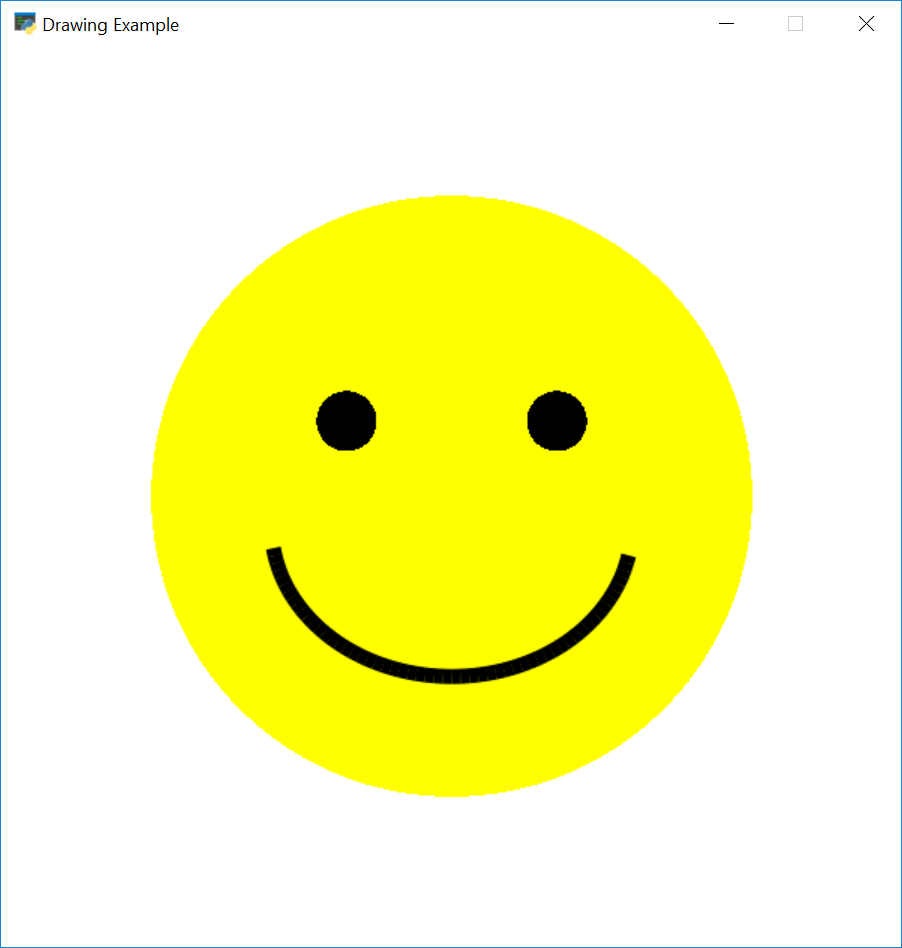
画快乐笑脸示例

"""
画快乐笑脸示例

"""

import arcade

# 设置屏幕的常量
SCREEN_WIDTH = 600      # 宽度
SCREEN_HEIGHT = 600     # 高度
SCREEN_TITLE = "画快乐笑脸示例,lixingqiu.com"

# 打开窗口
arcade.open_window(SCREEN_WIDTH, SCREEN_HEIGHT, SCREEN_TITLE)

# 设置背景颜色
arcade.set_background_color(arcade.color.WHITE)

# 开始渲染
arcade.start_render()

# 画圆
x = 300; y = 300; radius = 200
arcade.draw_circle_filled(x, y, radius, arcade.color.YELLOW)

# 画右眼睛
x = 370; y = 350; radius = 20
arcade.draw_circle_filled(x, y, radius, arcade.color.BLACK)

# 画左眼睛
x = 230; y = 350; radius = 20
arcade.draw_circle_filled(x, y, radius, arcade.color.BLACK)

# 画微笑(弧)
x = 300; y = 280; width = 120; height = 100
start_angle = 190; end_angle = 350
arcade.draw_arc_outline(x, y, width, height, arcade.color.BLACK,
                        start_angle, end_angle, 10)

# 结束渲染显示结果
arcade.finish_render()


# 运行循环
arcade.run()


发表在 arcade | 画快乐笑脸示例已关闭评论

Python街机模块画渐变图形透明度例子,译者:李兴球

"""
画渐变图形例子
"""
import arcade

# 常量定义
SCREEN_WIDTH = 800
SCREEN_HEIGHT = 600
SCREEN_TITLE = "Python街机模块画渐变图形透明度例子,译者:李兴球"


class MyGame(arcade.Window):
    """
    继承自窗口的游戏类
    """

    def __init__(self, width, height, title):
        """
        初始化方法
        """

        super().__init__(width, height, title) # 调用父类方法开窗口

        arcade.set_background_color(arcade.color.BLACK)# 设置背景颜色

        self.shapes = arcade.ShapeElementList()        # 形状项目列表

        # 这个最大的矩形做为背景
        # 颜色在两色之间渐变
        # 自顶向下渐变
        color1 = (215, 0, 50)
        color2 = (0, 255, 0)
        points = (0, 0), (SCREEN_WIDTH, 0), (SCREEN_WIDTH, SCREEN_HEIGHT), (0, SCREEN_HEIGHT)
        colors = (color1, color1, color2, color2)
        rect = arcade.create_rectangle_filled_with_colors(points, colors)
        self.shapes.append(rect)

        # 下面颜色不变,但是透明度改变,从左到右 
        color1 = (0, 255, 255, 255) # 青色,不透明
        color2 = (0, 255, 255, 0)   # 青色, 透明
        points = (100, 100), (SCREEN_WIDTH - 100, 100), (SCREEN_WIDTH - 100, 300), (100, 300)
        colors = (color2, color1, color1, color2)
        rect = arcade.create_rectangle_filled_with_colors(points, colors)
        self.shapes.append(rect)

        # 两条线
        color1 = (7, 67, 88)
        color2 = (69, 137, 133)
        points = (100, 400), (SCREEN_WIDTH - 100, 400), (SCREEN_WIDTH - 100, 500), (100, 500)
        colors = (color2, color1, color2, color1)
        shape = arcade.create_lines_with_colors(points, colors, line_width=5)
        self.shapes.append(shape)

        # 三角形
        color1 = (215, 214, 165)
        color2 = (219, 166, 123)
        color3 = (165, 92, 85)
        points = (SCREEN_WIDTH // 2, 500), (SCREEN_WIDTH // 2 - 100, 400), (SCREEN_WIDTH // 2 + 100, 400)
        colors = (color1, color2, color3)
        shape = arcade.create_triangles_filled_with_colors(points, colors)
        self.shapes.append(shape)

        # 椭圆从里到外渐变,(模拟3D效果)
        color1 = (69, 137, 133, 127)
        color2 = (7, 67, 88, 127)
        shape = arcade.create_ellipse_filled_with_colors(SCREEN_WIDTH // 2, 350, 50, 50,
                                                         inside_color=color1, outside_color=color2)
        self.shapes.append(shape)

    def on_draw(self):
        """
        渲染屏幕
        """

        # 开始渲染
        arcade.start_render()
        self.shapes.draw()
        # arcade.draw_rectangle_filled(500, 500, 50, 50, (255, 0, 0, 127))


def main():

    MyGame(SCREEN_WIDTH, SCREEN_HEIGHT, SCREEN_TITLE)
    arcade.run()


if __name__ == "__main__":
    main()


发表在 arcade | Python街机模块画渐变图形透明度例子,译者:李兴球已关闭评论

arcade全屏和窗口模式切换示例

"""
全屏示例,让角色在一个大屏幕内滚动 
"""

import arcade
import os

SPRITE_SCALING = 0.5

SCREEN_WIDTH = 800
SCREEN_HEIGHT = 600
SCREEN_TITLE = "全屏示例"

# How many pixels to keep as a minimum margin between the character
# and the edge of the screen.
VIEWPORT_MARGIN = 40

MOVEMENT_SPEED = 5


class MyGame(arcade.Window):
    """ Main application class. """

    def __init__(self):
        """
        Initializer
        """
        # 以全屏幕模式打开窗口,如果不想,则移去fullscreen这个参数
        super().__init__(SCREEN_WIDTH, SCREEN_HEIGHT, SCREEN_TITLE, fullscreen=True)

        # 设置工作目录
        file_path = os.path.dirname(os.path.abspath(__file__))
        os.chdir(file_path)

        # This will get the size of the window, and set the viewport to match.
        # So if the window is 1000x1000, then so will our viewport. If
        # you want something different, then use those coordinates instead.
        width, height = self.get_size()
        self.set_viewport(0, width, 0, height)
        arcade.set_background_color(arcade.color.AMAZON)
        self.example_image = arcade.load_texture("images/boxCrate_double.png")

    def on_draw(self):
        """
        Render the screen.
        """

        arcade.start_render()

        # 得到视区尺寸
        left, screen_width, bottom, screen_height = self.get_viewport()

        # Draw text on the screen so the user has an idea of what is happening
        arcade.draw_text("按F键在全屏和非全屏之间切换,不拉伸",
                         screen_width // 4, screen_height // 2, arcade.color.WHITE, 24, width=300, anchor_x="center")
        arcade.draw_text("按s键在全屏和窗口模式之间切换, 拉伸",
                         screen_width // 4 + screen_width // 2, screen_height // 2,
                         arcade.color.WHITE, 24, width=300, anchor_x="center")

        # 在底部画盒子
        for x in range(64, 800, 128):
            y = 64
            width = 128
            height = 128
            arcade.draw_texture_rectangle(x, y, width, height, self.example_image)


    def on_key_press(self, key, modifiers):
        """Called whenever a key is pressed. """
        if key == arcade.key.F:
            # 如果按了f键,则切换
            self.set_fullscreen(not self.fullscreen)

            # Get the window coordinates. Match viewport to window coordinates
            # so there is a one-to-one mapping.
            width, height = self.get_size()
            self.set_viewport(0, width, 0, height)

        if key == arcade.key.S:
            # 如果按了s键,则切换
            self.set_fullscreen(not self.fullscreen)

            # Instead of a one-to-one mapping, stretch/squash window to match the
            # constants. This does NOT respect aspect ratio. You'd need to
            # do a bit of math for that.
            self.set_viewport(0, SCREEN_WIDTH, 0, SCREEN_HEIGHT)


def main():
    """ Main method """
    MyGame()
    arcade.run()


if __name__ == "__main__":
    main()


发表在 arcade | arcade全屏和窗口模式切换示例已关闭评论

Python街机模块键盘操作的双棍射击游戏示例

"""
键盘操作的双棍射击游戏示例
双棍就是街机游戏厅里的操作角色方向的那两根杆子,由于没有双棍,所以把相关的代码去掉了。

"""
import arcade
import random
import math
import os
import pprint

SCREEN_WIDTH = 1024
SCREEN_HEIGHT = 768
SCREEN_TITLE = "Python街机模块键盘操作的双棍射击游戏示例,译者:李兴球"
MOVEMENT_SPEED = 4
BULLET_SPEED = 10
BULLET_COOLDOWN_TICKS = 10
ENEMY_SPAWN_INTERVAL = 1
ENEMY_SPEED = 1 

  
class Player(arcade.sprite.Sprite):
    def __init__(self, filename):
        super().__init__(filename=filename, scale=0.4, center_x=SCREEN_WIDTH/2, center_y=SCREEN_HEIGHT/2)
        self.shoot_up_pressed = False
        self.shoot_down_pressed = False
        self.shoot_left_pressed = False
        self.shoot_right_pressed = False


class Enemy(arcade.sprite.Sprite):
    def __init__(self, x, y):
        super().__init__(filename='images/bumper.png', scale=0.5, center_x=x, center_y=y)

    def follow_sprite(self, player_sprite):
        """
        本函数会让敌人朝玩家角色的方向移动

        We use the 'min' function here to get the sprite to line up with
        the target sprite, and not jump around if the sprite is not off
        an exact multiple of ENEMY_SPEED.
        """
        # 如果敌人的y坐标小于飞船的y坐标,那么就让它向上移动。每次移动的最大距离是ENEMY_SPEED
        if self.center_y < player_sprite.center_y:
            self.center_y += min(ENEMY_SPEED, player_sprite.center_y - self.center_y)
        elif self.center_y > player_sprite.center_y:
            self.center_y -= min(ENEMY_SPEED, self.center_y - player_sprite.center_y)
        # 如果敌人在玩家左边,就让它向右移动,每次移动的最大距离是ENEMY_SPEED
        if self.center_x < player_sprite.center_x:
            self.center_x += min(ENEMY_SPEED, player_sprite.center_x - self.center_x)
        elif self.center_x > player_sprite.center_x:
            self.center_x -= min(ENEMY_SPEED, self.center_x - player_sprite.center_x)


class MyGame(arcade.Window):
    def __init__(self, width, height, title):
        super().__init__(width, height, title)

        # 设置游戏工作目录,如果用python -m启动时需要,否则不需要
        file_path = os.path.dirname(os.path.abspath(__file__))
        os.chdir(file_path)

        arcade.set_background_color(arcade.color.DARK_MIDNIGHT_BLUE)
        self.game_over = False
        self.score = 0
        self.tick = 0
        self.bullet_cooldown = 0
        self.player = Player("images/playerShip2_orange.png") # 新建玩家角色
        self.bullet_list = arcade.SpriteList()                # 子弹列表
        self.enemy_list = arcade.SpriteList()                 # 敌人列表
        arcade.window_commands.schedule(self.spawn_enemy, ENEMY_SPAWN_INTERVAL)# 计划安排定时任务
 

    def spawn_enemy(self, elapsed):
        """生成敌人"""
        if self.game_over:
            return
        x = random.randint(0, SCREEN_WIDTH)
        y = random.randint(0, SCREEN_HEIGHT)
        self.enemy_list.append(Enemy(x, y))

    def update(self, delta_time):
        self.tick += 1
        if self.game_over:
            return

        self.bullet_cooldown += 1             # 这是计数器,用来限制发射击子弹不要太快

        for enemy in self.enemy_list:         # 每个敌人都朝向玩家移动
            enemy.follow_sprite(self.player)


        # Keyboard input - shooting
        if self.player.shoot_right_pressed and self.player.shoot_up_pressed:
            self.spawn_bullet(0+45)
        elif self.player.shoot_up_pressed and self.player.shoot_left_pressed:
            self.spawn_bullet(90+45)
        elif self.player.shoot_left_pressed and self.player.shoot_down_pressed:
            self.spawn_bullet(180+45)
        elif self.player.shoot_down_pressed and self.player.shoot_right_pressed:
            self.spawn_bullet(270+45)
        elif self.player.shoot_right_pressed:
            self.spawn_bullet(0)
        elif self.player.shoot_up_pressed:
            self.spawn_bullet(90)
        elif self.player.shoot_left_pressed:
            self.spawn_bullet(180)
        elif self.player.shoot_down_pressed:
            self.spawn_bullet(270)

        self.enemy_list.update()
        self.player.update()
        self.bullet_list.update()
        # 玩家和敌人组的碰撞检测
        ship_death_hit_list = arcade.check_for_collision_with_list(self.player, self.enemy_list)
        if len(ship_death_hit_list) > 0: # 碰到任一个这个列表长度都是大于0,所以游戏结束了
            self.game_over = True
        for bullet in self.bullet_list:  # 每颗子弹和敌人组的碰撞检测
            bullet_killed = False
            enemy_shot_list = arcade.check_for_collision_with_list(bullet, self.enemy_list)
            # 遍历碰到的每个敌人,删除它们.
            for enemy in enemy_shot_list:
                enemy.kill()
                bullet.kill()
                bullet_killed = True
                self.score += 1
            if bullet_killed:
                continue

    def on_key_press(self, key, modifiers):
        if key == arcade.key.W:
            self.player.change_y = MOVEMENT_SPEED
            self.player.angle = 0
        elif key == arcade.key.A:
            self.player.change_x = -MOVEMENT_SPEED
            self.player.angle = 90
        elif key == arcade.key.S:
            self.player.change_y = -MOVEMENT_SPEED
            self.player.angle = 180
        elif key == arcade.key.D:
            self.player.change_x = MOVEMENT_SPEED
            self.player.angle = 270
        elif key == arcade.key.RIGHT:
            self.player.shoot_right_pressed = True
        elif key == arcade.key.UP:
            self.player.shoot_up_pressed = True
        elif key == arcade.key.LEFT:
            self.player.shoot_left_pressed = True
        elif key == arcade.key.DOWN:
            self.player.shoot_down_pressed = True

    def on_key_release(self, key, modifiers):
        if key == arcade.key.W:
            self.player.change_y = 0
        elif key == arcade.key.A:
            self.player.change_x = 0
        elif key == arcade.key.S:
            self.player.change_y = 0
        elif key == arcade.key.D:
            self.player.change_x = 0
        elif key == arcade.key.RIGHT:
            self.player.shoot_right_pressed = False
        elif key == arcade.key.UP:
            self.player.shoot_up_pressed = False
        elif key == arcade.key.LEFT:
            self.player.shoot_left_pressed = False
        elif key == arcade.key.DOWN:
            self.player.shoot_down_pressed = False

    def spawn_bullet(self, angle_in_deg):
        # self.bullet_cooldown的值没有到达TICKS值是直接返回
        if self.bullet_cooldown < BULLET_COOLDOWN_TICKS:
            return
        self.bullet_cooldown = 0

        bullet = arcade.Sprite("images/laserBlue01.png", 0.75)

        # 把子弹放到飞船坐标
        start_x = self.player.center_x
        start_y = self.player.center_y
        bullet.center_x = start_x
        bullet.center_y = start_y

        #  
        bullet.angle = angle_in_deg
        angle_in_rad = math.radians(angle_in_deg)

        # 设置子弹移动方向
        bullet.change_x = math.cos(angle_in_rad) * BULLET_SPEED
        bullet.change_y = math.sin(angle_in_rad) * BULLET_SPEED

        # 增加子弹到相应的列表
        self.bullet_list.append(bullet)

    def on_draw(self):
        # 重量所有角色
        arcade.start_render()

        
        self.bullet_list.draw()
        self.enemy_list.draw()
        self.player.draw()

        # 画文本,把得分情况放到屏幕上
        output = f"Score: {self.score}"
        arcade.draw_text(output, 10, 20, arcade.color.WHITE, 14)

        # 结束语
        if self.game_over:
            arcade.draw_text("Game Over", SCREEN_WIDTH/2, SCREEN_HEIGHT/2, arcade.color.WHITE, 100, width=SCREEN_WIDTH,
                             align="center", anchor_x="center", anchor_y="center")


if __name__ == "__main__":
    game = MyGame(SCREEN_WIDTH, SCREEN_HEIGHT, SCREEN_TITLE)
    arcade.run()


发表在 arcade | Python街机模块键盘操作的双棍射击游戏示例已关闭评论

用函数画个场景示例,场景为蓝天松树鸟飞

"""
用函数画个场景示例,场景为蓝天松树鸟飞
"""

# 导入arcade库
import arcade

# 常量定义
SCREEN_WIDTH = 600
SCREEN_HEIGHT = 600
SCREEN_TITLE = "用函数画个场景示例_译者:李兴球"

def draw_background():
    """
    此函数画背景,2/3屏幕为天空,下面为地面
    """
    # 画矩形
    arcade.draw_lrtb_rectangle_filled(0,
                                      SCREEN_WIDTH,
                                      SCREEN_HEIGHT,
                                      SCREEN_HEIGHT * (1 / 3),
                                      arcade.color.SKY_BLUE)

    # 画矩形
    arcade.draw_lrtb_rectangle_filled(0,
                                      SCREEN_WIDTH,
                                      SCREEN_HEIGHT / 3,
                                      0,
                                      arcade.color.DARK_SPRING_GREEN)


def draw_bird(x, y):
    """
    画两个弧形表示一只鸟
    """
    arcade.draw_arc_outline(x, y, 20, 20, arcade.color.BLACK, 0, 90)
    arcade.draw_arc_outline(x + 40, y, 20, 20, arcade.color.BLACK, 90, 180)


def draw_pine_tree(x, y):
    """
    本函数画颗松树
    """
    # Draw the triangle on top of the trunk
    arcade.draw_triangle_filled(x + 40, y,
                                x, y - 100,
                                x + 80, y - 100,
                                arcade.color.DARK_GREEN)

    # 画树杆,lrtb是left,right,top,bottom,如下:
    # left:	矩形最左边的x坐标
    # right:	矩形最右边的x坐标
    # top:	矩形最上边的y坐标
    # bottom:	矩形最下边的y坐标
    # color:	矩形的颜色
    # border_width:	矩形边框的宽度像素值,默认为1.

    arcade.draw_lrtb_rectangle_filled(x + 30, x + 50, y - 100, y - 140,
                                      arcade.color.DARK_BROWN)


def main():
    """
    This is the main program.
    """

    # 打开一个窗口,参数为宽度高度标题
    arcade.open_window(SCREEN_WIDTH, SCREEN_HEIGHT, SCREEN_TITLE)
   
    # 开始渲染,它要在所有命令之前
    arcade.start_render()

    # 调用所有的函数
    draw_background()
    draw_pine_tree(50, 250)
    draw_pine_tree(350, 320)
    draw_bird(70, 500)
    draw_bird(470, 550)

    #结束渲染
    arcade.finish_render()

    # 进入游戏循环
    arcade.run()


if __name__ == "__main__":
    main()


发表在 arcade | 用函数画个场景示例,场景为蓝天松树鸟飞已关闭评论

Python街机游戏arcade模块文本绘画示例集合

"""
 这个例子显示如何在屏幕上画文本和旋转文本,需要arcade模块支持。

 """
import arcade

# 常量定义

SCREEN_WIDTH = 500     # 屏幕宽度     
SCREEN_HEIGHT = 500    # 屏幕高度
SCREEN_TITLE = "Python街机游戏arcade模块文本绘画示例集合"

class MyGame(arcade.Window):
    """
    Main application class.
    """

    def __init__(self, width, height, title):
        super().__init__(width, height, title)

        arcade.set_background_color(arcade.color.WHITE)
        self.text_angle = 0
        self.time_elapsed = 0.0

    def update(self, delta_time):
        self.text_angle += 1
        self.time_elapsed += delta_time

    def on_draw(self):
        """
        Render the screen.
        """
        # 此命令应该在所有绘画命令之前调用,它会清空屏幕重画所有对象。 
        arcade.start_render()

        # start_x 和 start_y 是文本的开始坐标. 我们画个点的目的就是为了更清晰地看到文本渲染的位置.
        start_x = 50
        start_y = 450
        arcade.draw_point(start_x, start_y, arcade.color.BLUE, 15) # 画个点做个标记
        arcade.draw_text("Simple line of text in 12 point", start_x, start_y, arcade.color.BLACK, 12,font_name='simhei')

        start_x = 50
        start_y = 150
        arcade.draw_point(start_x, start_y, arcade.color.BLUE, 5)
        arcade.draw_text("Garamond Text", start_x, start_y, arcade.color.BLACK, 15, font_name='GARA')

        start_x = 50
        start_y = 400
        arcade.draw_point(start_x, start_y, arcade.color.BLUE, 5)
        arcade.draw_text("Text anchored 'top' and 'left'.",
                         start_x, start_y, arcade.color.BLACK, 12, anchor_x="left", anchor_y="top")

        start_y = 350
        arcade.draw_point(start_x, start_y, arcade.color.BLUE, 5)
        arcade.draw_text("14 point multi\nline\ntext",
                         start_x, start_y, arcade.color.BLACK, 14, anchor_y="top")

        start_y = 450
        start_x = 300
        width = 200
        height = 20
        arcade.draw_point(start_x, start_y, arcade.color.BLUE, 5)
        arcade.draw_lrtb_rectangle_outline(start_x, start_x + width,
                                           start_y + height, start_y,
                                           arcade.color.BLUE, 1)
        arcade.draw_text("Centered Text.",
                         start_x, start_y, arcade.color.BLACK, 14, width=200, align="center")

        start_y = 250
        start_x = 300
        arcade.draw_point(start_x, start_y, arcade.color.BLUE, 5)
        arcade.draw_text("Text centered on\na point",
                         start_x, start_y, arcade.color.BLACK, 14, width=200, align="center",
                         anchor_x="center", anchor_y="center")

        start_y = 150
        start_x = 300
        arcade.draw_point(start_x, start_y, arcade.color.BLUE, 5)
        arcade.draw_text("Text rotated on\na point", start_x, start_y,
                         arcade.color.BLACK, 14, width=200, align="center", anchor_x="center",
                         anchor_y="center", rotation=self.text_angle)     # self.text_angle每次更新update后它的值会增加1

        start_y = 150
        start_x = 20
        arcade.draw_point(start_x, start_y, arcade.color.BLUE, 5)
        arcade.draw_text("Sideways text", start_x, start_y,
                         arcade.color.BLACK, 14, width=200, align="center",
                         anchor_x="center", anchor_y="center", rotation=90.0)

        start_y = 20
        start_x = 50
        arcade.draw_point(start_x, start_y, arcade.color.BLUE, 5)
        arcade.draw_text(f"Time elapsed: {self.time_elapsed:7.1f}",
                         start_x, start_y, arcade.color.BLACK, 14)


def main():
    MyGame(SCREEN_WIDTH, SCREEN_HEIGHT, SCREEN_TITLE)
    arcade.run()


if __name__ == "__main__":
    main()


发表在 arcade | Python街机游戏arcade模块文本绘画示例集合已关闭评论

Python街机模块的draw系列绘画例子集合

"""
draw系列绘画例子集合
"""

import arcade
import os

# 设置工作目录,以python -m启动程序时才有意义
file_path = os.path.dirname(os.path.abspath(__file__))
os.chdir(file_path)

# 设置分辨率和标题打开窗口,
arcade.open_window(600, 600, "arcade街机模块draw绘画举例_译者:李兴球")

# 设置背景颜色,查看所有颜色请参考以下网址:
# https://www.lixingqiu.com/?p=40

arcade.set_background_color(arcade.color.WHITE)

# 开始渲染
arcade.start_render()

# 画格子
for x in range(0, 601, 120):
    arcade.draw_line(x, 0, x, 600, arcade.color.BLACK, 2)

# 画水平线条
for y in range(0, 601, 200):
    arcade.draw_line(0, y, 800, y, arcade.color.BLACK, 2)

# 画一个点
arcade.draw_text("draw_point", 3, 405, arcade.color.BLACK, 12)
arcade.draw_point(60, 495, arcade.color.RED, 10)

# 画一些点
arcade.draw_text("draw_points", 123, 405, arcade.color.BLACK, 12)
point_list = ((165, 495),
              (165, 480),
              (165, 465),
              (195, 495),
              (195, 480),
              (195, 465))
arcade.draw_points(point_list, arcade.color.ZAFFRE, 10)

# 画一根线条
arcade.draw_text("draw_line", 243, 405, arcade.color.BLACK, 12)
arcade.draw_line(270, 495, 300, 450, arcade.color.WOOD_BROWN, 3)

# 画一些线行
arcade.draw_text("draw_lines", 363, 405, arcade.color.BLACK, 12)
point_list = ((390, 450),
              (450, 450),
              (390, 480),
              (450, 480),
              (390, 510),
              (450, 510)
              )
arcade.draw_lines(point_list, arcade.color.BLUE, 3)

# 画连线条
arcade.draw_text("draw_line_strip", 483, 405, arcade.color.BLACK, 12)
point_list = ((510, 450),
              (570, 450),
              (510, 480),
              (570, 480),
              (510, 510),
              (570, 510)
              )
arcade.draw_line_strip(point_list, arcade.color.TROPICAL_RAIN_FOREST, 3)

# 画多边形
arcade.draw_text("draw_polygon_outline", 3, 207, arcade.color.BLACK, 9)
point_list = ((30, 240),
              (45, 240),
              (60, 255),
              (60, 285),
              (45, 300),
              (30, 300))
arcade.draw_polygon_outline(point_list, arcade.color.SPANISH_VIOLET, 3)

# 画填充的多边形
arcade.draw_text("draw_polygon_filled", 123, 207, arcade.color.BLACK, 9)
point_list = ((150, 240),
              (165, 240),
              (180, 255),
              (180, 285),
              (165, 300),
              (150, 300))
arcade.draw_polygon_filled(point_list, arcade.color.SPANISH_VIOLET)

# 画空心圆
arcade.draw_text("draw_circle_outline", 243, 207, arcade.color.BLACK, 10)
arcade.draw_circle_outline(300, 285, 18, arcade.color.WISTERIA, 3)

# 画实心圆
arcade.draw_text("draw_circle_filled", 363, 207, arcade.color.BLACK, 10)
arcade.draw_circle_filled(420, 285, 18, arcade.color.GREEN)

# 画空心椭圆,有一个旋转了45度
arcade.draw_text("draw_ellipse_outline", 483, 207, arcade.color.BLACK, 10)
arcade.draw_ellipse_outline(540, 273, 15, 36, arcade.color.AMBER, 3)
arcade.draw_ellipse_outline(540, 336, 15, 36,
                            arcade.color.BLACK_BEAN, 3, 45)

# 画实心椭圆,有一个旋转了45度
arcade.draw_text("draw_ellipse_filled", 3, 3, arcade.color.BLACK, 10)
arcade.draw_ellipse_filled(60, 81, 15, 36, arcade.color.AMBER)
arcade.draw_ellipse_filled(60, 144, 15, 36,
                           arcade.color.BLACK_BEAN, 45)

# 画圆弧,有一个旋转了角度
arcade.draw_text("draw_arc/filled_arc", 123, 3, arcade.color.BLACK, 10)
arcade.draw_arc_outline(150, 81, 15, 36,
                        arcade.color.BRIGHT_MAROON, 90, 360)
arcade.draw_arc_filled(150, 144, 15, 36,
                       arcade.color.BOTTLE_GREEN, 90, 360, 45)

# 画空心矩形,有一个旋转了45度
arcade.draw_text("draw_rect", 243, 3, arcade.color.BLACK, 10)
arcade.draw_rectangle_outline(295, 100, 45, 65,
                              arcade.color.BRITISH_RACING_GREEN)
arcade.draw_rectangle_outline(295, 160, 20, 45,
                              arcade.color.BRITISH_RACING_GREEN, 3, 45)

# 画实心矩形,有一个旋转了45度
arcade.draw_text("draw_filled_rect", 363, 3, arcade.color.BLACK, 10)
arcade.draw_rectangle_filled(420, 100, 45, 65, arcade.color.BLUSH)
arcade.draw_rectangle_filled(420, 160, 20, 40, arcade.color.BLUSH, 45)

# 加载图像显示出来
# Image from kenney.nl asset pack #1
arcade.draw_text("draw_bitmap", 483, 3, arcade.color.BLACK, 12)
texture = arcade.load_texture("images/playerShip1_orange.png")
scale = .6
arcade.draw_texture_rectangle(540, 120, scale * texture.width,
                              scale * texture.height, texture, 0)
arcade.draw_texture_rectangle(540, 60, scale * texture.width,
                              scale * texture.height, texture, 45)

# 在所有绘画完成后,调用结束渲染 
arcade.finish_render()

# 进入运行循环
arcade.run()


发表在 arcade | Python街机模块的draw系列绘画例子集合已关闭评论

蓝天排松鸟飞图_带装饰器的绘画

"""蓝天排松鸟飞图_演示arcade装饰器的用法。
这是画一幅很多鸟在蓝天上飞的动画。蓝天下面是两排松树。
"""

# 导入模块
import arcade
import random

SCREEN_WIDTH = 800
SCREEN_HEIGHT = 600


def draw_background(window):
    """
    本函数画地面和蓝天
    """
    # 在屏幕三分之二的上面区域画蓝天
    arcade.draw_rectangle_filled(SCREEN_WIDTH / 2, SCREEN_HEIGHT * 2 / 3,
                                 SCREEN_WIDTH - 1, SCREEN_HEIGHT * 2 / 3,
                                 arcade.color.SKY_BLUE)

    # 在屏幕靠下三分之一画绿地
    arcade.draw_rectangle_filled(SCREEN_WIDTH / 2, SCREEN_HEIGHT / 6,
                                 SCREEN_WIDTH - 1, SCREEN_HEIGHT / 3,
                                 arcade.color.DARK_SPRING_GREEN)


def draw_bird(x, y):
    """
    画一只鸟
    """
    arcade.draw_arc_outline(x, y, 20, 20, arcade.color.BLACK, 0, 90)
    arcade.draw_arc_outline(x + 40, y, 20, 20, arcade.color.BLACK, 90, 180)


def draw_pine_tree(center_x, center_y):
    """
    在指定坐标画一颗松树

    Args:
      :center_x: x position of the tree center.
      :center_y: y position of the tree trunk center.
    """
    # 画树杆
    arcade.draw_rectangle_filled(center_x, center_y, 20, 40, arcade.color.DARK_BROWN)

    tree_bottom_y = center_y + 20

    # 画三角形
    point_list = ((center_x - 40, tree_bottom_y),
                  (center_x, tree_bottom_y + 100),
                  (center_x + 40, tree_bottom_y))

    arcade.draw_polygon_filled(point_list, arcade.color.DARK_GREEN)


def draw_birds(window):    # 画所有的鸟
    for bird in window.bird_list:

        # 画这个鸟
        draw_bird(bird[0], bird[1])


def draw_trees(window):

    # 画上排松树
    for x in range(45, SCREEN_WIDTH, 90):
        draw_pine_tree(x, SCREEN_HEIGHT / 3)

    # 画下排松树
    for x in range(65, SCREEN_WIDTH, 90):
        draw_pine_tree(x, (SCREEN_HEIGHT / 3) - 120)


@arcade.decorator.setup
def create_birds(window):
    """这里只是创建一个列表,列表里装着一些坐标对。这些坐标都是随机的,给鸟用。
    This, and any function with the arcade.decorator.init decorator,
    is run automatically on start-up.用了这个装饰器后会在启动时自动运行。
    """

    window.bird_list = []
    for bird_count in range(10):
        x = random.randrange(SCREEN_WIDTH)
        y = random.randrange(SCREEN_HEIGHT / 2, SCREEN_HEIGHT)
        window.bird_list.append([x, y])


@arcade.decorator.update
def animate_birds(window, delta_time):
    """
    每60分之一秒运行一次,这里只是改变坐标。 Do not draw anything
    in this function.
    """
    change_y = 0.3

    for bird in window.bird_list:
        bird[0] += change_y
        if bird[0] > SCREEN_WIDTH + 20:
            bird[0] = -20


@arcade.decorator.draw
def draw(window):
    """
    每60分之一秒运行一次,这里重画所有图形,并不改变坐标。
    """
    # 调用所有画的函数。
    draw_background(window)
    draw_birds(window)
    draw_trees(window)


if __name__ == "__main__":
    arcade.decorator.run(SCREEN_WIDTH, SCREEN_HEIGHT, title="蓝天排松鸟飞图_带装饰器的绘画_译者:李兴球")

发表在 arcade | 蓝天排松鸟飞图_带装饰器的绘画已关闭评论

arcade街机所有的颜色字符串表示

表示方法示例:arcade.color.RED,代表红色。arcade.color.AMAZON,亚马逊绿

AERO_BLUE = (201, 255, 229)
AFRICAN_VIOLET = (178, 132, 190)
AIR_FORCE_BLUE = (93, 138, 168)
AIR_SUPERIORITY_BLUE = (114, 160, 193)
ALABAMA_CRIMSON = (175, 0, 42)
ALICE_BLUE = (240, 248, 255)
ALIZARIN_CRIMSON = (227, 38, 54)
ALLOY_ORANGE = (196, 98, 16)
ALMOND = (239, 222, 205)
AMARANTH = (229, 43, 80)
AMARANTH_PINK = (241, 156, 187)
AMARANTH_PURPLE = (171, 39, 79)
AMAZON = (59, 122, 87)
AMBER = (255, 191, 0)
SAE = (255, 126, 0)
AMERICAN_ROSE = (255, 3, 62)
AMETHYST = (153, 102, 204)
ANDROID_GREEN = (164, 198, 57)
ANTI_FLASH_WHITE = (242, 243, 244)
ANTIQUE_BRASS = (205, 149, 117)
ANTIQUE_BRONZE = (102, 93, 30)
ANTIQUE_FUCHSIA = (145, 92, 131)
ANTIQUE_RUBY = (132, 27, 45)
ANTIQUE_WHITE = (250, 235, 215)
AO = (0, 128, 0)
APPLE_GREEN = (141, 182, 0)
APRICOT = (251, 206, 177)
AQUA = (0, 255, 255)
AQUAMARINE = (127, 255, 212)
ARMY_GREEN = (75, 83, 32)
ARSENIC = (59, 68, 75)
ARTICHOKE = (143, 151, 121)
ARYLIDE_YELLOW = (233, 214, 107)
ASH_GREY = (178, 190, 181)
ASPARAGUS = (135, 169, 107)
ATOMIC_TANGERINE = (255, 153, 102)
AUBURN = (165, 42, 42)
AUREOLIN = (253, 238, 0)
AUROMETALSAURUS = (110, 127, 128)
AVOCADO = (86, 130, 3)
AZURE = (0, 127, 255)
AZURE_MIST = (240, 255, 255)
BABY_BLUE = (137, 207, 240)
BABY_BLUE_EYES = (161, 202, 241)
BABY_PINK = (244, 194, 194)
BABY_POWDER = (254, 254, 250)
BAKER_MILLER_PINK = (255, 145, 175)
BALL_BLUE = (33, 171, 205)
BANANA_MANIA = (250, 231, 181)
BANANA_YELLOW = (255, 225, 53)
BANGLADESH_GREEN = (0, 106, 78)
BARBIE_PINK = (224, 33, 138)
BARN_RED = (124, 10, 2)
BATTLESHIP_GREY = (132, 132, 130)
BAZAAR = (152, 119, 123)
BEAU_BLUE = (188, 212, 230)
BRIGHT_LILAC = (216, 145, 239)
BEAVER = (159, 129, 112)
BEIGE = (245, 245, 220)
BISQUE = (255, 228, 196)
BISTRE = (61, 43, 31)
BISTRE_BROWN = (150, 113, 23)
BITTER_LEMON = (202, 224, 13)
BITTER_LIME = (100, 140, 17)
BITTERSWEET = (254, 111, 94)
BITTERSWEET_SHIMMER = (191, 79, 81)
BLACK = (0, 0, 0)
BLACK_BEAN = (61, 12, 2)
BLACK_LEATHER_JACKET = (37, 53, 41)
BLACK_OLIVE = (59, 60, 54)
BLANCHED_ALMOND = (255, 235, 205)
BLAST_OFF_BRONZE = (165, 113, 100)
BLEU_DE_FRANCE = (49, 140, 231)
BLIZZARD_BLUE = (172, 229, 238)
BLOND = (250, 240, 190)
BLUE = (0, 0, 255)
BLUE_BELL = (162, 162, 208)
BLUE_GRAY = (102, 153, 204)
BLUE_GREEN = (13, 152, 186)
BLUE_SAPPHIRE = (18, 97, 128)
BLUE_VIOLET = (138, 43, 226)
BLUE_YONDER = (80, 114, 167)
BLUEBERRY = (79, 134, 247)
BLUEBONNET = (28, 28, 240)
BLUSH = (222, 93, 131)
BOLE = (121, 68, 59)
BONDI_BLUE = (0, 149, 182)
BONE = (227, 218, 201)
BOSTON_UNIVERSITY_RED = (204, 0, 0)
BOTTLE_GREEN = (0, 106, 78)
BOYSENBERRY = (135, 50, 96)
BRANDEIS_BLUE = (0, 112, 255)
BRASS = (181, 166, 66)
BRICK_RED = (203, 65, 84)
BRIGHT_CERULEAN = (29, 172, 214)
BRIGHT_GREEN = (102, 255, 0)
BRIGHT_LAVENDER = (191, 148, 228)
BRIGHT_MAROON = (195, 33, 72)
BRIGHT_NAVY_BLUE = (25, 116, 210)
BRIGHT_PINK = (255, 0, 127)
BRIGHT_TURQUOISE = (8, 232, 222)
BRIGHT_UBE = (209, 159, 232)
BRILLIANT_LAVENDER = (244, 187, 255)
BRILLIANT_ROSE = (255, 85, 163)
BRINK_PINK = (251, 96, 127)
BRITISH_RACING_GREEN = (0, 66, 37)
BRONZE = (205, 127, 50)
BRONZE_YELLOW = (115, 112, 0)
BROWN = (165, 42, 42)
BROWN_NOSE = (107, 68, 35)
BRUNSWICK_GREEN = (27, 77, 62)
BUBBLE_GUM = (255, 193, 204)
BUBBLES = (231, 254, 255)
BUD_GREEN = (123, 182, 97)
BUFF = (240, 220, 130)
BULGARIAN_ROSE = (72, 6, 7)
BURGUNDY = (128, 0, 32)
BURLYWOOD = (222, 184, 135)
BURNT_ORANGE = (204, 85, 0)
BURNT_SIENNA = (233, 116, 81)
BURNT_UMBER = (138, 51, 36)
BYZANTINE = (189, 51, 164)
BYZANTIUM = (112, 41, 99)
CADET = (83, 104, 114)
CADET_BLUE = (95, 158, 160)
CADET_GREY = (145, 163, 176)
CADMIUM_GREEN = (0, 107, 60)
CADMIUM_ORANGE = (237, 135, 45)
CADMIUM_RED = (227, 0, 34)
CADMIUM_YELLOW = (255, 246, 0)
CAL_POLY_GREEN = (30, 77, 43)
CAMBRIDGE_BLUE = (163, 193, 173)
CAMEL = (193, 154, 107)
CAMEO_PINK = (239, 187, 204)
CAMOUFLAGE_GREEN = (120, 134, 107)
CANARY_YELLOW = (255, 239, 0)
CANDY_APPLE_RED = (255, 8, 0)
CANDY_PINK = (228, 113, 122)
CAPRI = (0, 191, 255)
CAPUT_MORTUUM = (89, 39, 32)
CARDINAL = (196, 30, 58)
CARIBBEAN_GREEN = (0, 204, 153)
CARMINE = (150, 0, 24)
CARMINE_PINK = (235, 76, 66)
CARMINE_RED = (255, 0, 56)
CARNATION_PINK = (255, 166, 201)
CARNELIAN = (179, 27, 27)
CAROLINA_BLUE = (153, 186, 221)
CARROT_ORANGE = (237, 145, 33)
CASTLETON_GREEN = (0, 86, 63)
CATALINA_BLUE = (6, 42, 120)
CATAWBA = (112, 54, 66)
CEDAR_CHEST = (201, 90, 73)
CEIL = (146, 161, 207)
CELADON = (172, 225, 175)
CELADON_BLUE = (0, 123, 167)
CELADON_GREEN = (47, 132, 124)
CELESTE = (178, 255, 255)
CELESTIAL_BLUE = (73, 151, 208)
CERISE = (222, 49, 99)
CERISE_PINK = (236, 59, 131)
CERULEAN = (0, 123, 167)
CERULEAN_BLUE = (42, 82, 190)
CERULEAN_FROST = (109, 155, 195)
CG_BLUE = (0, 122, 165)
CG_RED = (224, 60, 49)
CHAMOISEE = (160, 120, 90)
CHAMPAGNE = (247, 231, 206)
CHARCOAL = (54, 69, 79)
CHARLESTON_GREEN = (35, 43, 43)
CHARM_PINK = (230, 143, 172)
CHARTREUSE = (127, 255, 0)
CHERRY = (222, 49, 99)
CHERRY_BLOSSOM_PINK = (255, 183, 197)
CHESTNUT = (149, 69, 53)
CHINA_PINK = (222, 111, 161)
CHINA_ROSE = (168, 81, 110)
CHINESE_RED = (170, 56, 30)
CHINESE_VIOLET = (133, 96, 136)
CHOCOLATE = (210, 105, 30)
CHROME_YELLOW = (255, 167, 0)
CINEREOUS = (152, 129, 123)
CINNABAR = (227, 66, 52)
CINNAMON = (210, 105, 30)
CITRINE = (228, 208, 10)
CITRON = (159, 169, 31)
CLARET = (127, 23, 52)
CLASSIC_ROSE = (251, 204, 231)
COAL = (124, 185, 232)
COBALT = (0, 71, 171)
COCOA_BROWN = (210, 105, 30)
COCONUT = (150, 90, 62)
COFFEE = (111, 78, 55)
COLUMBIA_BLUE = (155, 221, 255)
CONGO_PINK = (248, 131, 121)
COOL_BLACK = (0, 46, 99)
COOL_GREY = (140, 146, 172)
COPPER = (184, 115, 51)
COPPER_PENNY = (173, 111, 105)
COPPER_RED = (203, 109, 81)
COPPER_ROSE = (153, 102, 102)
COQUELICOT = (255, 56, 0)
CORAL = (255, 127, 80)
CORAL_PINK = (248, 131, 121)
CORAL_RED = (255, 64, 64)
CORDOVAN = (137, 63, 69)
CORN = (251, 236, 93)
CORNELL_RED = (179, 27, 27)
CORNFLOWER_BLUE = (100, 149, 237)
CORNSILK = (255, 248, 220)
COSMIC_LATTE = (255, 248, 231)
COTTON_CANDY = (255, 188, 217)
CREAM = (255, 253, 208)
CRIMSON = (220, 20, 60)
CRIMSON_GLORY = (190, 0, 50)
CYAN = (0, 255, 255)
CYBER_GRAPE = (88, 66, 124)
CYBER_YELLOW = (255, 211, 0)
DAFFODIL = (255, 255, 49)
DANDELION = (240, 225, 48)
DARK_BLUE = (0, 0, 139)
DARK_BLUE_GRAY = (102, 102, 153)
DARK_BROWN = (101, 67, 33)
DARK_BYZANTIUM = (93, 57, 84)
DARK_CANDY_APPLE_RED = (164, 0, 0)
DARK_CERULEAN = (8, 69, 126)
DARK_CHESTNUT = (152, 105, 96)
DARK_CORAL = (205, 91, 69)
DARK_CYAN = (0, 139, 139)
DARK_ELECTRIC_BLUE = (83, 104, 120)
DARK_GOLDENROD = (184, 134, 11)
DARK_GRAY = (169, 169, 169)
DARK_GREEN = (1, 50, 32)
DARK_IMPERIAL_BLUE = (0, 65, 106)
DARK_JUNGLE_GREEN = (26, 36, 33)
DARK_KHAKI = (189, 183, 107)
DARK_LAVA = (72, 60, 50)
DARK_LAVENDER = (115, 79, 150)
DARK_LIVER = (83, 75, 79)
DARK_MAGENTA = (139, 0, 139)
DARK_MIDNIGHT_BLUE = (0, 51, 102)
DARK_MOSS_GREEN = (74, 93, 35)
DARK_OLIVE_GREEN = (85, 107, 47)
DARK_ORANGE = (255, 140, 0)
DARK_ORCHID = (153, 50, 204)
DARK_PASTEL_BLUE = (119, 158, 203)
DARK_PASTEL_GREEN = (3, 192, 60)
DARK_PASTEL_PURPLE = (150, 111, 214)
DARK_PASTEL_RED = (194, 59, 34)
DARK_PINK = (231, 84, 128)
DARK_POWDER_BLUE = (0, 51, 153)
DARK_PUCE = (79, 58, 60)
DARK_RASPBERRY = (135, 38, 87)
DARK_RED = (139, 0, 0)
DARK_SALMON = (233, 150, 122)
DARK_SCARLET = (86, 3, 25)
DARK_SEA_GREEN = (143, 188, 143)
DARK_SIENNA = (60, 20, 20)
DARK_SKY_BLUE = (140, 190, 214)
DARK_SLATE_BLUE = (72, 61, 139)
DARK_SLATE_GRAY = (47, 79, 79)
DARK_SPRING_GREEN = (23, 114, 69)
DARK_TAN = (145, 129, 81)
DARK_TANGERINE = (255, 168, 18)
DARK_TAUPE = (72, 60, 50)
DARK_TERRA_COTTA = (204, 78, 92)
DARK_TURQUOISE = (0, 206, 209)
DARK_VANILLA = (209, 190, 168)
DARK_VIOLET = (148, 0, 211)
DARK_YELLOW = (155, 135, 12)
DARTMOUTH_GREEN = (0, 112, 60)
DAVY_GREY = (85, 85, 85)
DEBIAN_RED = (215, 10, 83)
DEEP_CARMINE = (169, 32, 62)
DEEP_CARMINE_PINK = (239, 48, 56)
DEEP_CARROT_ORANGE = (233, 105, 44)
DEEP_CERISE = (218, 50, 135)
DEEP_CHAMPAGNE = (250, 214, 165)
DEEP_CHESTNUT = (185, 78, 72)
DEEP_COFFEE = (112, 66, 65)
DEEP_FUCHSIA = (193, 84, 193)
DEEP_JUNGLE_GREEN = (0, 75, 73)
DEEP_LEMON = (245, 199, 26)
DEEP_LILAC = (153, 85, 187)
DEEP_MAGENTA = (204, 0, 204)
DEEP_MAUVE = (212, 115, 212)
DEEP_MOSS_GREEN = (53, 94, 59)
DEEP_PEACH = (255, 203, 164)
DEEP_PINK = (255, 20, 147)
DEEP_PUCE = (169, 92, 104)
DEEP_RUBY = (132, 63, 91)
DEEP_SAFFRON = (255, 153, 51)
DEEP_SKY_BLUE = (0, 191, 255)
DEEP_SPACE_SPARKLE = (74, 100, 108)
DEEP_TAUPE = (126, 94, 96)
DEEP_TUSCAN_RED = (102, 66, 77)
DEER = (186, 135, 89)
DENIM = (21, 96, 189)
DESERT = (193, 154, 107)
DESERT_SAND = (237, 201, 175)
DESIRE = (234, 60, 83)
DIAMOND = (185, 242, 255)
DIM_GRAY = (105, 105, 105)
DIRT = (155, 118, 83)
DODGER_BLUE = (30, 144, 255)
DOGWOOD_ROSE = (215, 24, 104)
DOLLAR_BILL = (133, 187, 101)
DONKEY_BROWN = (102, 76, 40)
DRAB = (150, 113, 23)
DUKE_BLUE = (0, 0, 156)
DUST_STORM = (229, 204, 201)
DUTCH_WHITE = (239, 223, 187)
EARTH_YELLOW = (225, 169, 95)
EBONY = (85, 93, 80)
ECRU = (194, 178, 128)
EERIE_BLACK = (27, 27, 27)
EGGPLANT = (97, 64, 81)
EGGSHELL = (240, 234, 214)
EGYPTIAN_BLUE = (16, 52, 166)
ELECTRIC_BLUE = (125, 249, 255)
ELECTRIC_CRIMSON = (255, 0, 63)
ELECTRIC_CYAN = (0, 255, 255)
ELECTRIC_GREEN = (0, 255, 0)
ELECTRIC_INDIGO = (111, 0, 255)
ELECTRIC_LAVENDER = (244, 187, 255)
ELECTRIC_LIME = (204, 255, 0)
ELECTRIC_PURPLE = (191, 0, 255)
ELECTRIC_ULTRAMARINE = (63, 0, 255)
ELECTRIC_VIOLET = (143, 0, 255)
ELECTRIC_YELLOW = (255, 255, 0)
EMERALD = (80, 200, 120)
EMINENCE = (108, 48, 130)
ENGLISH_GREEN = (27, 77, 62)
ENGLISH_LAVENDER = (180, 131, 149)
ENGLISH_RED = (171, 75, 82)
ENGLISH_VIOLET = (86, 60, 92)
ETON_BLUE = (150, 200, 162)
EUCALYPTUS = (68, 215, 168)
FALLOW = (193, 154, 107)
FALU_RED = (128, 24, 24)
FANDANGO = (181, 51, 137)
FANDANGO_PINK = (222, 82, 133)
FASHION_FUCHSIA = (244, 0, 161)
FAWN = (229, 170, 112)
FELDGRAU = (77, 93, 83)
FELDSPAR = (253, 213, 177)
FERN_GREEN = (79, 121, 66)
FERRARI_RED = (255, 40, 0)
FIELD_DRAB = (108, 84, 30)
FIREBRICK = (178, 34, 34)
FIRE_ENGINE_RED = (206, 32, 41)
FLAME = (226, 88, 34)
FLAMINGO_PINK = (252, 142, 172)
FLATTERY = (107, 68, 35)
FLAVESCENT = (247, 233, 142)
FLAX = (238, 220, 130)
FLIRT = (162, 0, 109)
FLORAL_WHITE = (255, 250, 240)
FLUORESCENT_ORANGE = (255, 191, 0)
FLUORESCENT_PINK = (255, 20, 147)
FLUORESCENT_YELLOW = (204, 255, 0)
FOLLY = (255, 0, 79)
FOREST_GREEN = (34, 139, 34)
FRENCH_BEIGE = (166, 123, 91)
FRENCH_BISTRE = (133, 109, 77)
FRENCH_BLUE = (0, 114, 187)
FRENCH_FUCHSIA = (253, 63, 146)
FRENCH_LILAC = (134, 96, 142)
FRENCH_LIME = (158, 253, 56)
FRENCH_MAUVE = (212, 115, 212)
FRENCH_PINK = (253, 108, 158)
FRENCH_PUCE = (78, 22, 9)
FRENCH_RASPBERRY = (199, 44, 72)
FRENCH_ROSE = (246, 74, 138)
FRENCH_SKY_BLUE = (119, 181, 254)
FRENCH_WINE = (172, 30, 68)
FRESH_AIR = (166, 231, 255)
FUCHSIA = (255, 0, 255)
FUCHSIA_PINK = (255, 119, 255)
FUCHSIA_PURPLE = (204, 57, 123)
FUCHSIA_ROSE = (199, 67, 117)
FULVOUS = (228, 132, 0)
FUZZY_WUZZY = (204, 102, 102)
GAINSBORO = (220, 220, 220)
GAMBOGE = (228, 155, 15)
GENERIC_VIRIDIAN = (0, 127, 102)
GHOST_WHITE = (248, 248, 255)
GIANTS_ORANGE = (254, 90, 29)
GINGER = (176, 101, 0)
GLAUCOUS = (96, 130, 182)
GLITTER = (230, 232, 250)
GO_GREEN = (0, 171, 102)
GOLD = (255, 215, 0)
GOLD_FUSION = (133, 117, 78)
GOLDEN_BROWN = (153, 101, 21)
GOLDEN_POPPY = (252, 194, 0)
GOLDEN_YELLOW = (255, 223, 0)
GOLDENROD = (218, 165, 32)
GRANNY_SMITH_APPLE = (168, 228, 160)
GRAPE = (111, 45, 168)
GRAY = (128, 128, 128)
GRAY_ASPARAGUS = (70, 89, 69)
GRAY_BLUE = (140, 146, 172)
GREEN = (0, 255, 0)
GREEN_YELLOW = (173, 255, 47)
GRULLO = (169, 154, 134)
GUPPIE_GREEN = (0, 255, 127)
HAN_BLUE = (68, 108, 207)
HAN_PURPLE = (82, 24, 250)
HANSA_YELLOW = (233, 214, 107)
HARLEQUIN = (63, 255, 0)
HARVARD_CRIMSON = (201, 0, 22)
HARVEST_GOLD = (218, 145, 0)
HEART_GOLD = (128, 128, 0)
HELIOTROPE = (223, 115, 255)
HELIOTROPE_GRAY = (170, 152, 169)
HOLLYWOOD_CERISE = (244, 0, 161)
HONEYDEW = (240, 255, 240)
HONOLULU_BLUE = (0, 109, 176)
HOOKER_GREEN = (73, 121, 107)
HOT_MAGENTA = (255, 29, 206)
HOT_PINK = (255, 105, 180)
HUNTER_GREEN = (53, 94, 59)
ICEBERG = (113, 166, 210)
ICTERINE = (252, 247, 94)
ILLUMINATING_EMERALD = (49, 145, 119)
IMPERIAL = (96, 47, 107)
IMPERIAL_BLUE = (0, 35, 149)
IMPERIAL_PURPLE = (102, 2, 60)
IMPERIAL_RED = (237, 41, 57)
INCHWORM = (178, 236, 93)
INDEPENDENCE = (76, 81, 109)
INDIA_GREEN = (19, 136, 8)
INDIAN_RED = (205, 92, 92)
INDIAN_YELLOW = (227, 168, 87)
INDIGO = (75, 0, 130)
INTERNATIONAL_KLEIN_BLUE = (0, 47, 167)
INTERNATIONAL_ORANGE = (255, 79, 0)
IRIS = (90, 79, 207)
IRRESISTIBLE = (179, 68, 108)
ISABELLINE = (244, 240, 236)
ISLAMIC_GREEN = (0, 144, 0)
ITALIAN_SKY_BLUE = (178, 255, 255)
IVORY = (255, 255, 240)
JADE = (0, 168, 107)
JAPANESE_CARMINE = (157, 41, 51)
JAPANESE_INDIGO = (38, 67, 72)
JAPANESE_VIOLET = (91, 50, 86)
JASMINE = (248, 222, 126)
JASPER = (215, 59, 62)
JAZZBERRY_JAM = (165, 11, 94)
JELLY_BEAN = (218, 97, 78)
JET = (52, 52, 52)
JONQUIL = (244, 202, 22)
JORDY_BLUE = (138, 185, 241)
JUNE_BUD = (189, 218, 87)
JUNGLE_GREEN = (41, 171, 135)
KELLY_GREEN = (76, 187, 23)
KENYAN_COPPER = (124, 28, 5)
KEPPEL = (58, 176, 158)
KHAKI = (195, 176, 145)
KOBE = (136, 45, 23)
KOBI = (231, 159, 196)
KOMBU_GREEN = (53, 66, 48)
KU_CRIMSON = (232, 0, 13)
LA_SALLE_GREEN = (8, 120, 48)
LANGUID_LAVENDER = (214, 202, 221)
LAPIS_LAZULI = (38, 97, 156)
LASER_LEMON = (255, 255, 102)
LAUREL_GREEN = (169, 186, 157)
LAVA = (207, 16, 32)
LAVENDER = (230, 230, 250)
LAVENDER_BLUE = (204, 204, 255)
LAVENDER_BLUSH = (255, 240, 245)
LAVENDER_GRAY = (196, 195, 208)
LAVENDER_INDIGO = (148, 87, 235)
LAVENDER_MAGENTA = (238, 130, 238)
LAVENDER_MIST = (230, 230, 250)
LAVENDER_PINK = (251, 174, 210)
LAVENDER_PURPLE = (150, 123, 182)
LAVENDER_ROSE = (251, 160, 227)
LAWN_GREEN = (124, 252, 0)
LEMON = (255, 247, 0)
LEMON_CHIFFON = (255, 250, 205)
LEMON_CURRY = (204, 160, 29)
LEMON_GLACIER = (253, 255, 0)
LEMON_LIME = (227, 255, 0)
LEMON_MERINGUE = (246, 234, 190)
LEMON_YELLOW = (255, 244, 79)
LIBERTY = (84, 90, 167)
LICORICE = (26, 17, 16)
LIGHT_APRICOT = (253, 213, 177)
LIGHT_BLUE = (173, 216, 230)
LIGHT_BROWN = (181, 101, 29)
LIGHT_CARMINE_PINK = (230, 103, 113)
LIGHT_CORAL = (240, 128, 128)
LIGHT_CORNFLOWER_BLUE = (147, 204, 234)
LIGHT_CRIMSON = (245, 105, 145)
LIGHT_CYAN = (224, 255, 255)
LIGHT_DEEP_PINK = (255, 92, 205)
LIGHT_FUCHSIA_PINK = (249, 132, 239)
LIGHT_GOLDENROD_YELLOW = (250, 250, 210)
LIGHT_GRAY = (211, 211, 211)
LIGHT_GREEN = (144, 238, 144)
LIGHT_HOT_PINK = (255, 179, 222)
LIGHT_KHAKI = (240, 230, 140)
LIGHT_MEDIUM_ORCHID = (211, 155, 203)
LIGHT_MOSS_GREEN = (173, 223, 173)
LIGHT_ORCHID = (230, 168, 215)
LIGHT_PASTEL_PURPLE = (177, 156, 217)
LIGHT_PINK = (255, 182, 193)
LIGHT_RED_OCHRE = (233, 116, 81)
LIGHT_SALMON = (255, 160, 122)
LIGHT_SALMON_PINK = (255, 153, 153)
LIGHT_SEA_GREEN = (32, 178, 170)
LIGHT_SKY_BLUE = (135, 206, 250)
LIGHT_SLATE_GRAY = (119, 136, 153)
LIGHT_STEEL_BLUE = (176, 196, 222)
LIGHT_TAUPE = (179, 139, 109)
LIGHT_THULIAN_PINK = (230, 143, 172)
LIGHT_YELLOW = (255, 255, 224)
LILAC = (200, 162, 200)
LIME = (191, 255, 0)
LIME_GREEN = (50, 205, 50)
LIMERICK = (157, 194, 9)
LINCOLN_GREEN = (25, 89, 5)
LINEN = (250, 240, 230)
LION = (193, 154, 107)
LISERAN_PURPLE = (222, 111, 161)
LITTLE_BOY_BLUE = (108, 160, 220)
LIVER = (103, 76, 71)
LIVER_CHESTNUT = (152, 116, 86)
LIVID = (102, 153, 204)
LUMBER = (255, 228, 205)
LUST = (230, 32, 32)
MAGENTA = (255, 0, 255)
MAGENTA_HAZE = (159, 69, 118)
MAGIC_MINT = (170, 240, 209)
MAGNOLIA = (248, 244, 255)
MAHOGANY = (192, 64, 0)
MAIZE = (251, 236, 93)
MAJORELLE_BLUE = (96, 80, 220)
MALACHITE = (11, 218, 81)
MANATEE = (151, 154, 170)
MANGO_TANGO = (255, 130, 67)
MANTIS = (116, 195, 101)
MARDI_GRAS = (136, 0, 133)
MAROON = (128, 0, 0)
MAUVE = (224, 176, 255)
MAUVE_TAUPE = (145, 95, 109)
MAUVELOUS = (239, 152, 170)
MAYA_BLUE = (115, 194, 251)
MEAT_BROWN = (229, 183, 59)
MEDIUM_AQUAMARINE = (102, 221, 170)
MEDIUM_BLUE = (0, 0, 205)
MEDIUM_CANDY_APPLE_RED = (226, 6, 44)
MEDIUM_CARMINE = (175, 64, 53)
MEDIUM_CHAMPAGNE = (243, 229, 171)
MEDIUM_ELECTRIC_BLUE = (3, 80, 150)
MEDIUM_JUNGLE_GREEN = (28, 53, 45)
MEDIUM_LAVENDER_MAGENTA = (221, 160, 221)
MEDIUM_ORCHID = (186, 85, 211)
MEDIUM_PERSIAN_BLUE = (0, 103, 165)
MEDIUM_PURPLE = (147, 112, 219)
MEDIUM_RED_VIOLET = (187, 51, 133)
MEDIUM_RUBY = (170, 64, 105)
MEDIUM_SEA_GREEN = (60, 179, 113)
MEDIUM_SLATE_BLUE = (123, 104, 238)
MEDIUM_SPRING_BUD = (201, 220, 135)
MEDIUM_SPRING_GREEN = (0, 250, 154)
MEDIUM_SKY_BLUE = (128, 218, 235)
MEDIUM_TAUPE = (103, 76, 71)
MEDIUM_TURQUOISE = (72, 209, 204)
MEDIUM_TUSCAN_RED = (121, 68, 59)
MEDIUM_VERMILION = (217, 96, 59)
MEDIUM_VIOLET_RED = (199, 21, 133)
MELLOW_APRICOT = (248, 184, 120)
MELLOW_YELLOW = (248, 222, 126)
MELON = (253, 188, 180)
METALLIC_SEAWEED = (10, 126, 140)
METALLIC_SUNBURST = (156, 124, 56)
MEXICAN_PINK = (228, 0, 124)
MIDNIGHT_BLUE = (25, 25, 112)
MIDNIGHT_GREEN = (0, 73, 83)
MIKADO_YELLOW = (255, 196, 12)
MINDARO = (227, 249, 136)
MINT = (62, 180, 137)
MINT_CREAM = (245, 255, 250)
MINT_GREEN = (152, 255, 152)
MISTY_ROSE = (255, 228, 225)
MOCCASIN = (250, 235, 215)
MODE_BEIGE = (150, 113, 23)
MOONSTONE_BLUE = (115, 169, 194)
MORDANT_RED_19 = (174, 12, 0)
MOSS_GREEN = (138, 154, 91)
MOUNTAIN_MEADOW = (48, 186, 143)
MOUNTBATTEN_PINK = (153, 122, 141)
MSU_GREEN = (24, 69, 59)
MUGHAL_GREEN = (48, 96, 48)
MULBERRY = (197, 75, 140)
MUSTARD = (255, 219, 88)
MYRTLE_GREEN = (49, 120, 115)
NADESHIKO_PINK = (246, 173, 198)
NAPIER_GREEN = (42, 128, 0)
NAPLES_YELLOW = (250, 218, 94)
NAVAJO_WHITE = (255, 222, 173)
NAVY_BLUE = (0, 0, 128)
NAVY_PURPLE = (148, 87, 235)
NEON_CARROT = (255, 163, 67)
NEON_FUCHSIA = (254, 65, 100)
NEON_GREEN = (57, 255, 20)
NEW_CAR = (33, 79, 198)
NEW_YORK_PINK = (215, 131, 127)
NON_PHOTO_BLUE = (164, 221, 237)
NYANZA = (233, 255, 219)
OCEAN_BOAT_BLUE = (0, 119, 190)
OCHRE = (204, 119, 34)
OFFICE_GREEN = (0, 128, 0)
OLD_BURGUNDY = (67, 48, 46)
OLD_GOLD = (207, 181, 59)
OLD_HELIOTROPE = (86, 60, 92)
OLD_LACE = (253, 245, 230)
OLD_LAVENDER = (121, 104, 120)
OLD_MAUVE = (103, 49, 71)
OLD_MOSS_GREEN = (134, 126, 54)
OLD_ROSE = (192, 128, 129)
OLD_SILVER = (132, 132, 130)
OLIVE = (128, 128, 0)
OLIVE_DRAB = (107, 142, 35)
OLIVINE = (154, 185, 115)
ONYX = (53, 56, 57)
OPERA_MAUVE = (183, 132, 167)
ORANGE = (255, 165, 0)
ORANGE_PEEL = (255, 159, 0)
ORANGE_RED = (255, 69, 0)
ORCHID = (218, 112, 214)
ORCHID_PINK = (242, 141, 205)
ORIOLES_ORANGE = (251, 79, 20)
OTTER_BROWN = (101, 67, 33)
OUTER_SPACE = (65, 74, 76)
OUTRAGEOUS_ORANGE = (255, 110, 74)
OXFORD_BLUE = (0, 33, 71)
OU_CRIMSON_RED = (153, 0, 0)
PAKISTAN_GREEN = (0, 102, 0)
PALATINATE_BLUE = (39, 59, 226)
PALATINATE_PURPLE = (104, 40, 96)
PALE_AQUA = (188, 212, 230)
PALE_BLUE = (175, 238, 238)
PALE_BROWN = (152, 118, 84)
PALE_CARMINE = (175, 64, 53)
PALE_CERULEAN = (155, 196, 226)
PALE_CHESTNUT = (221, 173, 175)
PALE_COPPER = (218, 138, 103)
PALE_CORNFLOWER_BLUE = (171, 205, 239)
PALE_GOLD = (230, 190, 138)
PALE_GOLDENROD = (238, 232, 170)
PALE_GREEN = (152, 251, 152)
PALE_LAVENDER = (220, 208, 255)
PALE_MAGENTA = (249, 132, 229)
PALE_PINK = (250, 218, 221)
PALE_PLUM = (221, 160, 221)
PALE_RED_VIOLET = (219, 112, 147)
PALE_ROBIN_EGG_BLUE = (150, 222, 209)
PALE_SILVER = (201, 192, 187)
PALE_SPRING_BUD = (236, 235, 189)
PALE_TAUPE = (188, 152, 126)
PALE_TURQUOISE = (175, 238, 238)
PALE_VIOLET_RED = (219, 112, 147)
PANSY_PURPLE = (120, 24, 74)
PAOLO_VERONESE_GREEN = (0, 155, 125)
PAPAYA_WHIP = (255, 239, 213)
PARADISE_PINK = (230, 62, 98)
PARIS_GREEN = (80, 200, 120)
PASTEL_BLUE = (174, 198, 207)
PASTEL_BROWN = (131, 105, 83)
PASTEL_GRAY = (207, 207, 196)
PASTEL_GREEN = (119, 221, 119)
PASTEL_MAGENTA = (244, 154, 194)
PASTEL_ORANGE = (255, 179, 71)
PASTEL_PINK = (222, 165, 164)
PASTEL_PURPLE = (179, 158, 181)
PASTEL_RED = (255, 105, 97)
PASTEL_VIOLET = (203, 153, 201)
PASTEL_YELLOW = (253, 253, 150)
PATRIARCH = (128, 0, 128)
PAYNE_GREY = (83, 104, 120)
PEACH = (255, 229, 180)
PEACH_ORANGE = (255, 204, 153)
PEACH_PUFF = (255, 218, 185)
PEACH_YELLOW = (250, 223, 173)
PEAR = (209, 226, 49)
PEARL = (234, 224, 200)
PEARL_AQUA = (136, 216, 192)
PEARLY_PURPLE = (183, 104, 162)
PERIDOT = (230, 226, 0)
PERIWINKLE = (204, 204, 255)
PERSIAN_BLUE = (28, 57, 187)
PERSIAN_GREEN = (0, 166, 147)
PERSIAN_INDIGO = (50, 18, 122)
PERSIAN_ORANGE = (217, 144, 88)
PERSIAN_PINK = (247, 127, 190)
PERSIAN_PLUM = (112, 28, 28)
PERSIAN_RED = (204, 51, 51)
PERSIAN_ROSE = (254, 40, 162)
PERSIMMON = (236, 88, 0)
PERU = (205, 133, 63)
PHLOX = (223, 0, 255)
PHTHALO_BLUE = (0, 15, 137)
PHTHALO_GREEN = (18, 53, 36)
PICTON_BLUE = (69, 177, 232)
PICTORIAL_CARMINE = (195, 11, 78)
PIGGY_PINK = (253, 221, 230)
PINE_GREEN = (1, 121, 111)
PINK = (255, 192, 203)
PINK_LACE = (255, 221, 244)
PINK_LAVENDER = (216, 178, 209)
PINK_PEARL = (231, 172, 207)
PINK_SHERBET = (247, 143, 167)
PISTACHIO = (147, 197, 114)
PLATINUM = (229, 228, 226)
PLUM = (221, 160, 221)
POMP_AND_POWER = (134, 96, 142)
POPSTAR = (190, 79, 98)
PORTLAND_ORANGE = (255, 90, 54)
POWDER_BLUE = (176, 224, 230)
PRINCETON_ORANGE = (255, 143, 0)
PRUNE = (112, 28, 28)
PRUSSIAN_BLUE = (0, 49, 83)
PSYCHEDELIC_PURPLE = (223, 0, 255)
PUCE = (204, 136, 153)
PUCE_RED = (114, 47, 55)
PULLMAN_BROWN = (100, 65, 23)
PUMPKIN = (255, 117, 24)
PURPLE = (128, 0, 128)
PURPLE_HEART = (105, 53, 156)
PURPLE_MOUNTAIN_MAJESTY = (150, 120, 182)
PURPLE_NAVY = (78, 81, 128)
PURPLE_PIZZAZZ = (254, 78, 218)
PURPLE_TAUPE = (80, 64, 77)
PURPUREUS = (154, 78, 174)
QUARTZ = (81, 72, 79)
QUEEN_BLUE = (67, 107, 149)
QUEEN_PINK = (232, 204, 215)
QUINACRIDONE_MAGENTA = (142, 58, 89)
RACKLEY = (93, 138, 168)
RADICAL_RED = (255, 53, 94)
RAJAH = (251, 171, 96)
RASPBERRY = (227, 11, 93)
RASPBERRY_GLACE = (145, 95, 109)
RASPBERRY_PINK = (226, 80, 152)
RASPBERRY_ROSE = (179, 68, 108)
RAW_UMBER = (130, 102, 68)
RAZZLE_DAZZLE_ROSE = (255, 51, 204)
RAZZMATAZZ = (227, 37, 107)
RAZZMIC_BERRY = (141, 78, 133)
RED = (255, 0, 0)
RED_BROWN = (165, 42, 42)
RED_DEVIL = (134, 1, 17)
RED_ORANGE = (255, 83, 73)
RED_PURPLE = (228, 0, 120)
RED_VIOLET = (199, 21, 133)
REDWOOD = (164, 90, 82)
REGALIA = (82, 45, 128)
RESOLUTION_BLUE = (0, 35, 135)
RHYTHM = (119, 118, 150)
RICH_BLACK = (0, 64, 64)
RICH_BRILLIANT_LAVENDER = (241, 167, 254)
RICH_CARMINE = (215, 0, 64)
RICH_ELECTRIC_BLUE = (8, 146, 208)
RICH_LAVENDER = (167, 107, 207)
RICH_LILAC = (182, 102, 210)
RICH_MAROON = (176, 48, 96)
RIFLE_GREEN = (68, 76, 56)
ROAST_COFFEE = (112, 66, 65)
ROBIN_EGG_BLUE = (0, 204, 204)
ROCKET_METALLIC = (138, 127, 128)
ROMAN_SILVER = (131, 137, 150)
ROSE = (255, 0, 127)
ROSE_BONBON = (249, 66, 158)
ROSE_EBONY = (103, 72, 70)
ROSE_GOLD = (183, 110, 121)
ROSE_MADDER = (227, 38, 54)
ROSE_PINK = (255, 102, 204)
ROSE_QUARTZ = (170, 152, 169)
ROSE_RED = (194, 30, 86)
ROSE_TAUPE = (144, 93, 93)
ROSE_VALE = (171, 78, 82)
ROSEWOOD = (101, 0, 11)
ROSSO_CORSA = (212, 0, 0)
ROSY_BROWN = (188, 143, 143)
ROYAL_AZURE = (0, 56, 168)
ROYAL_BLUE = (65, 105, 225)
ROYAL_FUCHSIA = (202, 44, 146)
ROYAL_PURPLE = (120, 81, 169)
ROYAL_YELLOW = (250, 218, 94)
RUBER = (206, 70, 118)
RUBINE_RED = (209, 0, 86)
RUBY = (224, 17, 95)
RUBY_RED = (155, 17, 30)
RUDDY = (255, 0, 40)
RUDDY_BROWN = (187, 101, 40)
RUDDY_PINK = (225, 142, 150)
RUFOUS = (168, 28, 7)
RUSSET = (128, 70, 27)
RUSSIAN_GREEN = (103, 146, 103)
RUSSIAN_VIOLET = (50, 23, 77)
RUST = (183, 65, 14)
RUSTY_RED = (218, 44, 67)
SACRAMENTO_STATE_GREEN = (0, 86, 63)
SADDLE_BROWN = (139, 69, 19)
SAFETY_ORANGE = (255, 103, 0)
SAFETY_YELLOW = (238, 210, 2)
SAFFRON = (244, 196, 48)
SAGE = (188, 184, 138)
ST_PATRICK_BLUE = (35, 41, 122)
SALMON = (250, 128, 114)
SALMON_PINK = (255, 145, 164)
SAND = (194, 178, 128)
SAND_DUNE = (150, 113, 23)
SANDSTORM = (236, 213, 64)
SANDY_BROWN = (244, 164, 96)
SANDY_TAUPE = (150, 113, 23)
SANGRIA = (146, 0, 10)
SAP_GREEN = (80, 125, 42)
SAPPHIRE = (15, 82, 186)
SAPPHIRE_BLUE = (0, 103, 165)
SATIN_SHEEN_GOLD = (203, 161, 53)
SCARLET = (255, 36, 0)
SCHAUSS_PINK = (255, 145, 175)
SCHOOL_BUS_YELLOW = (255, 216, 0)
SCREAMIN_GREEN = (118, 255, 122)
SEA_BLUE = (0, 105, 148)
SEA_GREEN = (46, 255, 139)
SEAL_BROWN = (50, 20, 20)
SEASHELL = (255, 245, 238)
SELECTIVE_YELLOW = (255, 186, 0)
SEPIA = (112, 66, 20)
SHADOW = (138, 121, 93)
SHADOW_BLUE = (119, 139, 165)
SHAMPOO = (255, 207, 241)
SHAMROCK_GREEN = (0, 158, 96)
SHEEN_GREEN = (143, 212, 0)
SHIMMERING_BLUSH = (217, 134, 149)
SHOCKING_PINK = (252, 15, 192)
SIENNA = (136, 45, 23)
SILVER = (192, 192, 192)
SILVER_CHALICE = (172, 172, 172)
SILVER_LAKE_BLUE = (93, 137, 186)
SILVER_PINK = (196, 174, 173)
SILVER_SAND = (191, 193, 194)
SINOPIA = (203, 65, 11)
SKOBELOFF = (0, 116, 116)
SKY_BLUE = (135, 206, 235)
SKY_MAGENTA = (207, 113, 175)
SLATE_BLUE = (106, 90, 205)
SLATE_GRAY = (112, 128, 144)
SMALT = (0, 51, 153)
SMITTEN = (200, 65, 134)
SMOKE = (115, 130, 118)
SMOKEY_TOPAZ = (147, 61, 65)
SMOKY_BLACK = (16, 12, 8)
SNOW = (255, 250, 250)
SOAP = (206, 200, 239)
SONIC_SILVER = (117, 117, 117)
SPACE_CADET = (29, 41, 81)
SPANISH_BISTRE = (128, 117, 90)
SPANISH_CARMINE = (209, 0, 71)
SPANISH_CRIMSON = (229, 26, 76)
SPANISH_BLUE = (0, 112, 184)
SPANISH_GRAY = (152, 152, 152)
SPANISH_GREEN = (0, 145, 80)
SPANISH_ORANGE = (232, 97, 0)
SPANISH_PINK = (247, 191, 190)
SPANISH_RED = (230, 0, 38)
SPANISH_SKY_BLUE = (0, 170, 228)
SPANISH_VIOLET = (76, 40, 130)
SPANISH_VIRIDIAN = (0, 127, 92)
SPIRO_DISCO_BALL = (15, 192, 252)
SPRING_BUD = (167, 252, 0)
SPRING_GREEN = (0, 255, 127)
STAR_COMMAND_BLUE = (0, 123, 184)
STEEL_BLUE = (70, 130, 180)
STEEL_PINK = (204, 51, 102)
STIL_DE_GRAIN_YELLOW = (250, 218, 94)
STIZZA = (153, 0, 0)
STORMCLOUD = (79, 102, 106)
STRAW = (228, 217, 111)
STRAWBERRY = (252, 90, 141)
SUNGLOW = (255, 204, 51)
SUNRAY = (227, 171, 87)
SUNSET = (250, 214, 165)
SUNSET_ORANGE = (253, 94, 83)
SUPER_PINK = (207, 107, 169)
TAN = (210, 180, 140)
TANGELO = (249, 77, 0)
TANGERINE = (242, 133, 0)
TANGERINE_YELLOW = (255, 204, 0)
TANGO_PINK = (228, 113, 122)
TAUPE = (72, 60, 50)
TAUPE_GRAY = (139, 133, 137)
TEA_GREEN = (208, 240, 192)
TEA_ROSE = (244, 194, 194)
TEAL = (0, 128, 128)
TEAL_BLUE = (54, 117, 136)
TEAL_DEER = (153, 230, 179)
TEAL_GREEN = (0, 130, 127)
TELEMAGENTA = (207, 52, 118)
TERRA_COTTA = (226, 114, 91)
THISTLE = (216, 191, 216)
THULIAN_PINK = (222, 111, 161)
TICKLE_ME_PINK = (252, 137, 172)
TIFFANY_BLUE = (10, 186, 181)
TIGERS_EYE = (224, 141, 60)
TIMBERWOLF = (219, 215, 210)
TITANIUM_YELLOW = (238, 230, 0)
TOMATO = (255, 99, 71)
TOOLBOX = (116, 108, 192)
TOPAZ = (255, 200, 124)
TRACTOR_RED = (253, 14, 53)
TROLLEY_GREY = (128, 128, 128)
TROPICAL_RAIN_FOREST = (0, 117, 94)
TRUE_BLUE = (0, 115, 207)
TUFTS_BLUE = (65, 125, 193)
TULIP = (255, 135, 141)
TUMBLEWEED = (222, 170, 136)
TURKISH_ROSE = (181, 114, 129)
TURQUOISE = (64, 224, 208)
TURQUOISE_BLUE = (0, 255, 239)
TURQUOISE_GREEN = (160, 214, 180)
TUSCAN = (250, 214, 165)
TUSCAN_BROWN = (111, 78, 55)
TUSCAN_RED = (124, 72, 72)
TUSCAN_TAN = (166, 123, 91)
TUSCANY = (192, 153, 153)
TWILIGHT_LAVENDER = (138, 73, 107)
TYRIAN_PURPLE = (102, 2, 60)
UA_BLUE = (0, 51, 170)
UA_RED = (217, 0, 76)
UBE = (136, 120, 195)
UCLA_BLUE = (83, 104, 149)
UCLA_GOLD = (255, 179, 0)
UFO_GREEN = (60, 208, 112)
ULTRAMARINE = (18, 10, 143)
ULTRAMARINE_BLUE = (65, 102, 245)
ULTRA_PINK = (255, 111, 255)
UMBER = (99, 81, 71)
UNBLEACHED_SILK = (255, 221, 202)
UNITED_NATIONS_BLUE = (91, 146, 229)
UNIVERSITY_OF_CALIFORNIA_GOLD = (183, 135, 39)
UNMELLOW_YELLOW = (255, 255, 102)
UP_FOREST_GREEN = (1, 68, 33)
UP_MAROON = (123, 17, 19)
UPSDELL_RED = (174, 32, 41)
UROBILIN = (225, 173, 33)
USAFA_BLUE = (0, 79, 152)
USC_CARDINAL = (153, 0, 0)
USC_GOLD = (255, 204, 0)
UNIVERSITY_OF_TENNESSEE_ORANGE = (247, 127, 0)
UTAH_CRIMSON = (211, 0, 63)
VANILLA = (243, 229, 171)
VANILLA_ICE = (243, 143, 169)
VEGAS_GOLD = (197, 179, 88)
VENETIAN_RED = (200, 8, 21)
VERDIGRIS = (67, 179, 174)
VERMILION = (227, 66, 52)
VERONICA = (160, 32, 240)
VIOLET = (143, 0, 255)
VIOLET_BLUE = (50, 74, 178)
VIOLET_RED = (247, 83, 148)
VIRIDIAN = (64, 130, 109)
VIRIDIAN_GREEN = (0, 150, 152)
VIVID_AUBURN = (146, 39, 36)
VIVID_BURGUNDY = (159, 29, 53)
VIVID_CERISE = (218, 29, 129)
VIVID_ORCHID = (204, 0, 255)
VIVID_SKY_BLUE = (0, 204, 255)
VIVID_TANGERINE = (255, 160, 137)
VIVID_VIOLET = (159, 0, 255)
WARM_BLACK = (0, 66, 66)
WATERSPOUT = (164, 244, 249)
WENGE = (100, 84, 82)
WHEAT = (245, 222, 179)
WHITE = (255, 255, 255)
WHITE_SMOKE = (245, 245, 245)
WILD_BLUE_YONDER = (162, 173, 208)
WILD_ORCHID = (212, 112, 162)
WILD_STRAWBERRY = (255, 67, 164)
WILD_WATERMELON = (252, 108, 133)
WILLPOWER_ORANGE = (253, 88, 0)
WINDSOR_TAN = (167, 85, 2)
WINE = (114, 47, 55)
WINE_DREGS = (103, 49, 71)
WISTERIA = (201, 160, 220)
WOOD_BROWN = (193, 154, 107)
XANADU = (115, 134, 120)
YALE_BLUE = (15, 77, 146)
YANKEES_BLUE = (28, 40, 65)
YELLOW = (255, 255, 0)
YELLOW_GREEN = (154, 205, 50)
YELLOW_ORANGE = (255, 174, 66)
YELLOW_ROSE = (255, 240, 0)
ZAFFRE = (0, 20, 168)
ZINNWALDITE_BROWN = (44, 22, 8)
发表在 arcade | 留下评论

python街机游戏模块反弹矩形示列程序

"""
反弹矩形示列程序。本程序演示了反弹矩形的基本原理。给函数增加了属性,这是一个新功能。

"""

import arcade
 

# 屏幕尺寸
SCREEN_WIDTH = 600
SCREEN_HEIGHT = 600

# 矩形尺寸
RECT_WIDTH = 50
RECT_HEIGHT = 50


def on_draw(delta_time):
    """
    使用这个函数重画所有
    """

    # 开始渲染
    arcade.start_render()

    # 画一个矩形,所有的颜色列表请看:
    # https://www.lixingqiu.com/?p=40
    arcade.draw_rectangle_filled(on_draw.center_x, on_draw.center_y,
                                 RECT_WIDTH, RECT_HEIGHT,
                                 arcade.color.ALIZARIN_CRIMSON)

    # 改变矩形位置,根据dx和dy及时间
    on_draw.center_x += on_draw.delta_x * delta_time
    on_draw.center_y += on_draw.delta_y * delta_time

    # 是否碰到左右或上下边缘
    if on_draw.center_x < RECT_WIDTH // 2 \
            or on_draw.center_x > SCREEN_WIDTH - RECT_WIDTH // 2:
        on_draw.delta_x *= -1
    if on_draw.center_y < RECT_HEIGHT // 2 \
            or on_draw.center_y > SCREEN_HEIGHT - RECT_HEIGHT // 2:
        on_draw.delta_y *= -1

# 下面是函数特定变量,给它们设定初始值,在函数持续中使用 
#
# 在其它计算机语言,可以定义静态变量实现同样的函数功能
#
# 以后可以用类来生成多个对象,这时先这么写。
on_draw.center_x = 100      # 初始化x坐标
on_draw.center_y = 50       # 初始化y坐标
on_draw.delta_x = 115       # 初始化x速度
on_draw.delta_y = 130       # 初始化y速度


def main():
    # 打开一个窗口
    arcade.open_window(SCREEN_WIDTH, SCREEN_HEIGHT, "反弹矩形示例:译者:李兴球")
    arcade.set_background_color(arcade.color.WHITE)

    # 计划任务安排,定时器功能
    arcade.schedule(on_draw, 1 / 80)

    # 运行程序
    arcade.run()


if __name__ == "__main__":
    main()


发表在 arcade | 留下评论

单击鼠标就会生成一个彩色的反弹球

"""
单击鼠标就会生成一个反弹球,这是用arcade模块制作的反弹球,新建了一个球类。
"""

import arcade
import random

# 屏幕尺寸
SCREEN_WIDTH = 600
SCREEN_HEIGHT = 600

class Ball:
    """
    记录球的坐标与向量及大小的球类。
    """
    def __init__(self):
        self.x = 0
        self.y = 0
        self.change_x = 0
        self.change_y = 0
        self.size = 0

def make_ball():
    """
    生成一个球的函数.
    """
    ball = Ball()

    # 球的大小
    ball.size = random.randrange(10, 30)

    # 球的随机坐标
    ball.x = random.randrange(ball.size, SCREEN_WIDTH - ball.size)
    ball.y = random.randrange(ball.size, SCREEN_HEIGHT - ball.size)

    # 球的移动向量,代表着移动速度和方向
    ball.change_x = random.randrange(-2, 3)
    ball.change_y = random.randrange(-2, 3)

    # 球之颜色
    ball.color = (random.randrange(256), random.randrange(256), random.randrange(256))

    return ball


class MyGame(arcade.Window):
    """ 游戏的主类"""

    def __init__(self):
        super().__init__(SCREEN_WIDTH, SCREEN_HEIGHT, "python街机模块多个反弹球演示_译者:李兴球")
        self.ball_list = []
        ball = make_ball()
        self.ball_list.append(ball)

    def on_draw(self):
        """
        渲染屏幕
        """

        # 先要调用这个命令才重画球
        arcade.start_render()

        for ball in self.ball_list: # 每个球都是通过画一个圆形表示的
            arcade.draw_circle_filled(ball.x, ball.y, ball.size, ball.color)

        # 放置球的个数文本
        output = "球的数量: {}".format(len(self.ball_list))
        arcade.draw_text(output, 10, 20, arcade.color.WHITE, 14)

    def update(self, delta_time):
        """ 移动所有球 """
        for ball in self.ball_list:
            ball.x += ball.change_x
            ball.y += ball.change_y

            if ball.x < ball.size:
                ball.change_x *= -1

            if ball.y < ball.size:
                ball.change_y *= -1

            if ball.x > SCREEN_WIDTH - ball.size:
                ball.change_x *= -1

            if ball.y > SCREEN_HEIGHT - ball.size:
                ball.change_y *= -1

    def on_mouse_press(self, x, y, button, modifiers):
        """
        单击鼠标指针生成一个大小不同颜色不同起始位置不同的球
        """
        ball = make_ball()
        self.ball_list.append(ball)


def main():
    MyGame()
    arcade.run()


if __name__ == "__main__":
    main()

单击鼠标就会生成一个反弹球

发表在 arcade | 留下评论

python街机游戏模块arcade制作的重力弹球

"""
python街机游戏模块arcade制作的重力弹球
 
"""

import arcade

# ---设置常量

# 屏幕尺寸
SCREEN_WIDTH = 600
SCREEN_HEIGHT = 600

# 圆的半径
CIRCLE_RADIUS = 20

# 重力常量
GRAVITY_CONSTANT = 0.3

# 减速用的常量
BOUNCINESS = 0.9


def draw(delta_time):
    """
    用此函数画所有对象
    """

    # 开始渲染,不需要结束渲染
    arcade.start_render()

    # 画球
    arcade.draw_circle_filled(draw.x, draw.y, CIRCLE_RADIUS,
                              arcade.color.RED)

    # 水平和垂直方向每次增中的值
    draw.x += draw.delta_x
    draw.y += draw.delta_y

    draw.delta_y -= GRAVITY_CONSTANT #  由于受到重力,垂直速度不断减小

    # 碰到左右边缘,水平速度不仅取反,还会减小一点
    if draw.x < CIRCLE_RADIUS and draw.delta_x < 0:
        draw.delta_x *= -BOUNCINESS
    elif draw.x > SCREEN_WIDTH - CIRCLE_RADIUS and draw.delta_x > 0:
        draw.delta_x *= -BOUNCINESS

    # 碰到下边缘
    if draw.y < CIRCLE_RADIUS and draw.delta_y < 0:
        # If we bounce with a decent velocity, do a normal bounce.
        # Otherwise we won't have enough time resolution to accurate represent
        # the bounce and it will bounce forever. So we'll divide the bounciness
        # by half to let it settle out.
        # 让垂直速度小到一定的时候让它不断地减半,这样就不会永远反弹。
        if draw.delta_y * -1 > GRAVITY_CONSTANT * 15:
            draw.delta_y *= -BOUNCINESS
        else:
            draw.delta_y *= -BOUNCINESS / 2


draw.x = CIRCLE_RADIUS                # python能给函数增加属性
draw.y = SCREEN_HEIGHT - CIRCLE_RADIUS
draw.delta_x = 2
draw.delta_y = 0


def main():
    # 打开一个窗口
    arcade.open_window(SCREEN_WIDTH, SCREEN_HEIGHT, "python街机游戏模块arcade制作的重力弹球,翻译:李兴球")
    arcade.set_background_color(arcade.color.WHITE)

    # 80分之一秒调用一次draw函数。这个有点像海龟画图模块里屏幕对象的ontimer定时器功能。
    arcade.schedule(draw, 1 / 80)

    # 运行程序
    arcade.run()

    # 关闭窗口
    arcade.close_window()


if __name__ == "__main__":
    main()


发表在 arcade | 留下评论

python街机游戏行星破碎机

"""
行星破碎机,按空格键射击太空中的小行星,方向键操作飞船移动。
 """
import random
import math
import arcade
import os

SCALE = 0.5
OFFSCREEN_SPACE = 300
SCREEN_WIDTH = 800
SCREEN_HEIGHT = 600
LEFT_LIMIT = -OFFSCREEN_SPACE
RIGHT_LIMIT = SCREEN_WIDTH + OFFSCREEN_SPACE
BOTTOM_LIMIT = -OFFSCREEN_SPACE
TOP_LIMIT = SCREEN_HEIGHT + OFFSCREEN_SPACE


class TurningSprite(arcade.Sprite):
    """ 把角色的移动向量转换成角度值。 """
    def update(self):
        super().update()
        self.angle = math.degrees(math.atan2(self.change_y, self.change_x))


class ShipSprite(arcade.Sprite):
    """
    飞船角色,继承自内置的arcade.Sprite类
    """
    def __init__(self, filename, scale):
        """ 初始化飞船 """

        # 调用父类的初始化方法
        super().__init__(filename, scale)

        # Info on where we are going.
        # Angle comes in automatically from the parent class.
        self.thrust = 0
        self.speed = 0
        self.max_speed = 4
        self.drag = 0.05
        self.respawning = 0

        # Mark that we are respawning.
        self.respawn()

    def respawn(self):
        """
        当飞船碰到小行星时要重生,respawning变量是无敌时间计时器
        """
        # If we are in the middle of respawning, this is non-zero.
        self.respawning = 1
        self.center_x = SCREEN_WIDTH / 2
        self.center_y = SCREEN_HEIGHT / 2
        self.angle = 0

    def update(self):
        """
        更新坐标和其它值
        """
        if self.respawning:
            self.respawning += 1
            self.alpha = self.respawning / 500.0
            if self.respawning > 250:
                self.respawning = 0
                self.alpha = 1
        if self.speed > 0:
            self.speed -= self.drag
            if self.speed < 0:
                self.speed = 0

        if self.speed < 0:
            self.speed += self.drag
            if self.speed > 0:
                self.speed = 0

        self.speed += self.thrust
        if self.speed > self.max_speed:
            self.speed = self.max_speed
        if self.speed < -self.max_speed:
            self.speed = -self.max_speed

        self.change_x = -math.sin(math.radians(self.angle)) * self.speed
        self.change_y = math.cos(math.radians(self.angle)) * self.speed

        self.center_x += self.change_x
        self.center_y += self.change_y

        """调用父类的方法. """
        super().update()


class AsteroidSprite(arcade.Sprite):
    """ 行星类 """

    def __init__(self, image_file_name, scale):
        super().__init__(image_file_name, scale=scale)
        self.size = 0

    def update(self):
        """ 移动小行星. """
        super().update()
        if self.center_x < LEFT_LIMIT:
            self.center_x = RIGHT_LIMIT
        if self.center_x > RIGHT_LIMIT:
            self.center_x = LEFT_LIMIT
        if self.center_y > TOP_LIMIT:
            self.center_y = BOTTOM_LIMIT
        if self.center_y < BOTTOM_LIMIT:
            self.center_y = TOP_LIMIT


class BulletSprite(TurningSprite):
    """
    代表一个子弹的类 
    """

    def update(self):
        super().update()
        if self.center_x < -100 or self.center_x > 1500 or \
                self.center_y > 1100 or self.center_y < -100:
            self.kill()


class MyGame(arcade.Window):
    """ Main application class. """

    def __init__(self):
        super().__init__(SCREEN_WIDTH, SCREEN_HEIGHT,"行星破碎机:翻译:李兴球")

        self.frame_count = 0

        self.game_over = False

        # 角色列表
        self.all_sprites_list = None
        self.asteroid_list = None
        self.bullet_list = None
        self.ship_life_list = None

        # 玩家角色
        self.score = 0
        self.player_sprite = None
        self.lives = 3

        # 射击音效
        self.laser_sound = arcade.load_sound("sounds/laser1.wav")

    def start_new_game(self):
        """ 设置游戏和初始化变量. """

        self.frame_count = 0
        self.game_over = False

        self.all_sprites_list = arcade.SpriteList() # 实例化所有角色列表
        self.asteroid_list = arcade.SpriteList()    # 实例化小行星列表
        self.bullet_list = arcade.SpriteList()      # 实例化子弹列表 
        self.ship_life_list = arcade.SpriteList()   #实例化显示飞般生命个数的列表

        # 设置玩家
        self.score = 0
        self.player_sprite = ShipSprite("images/playerShip1_orange.png", SCALE)
        self.all_sprites_list.append(self.player_sprite)
        self.lives = 3

        # 代表飞船生命个数.
        cur_pos = 10
        for i in range(self.lives):
            life = arcade.Sprite("images/playerLife1_orange.png", SCALE)
            life.center_x = cur_pos + life.width
            life.center_y = life.height
            cur_pos += life.width
            self.all_sprites_list.append(life)
            self.ship_life_list.append(life)

        # 生成小行星
        image_list = ("images/meteorGrey_big1.png",
                      "images/meteorGrey_big2.png",
                      "images/meteorGrey_big3.png",
                      "images/meteorGrey_big4.png")
        for i in range(3):                      # 生成三个大的小行星                
            image_no = random.randrange(4)      # 随机选择一图
            enemy_sprite = AsteroidSprite(image_list[image_no], SCALE)

            enemy_sprite.center_y = random.randrange(BOTTOM_LIMIT, TOP_LIMIT)
            enemy_sprite.center_x = random.randrange(LEFT_LIMIT, RIGHT_LIMIT)

            enemy_sprite.change_x = random.random() * 2 - 1
            enemy_sprite.change_y = random.random() * 2 - 1

            enemy_sprite.change_angle = (random.random() - 0.5) * 2
            enemy_sprite.size = 4
            self.all_sprites_list.append(enemy_sprite)
            self.asteroid_list.append(enemy_sprite)

    def on_draw(self):
        """
        渲染屏幕
        """

        # 开始渲染
        arcade.start_render()

        # 画所有的角色
        self.all_sprites_list.draw()

        # 放置得分情况
        output = f"得分: {self.score}"
        arcade.draw_text(output, 10, 70, arcade.color.WHITE, 14)

        output = f"小行星数量: {len(self.asteroid_list)}"
        arcade.draw_text(output, 10, 50, arcade.color.WHITE, 14)

    def on_key_press(self, symbol, modifiers):
        """ 按任意键时调用此方法. """
        # 如果我们不在重生阶段,并且按了空格键就射击
        if not self.player_sprite.respawning and symbol == arcade.key.SPACE:
            bullet_sprite = BulletSprite("images/laserBlue01.png", SCALE)

            bullet_speed = 13
            bullet_sprite.change_y = \
                math.cos(math.radians(self.player_sprite.angle)) * bullet_speed
            bullet_sprite.change_x = \
                -math.sin(math.radians(self.player_sprite.angle)) \
                * bullet_speed

            bullet_sprite.center_x = self.player_sprite.center_x
            bullet_sprite.center_y = self.player_sprite.center_y
            bullet_sprite.update()

            self.all_sprites_list.append(bullet_sprite)
            self.bullet_list.append(bullet_sprite)

            arcade.play_sound(self.laser_sound)

        if symbol == arcade.key.LEFT:
            self.player_sprite.change_angle = 3
        elif symbol == arcade.key.RIGHT:
            self.player_sprite.change_angle = -3
        elif symbol == arcade.key.UP:
            self.player_sprite.thrust = 0.15
        elif symbol == arcade.key.DOWN:
            self.player_sprite.thrust = -.2

    def on_key_release(self, symbol, modifiers):
        """ 松开某键时调用此方法. """
        if symbol == arcade.key.LEFT:
            self.player_sprite.change_angle = 0
        elif symbol == arcade.key.RIGHT:
            self.player_sprite.change_angle = 0
        elif symbol == arcade.key.UP:
            self.player_sprite.thrust = 0
        elif symbol == arcade.key.DOWN:
            self.player_sprite.thrust = 0

    def split_asteroid(self, asteroid: AsteroidSprite):
        """ 行星分裂. """
        x = asteroid.center_x
        y = asteroid.center_y
        self.score += 1

        if asteroid.size == 4:
            for i in range(3):
                image_no = random.randrange(2)
                image_list = ["images/meteorGrey_med1.png",
                              "images/meteorGrey_med2.png"]

                enemy_sprite = AsteroidSprite(image_list[image_no],
                                              SCALE * 1.5)

                enemy_sprite.center_y = y
                enemy_sprite.center_x = x

                enemy_sprite.change_x = random.random() * 2.5 - 1.25
                enemy_sprite.change_y = random.random() * 2.5 - 1.25

                enemy_sprite.change_angle = (random.random() - 0.5) * 2
                enemy_sprite.size = 3

                self.all_sprites_list.append(enemy_sprite)
                self.asteroid_list.append(enemy_sprite)
        elif asteroid.size == 3:
            for i in range(3):
                image_no = random.randrange(2)
                image_list = ["images/meteorGrey_small1.png",
                              "images/meteorGrey_small2.png"]

                enemy_sprite = AsteroidSprite(image_list[image_no],
                                              SCALE * 1.5)

                enemy_sprite.center_y = y
                enemy_sprite.center_x = x

                enemy_sprite.change_x = random.random() * 3 - 1.5
                enemy_sprite.change_y = random.random() * 3 - 1.5

                enemy_sprite.change_angle = (random.random() - 0.5) * 2
                enemy_sprite.size = 2

                self.all_sprites_list.append(enemy_sprite)
                self.asteroid_list.append(enemy_sprite)
        elif asteroid.size == 2:
            for i in range(3):
                image_no = random.randrange(2)
                image_list = ["images/meteorGrey_tiny1.png",
                              "images/meteorGrey_tiny2.png"]

                enemy_sprite = AsteroidSprite(image_list[image_no],
                                              SCALE * 1.5)

                enemy_sprite.center_y = y
                enemy_sprite.center_x = x

                enemy_sprite.change_x = random.random() * 3.5 - 1.75
                enemy_sprite.change_y = random.random() * 3.5 - 1.75

                enemy_sprite.change_angle = (random.random() - 0.5) * 2
                enemy_sprite.size = 1

                self.all_sprites_list.append(enemy_sprite)
                self.asteroid_list.append(enemy_sprite)

    def update(self, x):
        """ Move everything """

        self.frame_count += 1

        if not self.game_over:
            self.all_sprites_list.update()

            for bullet in self.bullet_list:
                # 如果碰到行星,就分裂
                asteroids = arcade.check_for_collision_with_list(bullet, self.asteroid_list)
                for asteroid in asteroids:
                    self.split_asteroid(asteroid)
                    asteroid.kill()
                    bullet.kill()

            if not self.player_sprite.respawning:
                asteroids = \
                    arcade.check_for_collision_with_list(self.player_sprite,
                                                         self.asteroid_list)
                if len(asteroids) > 0:
                    if self.lives > 0:
                        self.lives -= 1
                        self.player_sprite.respawn()
                        self.split_asteroid(asteroids[0])
                        asteroids[0].kill()
                        self.ship_life_list.pop().kill()
                        print("Crash")
                    else:
                        self.game_over = True
                        print("Game over")


def main():
    window = MyGame()
    window.start_new_game()
    arcade.run()


if __name__ == "__main__":
    main()

python街机游戏行星破碎机

发表在 arcade | 留下评论

用形状元素列表做好的单击格子变颜色示例

"""
用形状元素列表做好的单击格子变颜色示例
 
"""
import arcade

# 常量设置
ROW_COUNT = 15    # 行的数量
COLUMN_COUNT = 15 # 列的数量

# 格子宽度和高度
WIDTH = 30
HEIGHT = 30

# 格子边框厚度
MARGIN = 5

# 算出屏幕宽度和高度
SCREEN_WIDTH = (WIDTH + MARGIN) * COLUMN_COUNT + MARGIN
SCREEN_HEIGHT = (HEIGHT + MARGIN) * ROW_COUNT + MARGIN
SCREEN_TITLE = "用形状元素列表做好的单击格子变颜色示例:翻译:李兴球"

class MyGame(arcade.Window):
    """
    继承自arcade.Window类
    """

    def __init__(self, width, height,title):
        """
        设置应用程序
        """
        super().__init__(width, height,title)

        self.shape_list = None          # 形状列表

        # 创建二维阵列,这里用的是嵌套列表
        self.grid = []
        for row in range(ROW_COUNT):
 
            self.grid.append([])
            for column in range(COLUMN_COUNT):
                self.grid[row].append(0)  

        arcade.set_background_color(arcade.color.BLACK)
        self.recreate_grid()

    def recreate_grid(self):
        self.shape_list = arcade.ShapeElementList() # 创建形状元素列表
        for row in range(ROW_COUNT):
            for column in range(COLUMN_COUNT):
                if self.grid[row][column] == 0:     # 如果值为0则为白色
                    color = arcade.color.WHITE
                else:
                    color = arcade.color.GREEN      # 否则为绿色

                x = (MARGIN + WIDTH) * column + MARGIN + WIDTH // 2
                y = (MARGIN + HEIGHT) * row + MARGIN + HEIGHT // 2
                # 创建填充的矩形
                current_rect = arcade.create_rectangle_filled(x, y, WIDTH, HEIGHT, color)
                self.shape_list.append(current_rect)

    def on_draw(self):
        """
        渲染屏幕
        """

        # 在重画角色之前此命令要先执行
        arcade.start_render()
        # 重画所有格子   
        self.shape_list.draw() 

    def on_mouse_press(self, x, y, button, modifiers):
        """
        单击鼠标按钮时调用此方法
        """

        # 根据鼠标坐标得到行列编号
        column = x // (WIDTH + MARGIN)
        row = y // (HEIGHT + MARGIN)

        print(f"单击时的坐标: ({x}, {y}). 格子行列数: ({row}, {column})") # 以左下角为原点

        # 翻转格子逻辑
        if row < ROW_COUNT and column < COLUMN_COUNT:

            # Flip the location between 1 and 0.
            if self.grid[row][column] == 0:
                self.grid[row][column] = 1
            else:
                self.grid[row][column] = 0

        self.recreate_grid()


def main():
    MyGame(SCREEN_WIDTH, SCREEN_HEIGHT,SCREEN_TITLE)
    arcade.run()


if __name__ == "__main__":
    main()

发表在 arcade | 留下评论

单击改变二维阵列方块颜色示例

"""
 
单击改变方块颜色。本程序显示二维格子阵列,单击格子会在白色和绿色之间切换颜色,需要arcade模块的支持。
 
"""
import arcade

# 定义行列数量
ROW_COUNT = 15
COLUMN_COUNT = 15

# 定义格子宽度和高度
WIDTH = 30
HEIGHT = 30

# 格子边框厚度
MARGIN = 5

# Do the math to figure out oiur screen dimensions
SCREEN_WIDTH = (WIDTH + MARGIN) * COLUMN_COUNT + MARGIN
SCREEN_HEIGHT = (HEIGHT + MARGIN) * ROW_COUNT + MARGIN


class MyGame(arcade.Window):
    """
    游戏主类,继承自窗口类
    """

    def __init__(self, width, height):
        """
        初始化方法,首先调用超类的方法。
        """

        super().__init__(width, height, "单击改变颜色的方格子_注释翻译:李兴球")

        # 创建二维阵列,这是一个嵌套列表
        self.grid = []
        for row in range(ROW_COUNT):
            # 添加一行
            self.grid.append([])
            for column in range(COLUMN_COUNT):
                self.grid[row].append(0)  # 这一行的每个格子值为0

        arcade.set_background_color(arcade.color.BLACK) # 设置背景颜色

    def on_draw(self):
        """
        渲染屏幕
        """

        # 开始渲染,要在所有命令之前
        arcade.start_render()

        # 画格子,如果值是1画绿色否则画白色
        for row in range(ROW_COUNT):
            for column in range(COLUMN_COUNT):
                # 根据二维阵列的值决定
                if self.grid[row][column] == 1:
                    color = arcade.color.GREEN
                else:
                    color = arcade.color.WHITE

                # 算出格子应该画的起始坐标
                x = (MARGIN + WIDTH) * column + MARGIN + WIDTH // 2
                y = (MARGIN + HEIGHT) * row + MARGIN + HEIGHT // 2

                # 画矩形
                arcade.draw_rectangle_filled(x, y, WIDTH, HEIGHT, color)

    def on_mouse_press(self, x, y, button, modifiers):
        """
        单击鼠标时调用这个方法
        """

        # 算出行列编号
        column = x // (WIDTH + MARGIN)
        row = y // (HEIGHT + MARGIN)

        print(f"单击的坐标: ({x}, {y}). 格子行列数: ({row}, {column})")

        if row < ROW_COUNT and column < COLUMN_COUNT:

            # 翻转格子数组的值
            if self.grid[row][column] == 0:
                self.grid[row][column] = 1
            else:
                self.grid[row][column] = 0


def main():

    MyGame(SCREEN_WIDTH, SCREEN_HEIGHT)
    arcade.run()


if __name__ == "__main__":
    main()

python单击改变方块颜色

发表在 arcade | 留下评论

python街机游戏模块arcade带动画人物行走角色示例

"""
带动画人物行走角色示例。本程序通过操作一个小人的上下左右移动去收集金币。
"""
import arcade
import random
import os

SCREEN_WIDTH = 800
SCREEN_HEIGHT = 600
SCREEN_TITLE = "带动画人物行走角色示例: 改编及注释:李兴球"

COIN_SCALE = 1.0
COIN_COUNT = 50

MOVEMENT_SPEED = 5


class MyGame(arcade.Window):
    """ 定义游戏类. """

    def __init__(self, width, height, title):
        """
        初始化方法
        """
        super().__init__(width, height, title)

    
        # 设置工作目录,通过python -m命令运行程序时需要设置,否则不要管它。
        file_path = os.path.dirname(os.path.abspath(__file__))
        os.chdir(file_path)

        """ 定义游戏中需要用到的变量. """

        # 角色列表
        self.all_sprites_list = None  # 所有角色列表,以便统一更新与重画
        self.coin_list = None         # 所有金币组成的列表

        # 设置玩家变量
        self.score = 0
        self.player = None

    def setup(self):
        self.all_sprites_list = arcade.SpriteList()
        self.coin_list = arcade.SpriteList()

        # 实例化动画步行角色对象
        self.score = 0
        self.player = arcade.AnimatedWalkingSprite()  # 动画走动角色类

        character_scale = 0.45                        # 角色缩放比例
        self.player.stand_right_textures = []
        self.player.stand_right_textures.append(arcade.load_texture("images/Pico walk1.png",
                                                                    scale=character_scale))
        self.player.stand_left_textures = []
        self.player.stand_left_textures.append(arcade.load_texture("images/Pico walk1.png",
                                                                   scale=character_scale, mirrored=True))

        self.player.walk_right_textures = []

        self.player.walk_right_textures.append(arcade.load_texture("images/Pico walk1.png",
                                                                   scale=character_scale))
        self.player.walk_right_textures.append(arcade.load_texture("images/Pico walk2.png",
                                                                   scale=character_scale))
        self.player.walk_right_textures.append(arcade.load_texture("images/Pico walk3.png",
                                                                   scale=character_scale))
        self.player.walk_right_textures.append(arcade.load_texture("images/Pico walk4.png",
                                                                   scale=character_scale))

        self.player.walk_left_textures = []

        self.player.walk_left_textures.append(arcade.load_texture("images/Pico walk1.png",
                                                                  scale=character_scale, mirrored=True))
        self.player.walk_left_textures.append(arcade.load_texture("images/Pico walk2.png",
                                                                  scale=character_scale, mirrored=True))
        self.player.walk_left_textures.append(arcade.load_texture("images/Pico walk3.png",
                                                                  scale=character_scale, mirrored=True))
        self.player.walk_left_textures.append(arcade.load_texture("images/Pico walk4.png",
                                                                  scale=character_scale, mirrored=True))

        self.player.texture_change_distance = 20

        self.player.center_x = SCREEN_WIDTH // 2
        self.player.center_y = SCREEN_HEIGHT // 2
        self.player.scale = 0.8

        self.all_sprites_list.append(self.player)                # 增加到所有角色列表

        for i in range(COIN_COUNT):
            coin = coin = arcade.Sprite("images/coin_01.png", 0.21)
            coin.center_x = random.randrange(SCREEN_WIDTH)       # 给金币分配随机x坐标
            coin.center_y = random.randrange(SCREEN_HEIGHT)      # 给金币分配随机y坐标
 

            self.coin_list.append(coin)                         # 增加到金币角色列表
            self.all_sprites_list.append(coin)                  # 增加到所有角色列表

        # 设置背景颜色
        arcade.set_background_color(arcade.color.AMAZON)

    def on_draw(self):
        """
        渲染屏幕
        """

        # 在画其它角色之前此代码要先执行
        arcade.start_render()

        # 画所有的角色
        self.all_sprites_list.draw()

        # 放得分情况在屏幕最上面
        output = f"当前得分: {self.score}"
        arcade.draw_text(output, 10, 20, arcade.color.WHITE, 14)

    def on_key_press(self, key, modifiers):
        """
        键盘按下某键时调用此方法
        """
        if key == arcade.key.UP:
            self.player.change_y = MOVEMENT_SPEED
        elif key == arcade.key.DOWN:
            self.player.change_y = -MOVEMENT_SPEED
        elif key == arcade.key.LEFT:
            self.player.change_x = -MOVEMENT_SPEED
        elif key == arcade.key.RIGHT:
            self.player.change_x = MOVEMENT_SPEED

    def on_key_release(self, key, modifiers):
        """
        键盘松开某键时调用此方法
        """
        if key == arcade.key.UP or key == arcade.key.DOWN:
            self.player.change_y = 0
        elif key == arcade.key.LEFT or key == arcade.key.RIGHT:
            self.player.change_x = 0

    def update(self, delta_time):
        """ 移动与游戏逻辑 """

        self.all_sprites_list.update()           # 所有角色更新
        self.all_sprites_list.update_animation() # 所有角色更新动画

        # 玩家角色和金币列表之间的碰撞检测
        hit_list = arcade.check_for_collision_with_list(self.player, self.coin_list)

        # 把碰到的金币删除,并加分
        for coin in hit_list:
            coin.kill()
            self.score += 1


def main():
    """ 主要方法"""
    window = MyGame(SCREEN_WIDTH, SCREEN_HEIGHT, SCREEN_TITLE) # 实例化一个游戏
    window.setup()    
    arcade.run()


if __name__ == "__main__":
    main()

python街机游戏模块arcade带动画人物行走角色示例

发表在 arcade | 留下评论

python街机游戏模块如何设置角色的左右造型?

"""角色向左向右造型示例程序,根据水平方向来决定使用向左还是向右的造型。本程序使用arcade制作,如果没有安装,请先在cmd下输入pip install arcade
"""

import arcade
import os

SPRITE_SCALING = 0.5

SCREEN_WIDTH = 800
SCREEN_HEIGHT = 600
SCREEN_TITLE = "角色向左向右造型示例程序"

MOVEMENT_SPEED = 5

TEXTURE_LEFT = 0
TEXTURE_RIGHT = 1

class Player(arcade.Sprite):

    def __init__(self):
        super().__init__()

        # 加载一个向左和向右的造型.
        # mirrored=True 会对图像进行镜像转换
        texture = arcade.load_texture("images/princess.png", mirrored=True, scale=SPRITE_SCALING)
        self.textures.append(texture)
        texture = arcade.load_texture("images/princess.png", scale=SPRITE_SCALING)
        self.textures.append(texture)
        print(self.textures)
        # 缺省为向右造型
        self.set_texture(TEXTURE_RIGHT)
        print(TEXTURE_LEFT)
        print(TEXTURE_RIGHT)

    def update(self):
        self.center_x += self.change_x
        self.center_y += self.change_y

        # 根据水平速度的正负决定造型
        if self.change_x < 0:
            self.set_texture(TEXTURE_LEFT)
        if self.change_x > 0:
            self.set_texture(TEXTURE_RIGHT)

        if self.left < 0:
            self.left = 0
        elif self.right > SCREEN_WIDTH - 1:
            self.right = SCREEN_WIDTH - 1

        if self.bottom < 0:
            self.bottom = 0
        elif self.top > SCREEN_HEIGHT - 1:
            self.top = SCREEN_HEIGHT - 1


class MyGame(arcade.Window):
    """
     程序的游戏类,它继承自arcade.Window
    """

    def __init__(self, width, height, title):
        """
        初始化方法
        """

        # Call the parent class initializer
        super().__init__(width, height, title)

 
        # 所有角色列表
        self.all_sprites_list = None

        # 定义玩家
        self.player_sprite = None
        self.score = 0

        # 设置背景颜色
        arcade.set_background_color(arcade.color.AMAZON)

    def setup(self):
        """ 设置变量的初始值. """

        # Sprite lists
        self.all_sprites_list = arcade.SpriteList()

        # Set up the player
        self.score = 0
        self.player_sprite = Player()
        self.player_sprite.center_x = SCREEN_WIDTH / 2
        self.player_sprite.center_y = SCREEN_HEIGHT / 2
        self.all_sprites_list.append(self.player_sprite)

    def on_draw(self):
        """
        渲染屏幕上的所有对象
        """

        # This command has to happen before we start drawing
        arcade.start_render()

        # Draw all the sprites.
        self.all_sprites_list.draw()

    def update(self, delta_time):
        """ 移动与游戏逻辑在这里编写 """

        # 所有角色更新坐标
        self.all_sprites_list.update()

    def on_key_press(self, key, modifiers):
        """当按下键时调用此方法. """

        if key == arcade.key.UP:
            self.player_sprite.change_y = MOVEMENT_SPEED
        elif key == arcade.key.DOWN:
            self.player_sprite.change_y = -MOVEMENT_SPEED
        elif key == arcade.key.LEFT:
            self.player_sprite.change_x = -MOVEMENT_SPEED
        elif key == arcade.key.RIGHT:
            self.player_sprite.change_x = MOVEMENT_SPEED

    def on_key_release(self, key, modifiers):
        """当松开键时调用此方法. """

        if key == arcade.key.UP or key == arcade.key.DOWN:
            self.player_sprite.change_y = 0
        elif key == arcade.key.LEFT or key == arcade.key.RIGHT:
            self.player_sprite.change_x = 0


def main():
    """ Main method """
    window = MyGame(SCREEN_WIDTH, SCREEN_HEIGHT, SCREEN_TITLE)
    window.setup()
    arcade.run()


if __name__ == "__main__":
    main()


发表在 arcade | 留下评论

Python收集金币游戏不会在墙上

"""
本程序演示一个收集金币的小程序.所有的金币都不会在墙上.这是用arcade街机游戏模块制作的样例小程序.

"""
import arcade
import random
import os

SPRITE_SCALING = 0.5
SPRITE_SCALING_COIN = 0.2

SCREEN_WIDTH = 800
SCREEN_HEIGHT = 600
SCREEN_TITLE = "Python收集金币游戏不会在墙上_改编:李兴球"

NUMBER_OF_COINS = 50

MOVEMENT_SPEED = 5


class MyGame(arcade.Window):
    """ Main application class. """

    def __init__(self, width, height, title):
        """
        初始化方法,这里是定义一些游戏的属性.
        """
        super().__init__(width, height, title)

        # 设置程序的工作目录 ,使用python -m运行的时候需要,否则可以去掉.
        file_path = os.path.dirname(os.path.abspath(__file__))
        os.chdir(file_path)

        # 定义角色列表
        self.all_sprites_list = None
        self.coin_list = None

        # 设置游戏属性的一些初始值
        self.score = 0
        self.player_sprite = None
        self.wall_list = None
        self.physics_engine = None

    def setup(self):
        """ 设置游戏变量的具体值. """

        # 实例化角色列表
        self.all_sprites_list = arcade.SpriteList()
        self.wall_list = arcade.SpriteList()
        self.coin_list = arcade.SpriteList()

        # 实例化玩家
        self.score = 0
        self.player_sprite = arcade.Sprite("images/princess.png", SPRITE_SCALING*0.4)
        self.player_sprite.center_x = 50
        self.player_sprite.center_y = 64

        # -- 实例化墙
        for y in range(0, 800, 200):
            for x in range(100, 700, 64):
                wall = arcade.Sprite("images/boxCrate_double.png", SPRITE_SCALING)
                wall.center_x = x
                wall.center_y = y
                self.wall_list.append(wall)

        # -- 随机放一些金币
        for i in range(NUMBER_OF_COINS):

            # 创建金币实例
            coin = arcade.Sprite("images/coin_01.png", SPRITE_SCALING_COIN)

            # 金币放置成功的逻辑变量
            coin_placed_successfully = False

            # 直到成功才退出while循环
            while not coin_placed_successfully:
                # 放置到随机位置
                coin.center_x = random.randrange(SCREEN_WIDTH)
                coin.center_y = random.randrange(SCREEN_HEIGHT)

                # 检测是否和墙有碰撞
                wall_hit_list = arcade.check_for_collision_with_list(coin, self.wall_list)

                # 检测是否和其它金币有重叠
                coin_hit_list = arcade.check_for_collision_with_list(coin, self.coin_list)

                if len(wall_hit_list) == 0 and len(coin_hit_list) == 0:
                    # 如果都是0,放置成功
                    coin_placed_successfully = True

            # 增加金币到列表
            self.coin_list.append(coin)
 

        self.physics_engine = arcade.PhysicsEngineSimple(self.player_sprite, self.wall_list)

        # 设置游戏的背景颜色
        arcade.set_background_color(arcade.color.AMAZON)

    def on_draw(self):
        """
        Render the screen.
        """

        # 画其它角色之前这句代码要执行
        arcade.start_render()

        # 画所有的角色
        self.wall_list.draw()
        self.coin_list.draw()
        self.player_sprite.draw()
        
        # 放置文本
        output = f"得分: {self.score}"
        arcade.draw_text(output, 10, 20, arcade.color.WHITE, 14)

    def on_key_press(self, key, modifiers):
        """按键事件. """

        if key == arcade.key.UP:
            self.player_sprite.change_y = MOVEMENT_SPEED
        elif key == arcade.key.DOWN:
            self.player_sprite.change_y = -MOVEMENT_SPEED
        elif key == arcade.key.LEFT:
            self.player_sprite.change_x = -MOVEMENT_SPEED
        elif key == arcade.key.RIGHT:
            self.player_sprite.change_x = MOVEMENT_SPEED

    def on_key_release(self, key, modifiers):
        """松键事件 """

        if key == arcade.key.UP or key == arcade.key.DOWN:
            self.player_sprite.change_y = 0
        elif key == arcade.key.LEFT or key == arcade.key.RIGHT:
            self.player_sprite.change_x = 0

    def update(self, delta_time):
        """ 游戏逻辑 """
 
        # 检测玩家是否有没有碰到金币
        coin_hit_list = arcade.check_for_collision_with_list(self.player_sprite, self.coin_list)
        for coin in coin_hit_list:
            coin.kill()
            self.score += 1
        self.physics_engine.update()


def main():
    """ 主要函数 """
    window = MyGame(SCREEN_WIDTH, SCREEN_HEIGHT, SCREEN_TITLE)
    window.setup()
    arcade.run()


if __name__ == "__main__":
    main()

发表在 arcade | 留下评论

如何用Python的街机游戏模块创建2D游戏

本篇介绍的街机模块入门,这是创建2D视频游戏的一个Python库。译者:李兴球,原作者:Paul Vincent Craven。

python街机模块游戏库入门案例图片跳跃的小人

python街机模块游戏库入门案例图片跳跃的小人对于学习编程的人来说,Python是一种出色的计算机语言,对于那些想“完成工作”而不想花大量时间来研究所谓样板代码上的人来说,它是非常不错的。Arcade是一个用于创建二维视频游戏的python库,它很容易地就能开始使用,并且在获得体验时非常有用。在本文中,我将解释如何开始使用Python和Arcade模块来编写视频游戏。

在教学生使用Pyaame游戏库后,我开始开发街机模块。我亲自使用Pygame教了将近10年,我开发了programmarcadegames.com网站进行Python游戏编程在线教学。Pygame很好,但最终我觉得我在浪费时间去弥补那些从未修复过的漏洞。

比如事件循环这样的编码,我觉得不必教了,这不再是我们编码的方式了。经常需要解释为什么y坐标是颠倒的。pygame很少更新,它是基于一个旧的SDL 1库,而不是像OpenGL这样更现代的库,所以我对Pygame的未来没有抱太大的希望。

我想要一个更容易使用、更强大的库,并使用了Python3的一些新特性,比如装饰和类型暗示。Arcade街机模块就是这样的,现在让我们开始入门吧。

安装:

和许多其他软件包一样,Arcade模块可通过pypi提供,这意味着您可以使用pip命令(或pipenv命令)安装Arcade。如果已经安装了python,则可能只需在Windows上打开命令提示符并键入:pip install arcade,或者在苹果机和Linux机器上通过以下命令安装:pip3 install arcade  ,单击这个链接可查看更多的安装信息:http://arcade.academy/installation.html。

简单绘画:

您可以打开一个窗口,用几行代码创建简单的图形。让我们创建一个例子来画一个笑脸,如下图所示:

python街机游戏模块画笑脸

python街机游戏模块画笑脸

下面的脚本显示了如何使用Arcade的绘图命令来执行此操作。注意,您不需要知道如何使用类,甚至不需要定义函数。用快速的视觉反馈编程对于任何想开始学习编程的人都是很好的。

import arcade

# Set constants for the screen size
SCREEN_WIDTH = 600
SCREEN_HEIGHT = 600

# Open the window. Set the window title and dimensions (width and height)
arcade.open_window(SCREEN_WIDTH, SCREEN_HEIGHT, "Drawing Example")

# Set the background color to white.
# For a list of named colors see:
# http://arcade.academy/arcade.color.html
# Colors can also be specified in (red, green, blue) format and
# (red, green, blue, alpha) format.
arcade.set_background_color(arcade.color.WHITE)

# Start the render process. This must be done before any drawing commands.
arcade.start_render()

# Draw the face
x = 300
y = 300
radius = 200
arcade.draw_circle_filled(x, y, radius, arcade.color.YELLOW)

# Draw the right eye
x = 370
y = 350
radius = 20
arcade.draw_circle_filled(x, y, radius, arcade.color.BLACK)

# Draw the left eye
x = 230
y = 350
radius = 20
arcade.draw_circle_filled(x, y, radius, arcade.color.BLACK)

# Draw the smile
x = 300
y = 280
width = 120
height = 100
start_angle = 190
end_angle = 350
arcade.draw_arc_outline(x, y, width, height, arcade.color.BLACK, start_angle, end_angle, 10)

# Finish drawing and display the result
arcade.finish_render()

# Keep the window open until the user hits the 'close' button
arcade.run()

使用函数:

当然,使用全局变量在编程中不是个好习惯。幸运的是,通过使用函数来改善程序是很容易的。这里我们可以看到一个使用函数在特定(x,y)位置绘制松树的示例:

"""
Example "Arcade" library code.

This example shows how to use functions to draw a scene.
It does not assume that the programmer knows how to use classes yet.

A video walk-through of this code is available at:


If Python and Arcade are installed, this example can be run from the command line with:
python -m arcade.examples.drawing_with_functions
"""

# Library imports
import arcade

# Constants - variables that do not change
SCREEN_WIDTH = 600
SCREEN_HEIGHT = 600
SCREEN_TITLE = "Drawing With Functions Example"

def draw_background():
    """
    This function draws the background. Specifically, the sky and ground.
    """
    # Draw the sky in the top two-thirds
    arcade.draw_lrtb_rectangle_filled(0,
                                      SCREEN_WIDTH,
                                      SCREEN_HEIGHT,
                                      SCREEN_HEIGHT * (1 / 3),
                                      arcade.color.SKY_BLUE)

    # Draw the ground in the bottom third
    arcade.draw_lrtb_rectangle_filled(0,
                                      SCREEN_WIDTH,
                                      SCREEN_HEIGHT / 3,
                                      0,
                                      arcade.color.DARK_SPRING_GREEN)


def draw_bird(x, y):
    """
    Draw a bird using a couple arcs.
    """
    arcade.draw_arc_outline(x, y, 20, 20, arcade.color.BLACK, 0, 90)
    arcade.draw_arc_outline(x + 40, y, 20, 20, arcade.color.BLACK, 90, 180)


def draw_pine_tree(x, y):
    """
    This function draws a pine tree at the specified location.
    """
    # Draw the triangle on top of the trunk
    arcade.draw_triangle_filled(x + 40, y,
                                x, y - 100,
                                x + 80, y - 100,
                                arcade.color.DARK_GREEN)

    # Draw the trunk
    arcade.draw_lrtb_rectangle_filled(x + 30, x + 50, y - 100, y - 140,
                                      arcade.color.DARK_BROWN)


def main():
    """
    This is the main program.
    """

    # Open the window
    arcade.open_window(SCREEN_WIDTH, SCREEN_HEIGHT, SCREEN_TITLE)

    # Start the render process. This must be done before any drawing commands.
    arcade.start_render()

    # Call our drawing functions.
    draw_background()
    draw_pine_tree(50, 250)
    draw_pine_tree(350, 320)
    draw_bird(70, 500)
    draw_bird(470, 550)

    # Finish the render.
    # Nothing will be drawn without this.
    # Must happen after all draw commands
    arcade.finish_render()

    # Keep the window up until someone closes it.
    arcade.run()


if __name__ == "__main__":
    main()

更有经验的程序员会知道,现代的图形程序首先将绘图信息加载到图形卡上,然后要求图形卡稍后以批的形式绘制。Arcade街机模块也支持这一点。单独绘制10000个矩形大约需要0.800秒。将它们作为一批绘制不到0.001秒。

 Window 类

较大的程序通常从arcade模块定义的window类派生,或者使用装饰器。这允许程序员编写代码来处理绘图、更新和处理来自用户的输入。下面是用于启动基于窗口的程序的模板。

import arcade

SCREEN_WIDTH = 800
SCREEN_HEIGHT = 600


class MyGame(arcade.Window):
    """ Main application class. """

    def __init__(self, width, height):
        super().__init__(width, height)

        arcade.set_background_color(arcade.color.AMAZON)

    def setup(self):
        # Set up your game here
        pass

    def on_draw(self):
        """ Render the screen. """
        arcade.start_render()
        # Your drawing code goes here

    def update(self, delta_time):
        """ All the logic to move, and the game logic goes here. """
        pass


def main():
    game = MyGame(SCREEN_WIDTH, SCREEN_HEIGHT)
    game.setup()
    arcade.run()


if __name__ == "__main__":
    main()

window类有几个方法,你的程序可以重写这些方法来为程序提供功能。以下是一些最常用的方法:

  • on_draw: 角色最终要重画,所有绘制角色的的代码都在这里写。
  • update: 所有移动和执行游戏逻辑的代码都应该写在这里。这个方法每秒执行60次。
  • on_key_press: 当按下一个键时会调用这个方法,例如这时可以给玩家设定速度或发射炮弹。
  • on_key_release: 当松开一个键时会调用这个方法,或许让玩家停止移动。
  • on_mouse_motion:鼠标移动时调用这个方法。
  • on_mouse_press:鼠标键按下时调用这个方法。
  • set_viewport: 这个功能用于滚动游戏,当你的世界比在一个屏幕上看到的要大得多的时候。调用set_viewport命令允许程序员设置当前可见的世界的那个部分。

角色(精灵):

角色是在Arcade模块中创建图形对象的简单方法。Arcade有一些方法,使绘制、移动和动画角色变得容易。您还可以轻松地使用角色来检测对象之间的碰撞。

创建角色:

从图形中创建Arcade 角色很容易。一个程序员只需要一个图像的文件名就可以实例化一个角色,也可以选择一个数字来放大或缩小图像。例如:

SPRITE_SCALING_COIN = 0.2

coin = arcade.Sprite("coin_01.png", SPRITE_SCALING_COIN)

以上代码将使用coin_01.png中存储的图像创建角色coin。图像将缩小到原始高度和宽度的20%。

角色列表:

角色通常被组织成列表。这些列表使管理角色更加容易。列表中的角色将使用OpenGL批量绘制作为一个组的角色。下面的代码展示了一个游戏。它运行后来一堆金币供玩家收集。我们使用两个列表,一个是玩家列表,一个是金币列表。

def setup(self):
    """ Set up the game and initialize the variables. """

    # Create the sprite lists
    self.player_list = arcade.SpriteList()
    self.coin_list = arcade.SpriteList()

    # Score
    self.score = 0

    # Set up the player
    # Character image from kenney.nl
    self.player_sprite = arcade.Sprite("images/character.png", SPRITE_SCALING_PLAYER)
    self.player_sprite.center_x = 50 # Starting position
    self.player_sprite.center_y = 50
    self.player_list.append(self.player_sprite)

    # Create the coins
    for i in range(COIN_COUNT):

        # Create the coin instance
        # Coin image from kenney.nl
        coin = arcade.Sprite("images/coin_01.png", SPRITE_SCALING_COIN)

        # Position the coin
        coin.center_x = random.randrange(SCREEN_WIDTH)
        coin.center_y = random.randrange(SCREEN_HEIGHT)

        # Add the coin to the lists
        self.coin_list.append(coin)

我们可以很容易地重画所有金币,以下是代码:

def on_draw(self):
    """ Draw everything """
    arcade.start_render()
    self.coin_list.draw()
    self.player_list.draw()

碰撞检测:

check_for_collision_with_list函数允许我们查看是否有一个角色是否和另一组中的角色发生碰撞。我们可以用这个看到玩家所操作的角色碰撞到的所有硬币。使用一个简单的for循环,我们可以删除游戏中的硬币,提高我们的分数。

def update(self, delta_time):
    # Generate a list of all coin sprites that collided with the player.
    coins_hit_list = arcade.check_for_collision_with_list(self.player_sprite, self.coin_list)

    # Loop through each colliding sprite, remove it, and add to the score.
    for coin in coins_hit_list:
        coin.kill()
        self.score += 1

完整例子请查看: collect_coins.py.

许多游戏都包含了某种物理学上的现象。最简单的是自顶向下的程序,防止玩家通过墙壁。平台游戏则增加了重力和移动平台的复杂性。有些游戏使用一个完整的二维物理引擎,包括质量、摩擦力、弹簧等等。

自顶向下游戏:

对于简单的自顶向下的游戏,一个Arcade程序需要一个玩家(或其他任何人)无法通过的墙列表。我通常称之为“墙列表”。然后在窗口类的设置代码中创建一个物理引擎:

self.physics_engine = arcade.PhysicsEngineSimple(self.player_sprite, self.wall_list)

玩家角色被赋予一个移动向量,它有两个属性:changex和changey。一个简单的例子就是让玩家用键盘移动。例如,这可能在window类的派生类中:

MOVEMENT_SPEED = 5

def on_key_press(self, key, modifiers):
    """Called whenever a key is pressed. """

    if key == arcade.key.UP:
        self.player_sprite.change_y = MOVEMENT_SPEED
    elif key == arcade.key.DOWN:
        self.player_sprite.change_y = -MOVEMENT_SPEED
    elif key == arcade.key.LEFT:
        self.player_sprite.change_x = -MOVEMENT_SPEED
    elif key == arcade.key.RIGHT:
        self.player_sprite.change_x = MOVEMENT_SPEED

def on_key_release(self, key, modifiers):
    """Called when the user releases a key. """

    if key == arcade.key.UP or key == arcade.key.DOWN:
        self.player_sprite.change_y = 0
    elif key == arcade.key.LEFT or key == arcade.key.RIGHT:
        self.player_sprite.change_x = 0

虽然以上代码设置了玩家的速度,但它不会移动玩家。在window类的update方法中,调用physical_engine.update()将移动玩家,但它不会穿过墙了。

def update(self, delta_time):
    """ Movement and game logic """

     self.physics_engine.update()

完整例子请单击:sprite_move_walls.py.

平台游戏:

平台游戏也是相当容易制作的。程序员只需要将物理引擎切换到 PhysicsEnginePlatformer,并添加重力常数。

self.physics_engine = arcade.PhysicsEnginePlatformer(self.player_sprite, self.wall_list, gravity_constant=GRAVITY)

您可以使用名为:tiled 的程序设置关卡。请参见sprite_tiled_map.py。对于完整的二维物理,您可以集成Pymunk库。

通过例子学习:

最好的学习方法之一就是看例子。arcade库有很多的示例程序,我们可以利用这些程序来创建游戏。这些例子中的每一个都显示了一个游戏概念,这些都是我这些年授课时学生提出来的。一旦安装了Arcade,运行这些示例就很容易了。每个示例在程序开头都有一个注释,其中包含一个命令,您可以在命令行上键入命令来运行示例,例如:

python -m arcade.examples.sprite_moving_platforms

Arcade这个街机游戏模块能让您可以用易于理解的代码开始编程图形和游戏。许多新的程序员在开始后不久就创造了伟大的游戏。试试看!

发表在 arcade | 留下评论

python街机游戏模块arcade带屏幕滚动的角色移动游戏

"""arcade 带屏幕滚动的角色移动游戏.py ,使用方向箭头控制角色,背景会滚动,适合于大地图类游戏。 
"""

import random
import arcade
import os

SPRITE_SCALING = 0.5

SCREEN_WIDTH = 800
SCREEN_HEIGHT = 600
SCREEN_TITLE = "带屏幕滚动的角色移动游戏"

# 当角色到达屏幕边缘时与边的距离 
VIEWPORT_MARGIN = 40

MOVEMENT_SPEED = 5

class MyGame(arcade.Window):
    """主应用程序类. """

    def __init__(self, width, height, title):
        """
        初始化方法
        """
        super().__init__(width, height, title)
 
        # 新建角色列表
        self.player_list = None
        self.coin_list = None

        # 设置玩家
        self.score = 0
        self.player_sprite = None
        self.wall_list = None
        self.physics_engine = None
        self.view_bottom = 0
        self.view_left = 0

    def setup(self):
        """ 设置游戏和初始化变量. """

        # 新建角色列表
        self.player_list = arcade.SpriteList()
        self.wall_list = arcade.SpriteList()

        # 设置玩家操作的角色
        self.score = 0
        self.player_sprite = arcade.Sprite("images/character.png", 0.4)
        self.player_sprite.center_x = 64
        self.player_sprite.center_y = 270
        self.player_list.append(self.player_sprite)

        # -- 设置墙块
        for x in range(200, 1650, 210):
            for y in range(0, 1000, 64):
                # 随机跳过一个方块,这样角色就能过去
                if random.randrange(5) > 0:
                    wall = arcade.Sprite("images/boxCrate_double.png", SPRITE_SCALING)
                    wall.center_x = x
                    wall.center_y = y
                    self.wall_list.append(wall)

        self.physics_engine = arcade.PhysicsEngineSimple(self.player_sprite, self.wall_list)

        # 设置背景颜色
        arcade.set_background_color(arcade.color.AMAZON)

        # 设置视区边界
        # These numbers set where we have 'scrolled' to.
        self.view_left = 0
        self.view_bottom = 0

    def on_draw(self):
        """
        渲染屏幕
        """

        # 画角色之前这个命令要先执行
        arcade.start_render()

        # 画所有的角色
        self.wall_list.draw()
        self.player_list.draw()

    def on_key_press(self, key, modifiers):
        """按键时这个方法执行 """

        if key == arcade.key.UP:
            self.player_sprite.change_y = MOVEMENT_SPEED
        elif key == arcade.key.DOWN:
            self.player_sprite.change_y = -MOVEMENT_SPEED
        elif key == arcade.key.LEFT:
            self.player_sprite.change_x = -MOVEMENT_SPEED
        elif key == arcade.key.RIGHT:
            self.player_sprite.change_x = MOVEMENT_SPEED

    def on_key_release(self, key, modifiers):
        """松开键时这个方法执行 """

        if key == arcade.key.UP or key == arcade.key.DOWN:
            self.player_sprite.change_y = 0
        elif key == arcade.key.LEFT or key == arcade.key.RIGHT:
            self.player_sprite.change_x = 0

    def update(self, delta_time):
        """ 移动与游戏逻辑"""

        # 调用更新所有的角色 (在此例中角色无其它行为)
        self.physics_engine.update()

        # --- 管理滚动 ---

        # 跟踪以决定是否需要改变社区
        # arcade以左下角为坐标原点,y的最大值就是屏幕高度,x的最大值就是屏幕宽度。

        changed = False

        # Scroll left
        left_bndry = self.view_left + VIEWPORT_MARGIN
        if self.player_sprite.left < left_bndry:
            self.view_left -= left_bndry - self.player_sprite.left
            changed = True

        # Scroll right
        right_bndry = self.view_left + SCREEN_WIDTH - VIEWPORT_MARGIN
        if self.player_sprite.right > right_bndry:
            self.view_left += self.player_sprite.right - right_bndry
            changed = True

        # Scroll up
        top_bndry = self.view_bottom + SCREEN_HEIGHT - VIEWPORT_MARGIN
        if self.player_sprite.top > top_bndry:
            self.view_bottom += self.player_sprite.top - top_bndry
            changed = True

        # Scroll down
        bottom_bndry = self.view_bottom + VIEWPORT_MARGIN
        if self.player_sprite.bottom < bottom_bndry:
            self.view_bottom -= bottom_bndry - self.player_sprite.bottom
            changed = True

        if changed:             # 左视区最小值
            arcade.set_viewport(self.view_left,
                                SCREEN_WIDTH + self.view_left, # 右视区最大值
                                self.view_bottom,              # 下区最小值
                                SCREEN_HEIGHT + self.view_bottom)# 下区最大值


def main():
    """ Main method """
    window = MyGame(SCREEN_WIDTH, SCREEN_HEIGHT, SCREEN_TITLE)
    window.setup()
    arcade.run()

if __name__ == "__main__":
    main()


发表在 arcade | 留下评论

Python街机游戏模块arcade角色移动碰墙测试

"""arcade角色移动碰墙测试.py
简单的展示如何使用基本的角色的。如果安装了Python和Arcade街机游戏模块,那么支持它就能按上下左右键来操作小人。
由于内置了简单物理引擎,所以小人碰到墙不会前进。
"""

import arcade
import os

SPRITE_SCALING = 0.5

SCREEN_WIDTH = 800
SCREEN_HEIGHT = 600
SCREEN_TITLE = "Python街机游戏模块arcade角色移动碰墙测试_翻译与改编:李兴球"

MOVEMENT_SPEED = 5


class MyGame(arcade.Window):
    """ 主应用程序类 """

    def __init__(self, width, height, title):
        """
        初始化器,首先初始化超类的同名方法。
        """
        super().__init__(width, height, title) 

        # 定义角色列表
        self.coin_list = None
        self.wall_list = None
        self.player_list = None

        # 设置角色
        self.score = 0
        self.player_sprite = None
        self.physics_engine = None

    def setup(self):
        """ 对游戏进行设置与初始化变量们。 """

        # 新建角色列表
        self.player_list = arcade.SpriteList()
        self.wall_list = arcade.SpriteList()

        # 设置角色
        self.score = 0
        self.player_sprite = arcade.Sprite("images/character.png",SPRITE_SCALING*2)
        self.player_sprite.center_x = 50            # 设置角色的中心点x坐标
        self.player_sprite.center_y = 64            # 设置角色的中心点y坐标
        self.player_list.append(self.player_sprite) # 添加到角色列表

        # -- 设置墙,就是铺一些图片
        # 创建一行墙
        for x in range(173, 650, 52):
            wall = arcade.Sprite("images/boxCrate_double.png", SPRITE_SCALING )
            wall.center_x = x
            wall.center_y = 200
            self.wall_list.append(wall)             # 添加到墙列表

        # 创建一列墙
        for y in range(273, 500, 52):
            wall = arcade.Sprite("images/boxCrate_double.png", SPRITE_SCALING)
            wall.center_x = 465
            wall.center_y = y
            self.wall_list.append(wall)

        # 添加简单物理引擎
        self.physics_engine = arcade.PhysicsEngineSimple(self.player_sprite,self.wall_list)

        # 设置背景颜色
        arcade.set_background_color(arcade.color.AMAZON)

    def on_draw(self):
        """
        渲染屏幕
        """

        # 此命令要写在开始画角色之前 
        arcade.start_render()

        # 画所有的角色
        self.wall_list.draw()
        self.player_list.draw()

    def on_key_press(self, key, modifiers):
        """当有键按下时,会调用这个方法. """

        if key == arcade.key.UP:                         # 如果按了上方向箭头
            self.player_sprite.change_y = MOVEMENT_SPEED # 玩家角色上移
        elif key == arcade.key.DOWN:
            self.player_sprite.change_y = -MOVEMENT_SPEED
        elif key == arcade.key.LEFT:
            self.player_sprite.change_x = -MOVEMENT_SPEED
        elif key == arcade.key.RIGHT:                    # 如果按了右方向箭头
            self.player_sprite.change_x = MOVEMENT_SPEED # 玩家角色右移

    def on_key_release(self, key, modifiers):
        """当有键松开时,调用这个方法 """

        if key == arcade.key.UP or key == arcade.key.DOWN:
            self.player_sprite.change_y = 0
        elif key == arcade.key.LEFT or key == arcade.key.RIGHT:
            self.player_sprite.change_x = 0

    def update(self, delta_time):
        """ 移动与游戏逻辑 """

        # 更新所有角色。 (此例中角色们并没有做什么.)
        self.physics_engine.update()


def main():
    """ 程序的主要方法 """
    window = MyGame(SCREEN_WIDTH, SCREEN_HEIGHT, SCREEN_TITLE)
    window.setup()
    arcade.run()


if __name__ == "__main__":
    main()


发表在 arcade | 留下评论

pygame最简贪吃蛇核心原理

python simplest snake game animation

python simplest snake game animation

以下是部分代码预览:

"""pygame最简贪吃蛇核心原理.py  通过对列表最后一个项目的弹出与在0索引插入新的项目演示贪吃蛇的基本原理。
   其实蛇本身并没有移动,所以在Segment类中并没有更新坐标的方法。snake_segments就是一个先进先出队列。

"""
 
import pygame
 
# 全局颜色常量定义
BLACK = (0, 0, 0)
WHITE = (255, 255, 255)
 
# 设置蛇身的宽度和高度
segment_width = 15
segment_height = 15
# 蛇身每段之间的间距
segment_margin = 1
 
# 设置初始速度
x_change = segment_width + segment_margin
y_change = 0 
 
class Segment(pygame.sprite.Sprite):
    """ 蛇的身体类. """
    def __init__(self, x, y):
        # 调用父类的初始化方法
        super().__init__() 
        # 蛇的身体是一个小方块
        self.image = pygame.Surface([segment_width, segment_height])
        self.image.fill(WHITE) 
        # 矩形对象的左上角坐标用来表示蛇身体的坐标
        self.rect = self.image.get_rect()
        self.rect.x = x
        self.rect.y = y

# 初始化pygame引擎
pygame.init()
 
# 创建800x600分辨率的屏幕
screen = pygame.display.set_mode([800, 600])
 
# 设置窗口的标题
pygame.display.set_caption('pygame最简贪吃蛇核心原理代码_www.scratch8.net')

# 所有角色列表
allspriteslist = pygame.sprite.Group()
 
# 初始化贪吃蛇
snake_segments = []
for i in range(15):
    x = 250 - (segment_width + segment_margin) * i
    y = 30
    body = Segment(x, y)
    snake_segments.append(body)
    allspriteslist.add(body) 
 
clock = pygame.time.Clock()
done = False

while not done:
    # 迭代每个事件
    for event in pygame.event.get():
        if event.type == pygame.QUIT:
            done = True
 
 
    # 显示屏幕
    pygame.display.flip()
 
    # 时间未到则暂停,否则继续下一轮更新与重画
    clock.tick(10)
 
pygame.quit()


如需要查看完整代码,请

成为会员后,登陆才能继续浏览!联系微信scratch8即可办理会员。
(会员专属:能浏览所有文章,下载所有带链接的Python资源。)

发表在 pygame, python | 标签为 , , | 留下评论

可发射子弹的最简太空飞船射击雏形.py

pygame space shoot最简太空飞船发射雏形

pygame space shoot最简太空飞船发射雏形


这是配了声音的,读者可以把它发展成一个太空射击小游戏。

"""可发射子弹的最简太空飞船射击雏形.py 演示了图像的显示,音效的播放与跟随鼠标移动最简方案。玩家操控的飞船可以改成用类来实现."""


__author__ = "李兴球"
__date__ = "2018年12月"
__company__ = "风火轮编程"

import pygame
 
# 定义颜色常量
WHITE = (255, 255, 255)
BLACK = (0, 0, 0)
CYAN = (0,255,255)

class Bullet(pygame.sprite.Sprite): 
    pass   # 子弹类的代码比较简单,相信读者根据上下文及参考其它文章可以自行编写:)
        
# 初始化派gei
pygame.init()
 
# 创建800x600的屏幕对象,它是一个surface
screen = pygame.display.set_mode([800, 600])
 
# 设置窗口的标题
pygame.display.set_caption('可发射子弹的最简太空飞船射击雏形_作者:李兴球,风火轮少儿编程')
 
clock = pygame.time.Clock()
 
# 生成声音对象
click_sound = pygame.mixer.Sound("laser5.ogg")
 
# 设置图像的坐标
background_position = [0, 0]
 
# 加载背景图像和玩家图像,把玩家图像的黑色设为不渲染颜色
background_image = pygame.image.load("saturn_family1.jpg").convert()
player_image = pygame.image.load("player.png").convert()
player_image.set_colorkey(BLACK)
player_rect = player_image.get_rect()

bullet_list = pygame.sprite.Group()

done = False

while not done:
    for event in pygame.event.get():
        if event.type == pygame.QUIT:done = True
        
    
    # 把玩家图贴到screen上
    screen.blit(player_image, player_rect)
    bullet_list.draw(screen)
    pygame.display.flip()
 
    clock.tick(60)
 
pygame.quit()


下载完整源代码与素材,请

成为会员后,登陆才能继续浏览!联系微信scratch8即可办理会员。
(会员专属:能浏览所有文章,下载所有带链接的Python资源。)

发表在 pygame, python | 标签为 , , , | 留下评论

最简方块射击游戏核心原理_方向.py

python simple square shoot demo方块射击演示

python simple square shoot demo方块射击演示

以下是部分代码预览:

"""最简方块射击游戏核心原理_方向.py"""
import pygame
import random
import math
 
# 定义颜色常量
BLACK = (0, 0, 0)
WHITE = (255, 255, 255)
RED = (255, 0, 0)
BLUE = (0, 0, 255)
 
SCREEN_WIDTH = 700
SCREEN_HEIGHT = 400
 
 
class Block(pygame.sprite.Sprite):
    """ 定义方块类 """
    def __init__(self, color):
        # 调用父类的初始化方法
        pass
 
class Player(pygame.sprite.Sprite):
    """ 玩家类 """
 
    def __init__(self):
        """ 当玩家实例化时给它设定image和rect属性. """
        # 调用父类的初始化方法
        super().__init__()
        pass
 
 
class Bullet(pygame.sprite.Sprite):
    """ 此类代表子弹. """
 
    def __init__(self, start_x, start_y, dest_x, dest_y):
        """ 它有起点和终点坐标
        """
 
        # 调用父类型初始化方法
        super().__init__()
 
        # 给子弹设置图形对象
        self.image = pygame.Surface([4, 10])
        self.image.fill(BLACK)
 
        self.rect = self.image.get_rect()
 
        pass
 
    def update(self):
        """ 更新子弹坐标. """
 
        # 浮点数表示更精确
        pass
  
 
# 初始化派gei
pygame.init()
 
# 新建屏幕图层 
screen = pygame.display.set_mode([SCREEN_WIDTH, SCREEN_HEIGHT])
pygame.display.set_caption("最简方块射击游戏核心原理_方向.py")
 
# 所有的角色列表,包括玩家,方块,当单击鼠标时也会把子弹加到此列表
all_sprites_list = pygame.sprite.Group()
 
# 所有方块列表
block_list = pygame.sprite.Group()
 
# 所有子弹列表
bullet_list = pygame.sprite.Group()
 
# 创建玩家对象,并添加到所有角色列表
player = Player()
all_sprites_list.add(player)
 
# 此变量用来结束while循环.
done = False
 
# 此变量用来设置帧率即fps(frame per second,每秒显示的帧图数)
clock = pygame.time.Clock()
 
score = 0
 
player.rect.x = SCREEN_WIDTH / 2
player.rect.y = SCREEN_HEIGHT / 2
 
# -------- 游戏主循环 -----------
while not done:
    # --- 事件处理
    for event in pygame.event.get():
        if event.type == pygame.QUIT:
            done = True
 
   
    # 调用update方法更新所有角色列表
    all_sprites_list.update()
 
    # 遍历每颗子弹,看看有没有碰到方块
    for bullet in bullet_list:
 
        # 检测有没有碰到方块列表中的方块,返回的是一个被击中的方块列表
        block_hit_list = pygame.sprite.spritecollide(bullet, block_list, True)
 
        # 对每个被击中的方块而言,都要把相应的子弹给从组中移除
        for block in block_hit_list:
            bullet_list.remove(bullet)
            all_sprites_list.remove(bullet)
            score += 1
            print(score)
 
        # 飞出屏幕的子弹也要把它从列表中移除
        if bullet.rect.y < -10:
            bullet_list.remove(bullet)
            all_sprites_list.remove(bullet)
 
    # --- 接下来是画一帧
 
    # 首先把背景填白
    screen.fill(WHITE)
 
    # 把所有角色画上去
    all_sprites_list.draw(screen)
 
    # 把所画的显示出来
    pygame.display.flip()
 
    # --- 设置帧率为60
    clock.tick(60)
 
pygame.quit()


如需要查看完整代码,请

成为会员后,登陆才能继续浏览!联系微信scratch8即可办理会员。
(会员专属:能浏览所有文章,下载所有带链接的Python资源。)

发表在 pygame, python | 标签为 | 留下评论

pygame游戏模版框架_鼠标指针移动圆圈盖图章

pygame stamp demo盖图章演示

pygame stamp demo盖图章演示


以下是部分代码预览:

"""游戏模版框架_鼠标指针移动圆圈盖图章.py
"""

__author__ = "李兴球"
__date__ = "2019年1月"
__company__ = "风火轮编程"

import pygame
 
# 定义颜色常量
BLACK = (0, 0, 0)
WHITE = (255, 255, 255)
GREEN = (0, 255, 0)
RED = (255, 0, 0)
CYAN = (0, 255, 255) 
 
def produce_stamp():

    surface = pygame.Surface((50,50))
    surface.set_colorkey((0,0,0))
    # 在这个面上画一个圆形
    pygame.draw.circle(surface, CYAN, (25,25),25)

    return surface
 
# 启动派gei引擎
pygame.init()
 
# 设置屏幕对象
size = [700, 500]
screen = pygame.display.set_mode(size) 
pygame.display.set_caption("游戏模版框架_鼠标指针移动圆圈盖图章_作者:李兴球")

circle = produce_stamp()
stamps = {}                # 记录图层和它的渲染坐标

# 退出while循环的利器,当单击窗口关闭按钮时的事件发生时它的值会为True
done = False
 
# 这是用来控制帧率的时钟变量
clock = pygame.time.Clock()
 
# 隐藏鼠标指针
pygame.mouse.set_visible(0)
 
# -------- Main Program Loop -----------
while not done:
    # 迭代所发生的每件事
    for event in pygame.event.get():
        if event.type == pygame.QUIT:
            done = True
    # 获取鼠标指针的坐标
    pos = pygame.mouse.get_pos()
    x = pos[0]
    y = pos[1]
    
    click = pygame.mouse.get_pressed()
    # 如果单击左键,则"盖一个图章",放入字典,键为surface,值为中心点坐标
    if click[0] : stamps[produce_stamp()] = x-25,y-25
    # 清屏幕为黑色,重画所有circle
    screen.fill(BLACK)
    screen.blit(circle, (x-25, y-25))
    for stamp in stamps:
        screen.blit(stamp,(stamps[stamp]))
    # 显示所画
    pygame.display.flip()
 
    # 设置帧率为60
    clock.tick(60)
 
# 安全退出到IDLE 
pygame.quit()


如需要查看完整代码,请

成为会员后,登陆才能继续浏览!联系微信scratch8即可办理会员。
(会员专属:能浏览所有文章,下载所有带链接的Python资源。)

发表在 pygame, python | 标签为 , , , , , | pygame游戏模版框架_鼠标指针移动圆圈盖图章已关闭评论