移动的哪吒pygame入门动画

"""移动的哪吒.py"""

import pygame
from pygame.locals import *
from sys import exit

bgfile = '莲花池.png' 
sprite_image_filename = '哪吒.png'

pygame.init()   # 初始化pygame引擎

screen = pygame.display.set_mode((640, 480), 0, 32)
pygame.display.set_caption("移动的哪吒pygame入门动画")

background = pygame.image.load(bgfile).convert()
sprite = pygame.image.load(sprite_image_filename)

# 角色的x坐标
x = 0.
running = True
while running:

    for event in pygame.event.get():
        if event.type == QUIT:running = False

    screen.blit(background, (0,0)) 
    screen.blit(sprite, (x, 100)) 
    x += 1

    # x坐标大于640,则回到原处
    if x > 640:
        x -= 640

    pygame.display.update()
    
pygame.quit()

发表在 pygame, python | 移动的哪吒pygame入门动画已关闭评论

可旋转与缩放的Sprite类_继承自Turtle

python turtle rotate image演示BUG旋转

python turtle rotate image演示BUG旋转


如果turtle的图像为gif图,那么海龟在旋转时,图像本身是不旋转的.这个类继承自Turtle,实现让海龟的图像旋转,并能能缩放。当然由于采用pillow模块实现,所以能支持更多的图像格式。

"""
   可旋转与缩放的Sprite类_继承自Turtle
"""

import os
from PIL import ImageTk, Image
from turtle import Turtle,Shape,Screen

class Sprite(Turtle):
    """
       继承自Turtle的角色类。
       
    """
    def __init__(self,image=None,scale=(1,1)):
        Turtle.__init__(self,visible=False,shape='turtle')

        if image!=None:
            # 原始图形,最好面向右
            self.imagebasename = os.path.basename(image)
            self.im = Image.open(image)
            self.im = self.im.convert('RGBA')
            self.imsize = self.im.size     # 图像原始大小
            self.imwidth = self.im.width   # 图像原始宽度
            self.imheight = self.im.height # 图像原始高度
            #self.rawshape = Shape('image',ImageTk.PhotoImage(self.im))            
            self.shapesize(*scale)
        self.st()
    
    def _rotate(self,angle):
        """seth,right,left最终都要调用它,所以重写它就行了"""

    def shapesize(self,stretch_wid=None, stretch_len=None, outline=None):
        """重定义shapesize方法"""


if __name__ == "__main__":

    cs =['red','pink','dodger blue','cyan']
    screen = Screen()        
    screen.delay(20)
    screen.bgcolor("orange")
    screen.colormode(255)
    screen.setup(480,360)
    screen.title("可旋转与缩放的Sprite类_继承自Turtle")

    s = 2 
    c = (255,0,0)
    t = Sprite('bugx.png',scale=(s,s))
    t.color('white')
    t.pensize(4)
    
    for i in range(4):
        t.color(cs[i])
        t.begin_fill()
        for _ in range(4):
            t.fd(100)
            for a in range(9):
                t.rt(10)
        t.end_fill()
        t.shapesize(s,s)
        s = s + 0.1
        t.right(90)

    screen.mainloop()
            

如需要查看完整代码,请

成为会员后,登陆才能继续浏览!联系微信scratch8即可办理会员。
(会员专属:能浏览所有文章,下载所有带链接的Python资源。)

发表在 python, turtle | 可旋转与缩放的Sprite类_继承自Turtle已关闭评论

二进制字符串转png图像

"""
字符串转换为图片,图片转换成字符串,二进制数据转换成内存中的图片
"""

import base64
from io import BytesIO

picstring = b'iVBORw0KGgoAAAANSUhEUgAAAFUAAABGCAYAAAC9t9hvAAAEVUlEQVR4nO2aS24iMRCGy9GojwK5xKwyV4gihU2kSKxyiblGVmxgFOUKM6tcApibsPEsghnj9qPKLpfdkF9CUZrG7f74XQ83Cq5A89eD9h3fLQdV43pVBu1JIaC2uOHecA42VWHAU3TRTvXB2r29j897uP//PoNrr8qpPqCx47n6xjrahGXAzl8PutSt2VDdpVUrk0pr9/ZeDBYFNRbIT0vnbh0O9n8WTYDvloPiTkIYRaEG6ztqDHKBN4KMValbvR/CZs1iCcAdhSnKfWTOb+TUoklQZRzcq3Pv1jpnbmcllShQW7F4PEGdoDYDanS31jXgFlclGXO6AeBv04pU2bV291RLN2JJiSJmsNI19FW1qUa13eqFKrFEkipw6/z1oO0XgKxbr6L3l84ZweXfhVsrqub9RWPq/OG+LdyJ1q8KgLY8xCuDzG6Lte4mzuF0cm7cEYHMALYJVHcStZR1cwV7AyxgS6CGJsMlSbfYKgZLvHawpLLrOg7A0rGYzRQZXyb5AzmTZQFKuLnUHNHzyVwdVboMtgThCnmTqcw/f7hPz6sg3LD3/j3seNmhywevJlAAZqglQFFNRkYz0KJ5Yev9qUDdm+VOZNlPUhke7bDE1NIlTwaakbRQ12B6VtZ8PzXLoYkw4G77AciGAfGtv9o/cMju+Rmf6Io4dbcclHmxlVsBt2ZtRjM/ImdxarPfUQWey1NXgx4Ada464HKQaEx1bzQW5yRioP5YgP5Y4M8fQGO+AFGHVdu3tdyKeTrsA6m+r0fHYsBjrr2MZ1THMJBKUi4kH0jf+/pjAbA6f08DaPXoB3sZUAFGicsGmoKpfz+OhlM/NqCfj5979l9Sbz5DgQu3qx+GkQr10BjHWGzGwLjTBxUAAH7h8dhgmxf/RlyFuqlEsEnIBXo7m8HtbJZ9fYCOnIpNYlgXh4CmnGqAbn/+RV3nbOyjW7txKkaUsBBKQin3bvd72O73pHm5Yk9Ubh2HLZhr6Cx7x86zk1KB9OazImCDGiqKzfEU3FBXVmOfwEA+QWcAakts+WO7kRqKhQJKR4WR3oAWj6klcKfy+y625a8OoCiwsGHBlQt2+zIkO6MSuYW9KfhjYnVqTlJKOXf7MgSPh94bXSOVqALtZujc1Pmsmbk0ZpovJXcc6qaIfU0AvwtDAGOOZYHaKgFxyF1dHGCLl/+UgfrkAxiCd/m7VBkK5QBKjPWp2KnqAKpl19Ravi+AtaQCmE44OM3XWdqlLgVghDoVmEaYehMr9QjK3rC+zpi6Ov+Xw522uoEqFj5W40PcIaB6gkE90vUkuhpwQ3HUe24B2KpQc4FSPu/V6vj3aXwdGyj3sj+NW2NQoxgUShmGgrsKHH/yt6K1gAI0gpq78YI6ceW5HkOXRJEoVK4mIce5BlYqnnYPtQdR69EvqEhJuPNsPM7BehXFrRyAJ/XcX0Ic7esXVI9KwXbTptYStgVl3WDhGqhXSXRQrv4BmLpo1UgpUgUAAAAASUVORK5CYII='

imagedata = base64.b64decode(picstring)

#将二进制字符串(图片)decode为图片


如需要查看完整代码,请

成为会员后,登陆才能继续浏览!联系微信scratch8即可办理会员。
(会员专属:能浏览所有文章,下载所有带链接的Python资源。)

发表在 pillow, python | 二进制字符串转png图像已关闭评论

图书管理系统, 为迎接蓝桥杯Python创意编程比赛设计的练习

# 编写图书管理系统,
# 在程序中输入list显示所有图书信息
# 输入add,添加一条记录
# 输入 delete,删除库存数量为0的记录
# 输入 quit 或 exit退出
# 输入 prime 把库存数量为质数的显示出来
# 输入 game 可以玩猜数小游戏
# 输入 3 可以把库存数量中有3的记录显示出来

以下是要读取的文件内容:

# 图书编号/书名/价格/进货日期/库存数量

32768/西游记/100/76/2018-09-08/234
12345/朝发夕拾/65/2015-05-06/563
3245/孽龙洞传奇/52/2013-03-03/65
23443/大国方略/32/2011-08-09/59
876523/越南简史/99/1980-01-01/4
1024768/红楼梦/103/1972-02-02/34
65536/花好月圆的日子/25/2019-10-11/54
1024329/周星驰传/33/2030-10-10/85
988234/毛泽东传/66/1979-10-12/86
239847/明日传奇/32/1803-09-01/237
9981224/闪电侠大战超人/86/2013-05-08/0
2483724/Python游戏开发指南/123/2019-05-05/26
2350987/国家地理/82/2019-02-03/0
9971346/新白娘子传奇/77/2011-02-04/765
234987/流星蝴蝶剑/66/2022-03-09/665
234524/射雕英雄传/79/1968-09-23/6
2398471/新华字典/121/1956-11-21/55
9982421/济公传/99/2000-02-02/32
3126423/弟子归/29/2003-12-12/37
4356231/周易/43/1978-02-02/17
327698/阿里巴巴和四十大盗/78/2003-03-03/57
2346345/几何原本/39/2010-12-12/66
9346352/天方夜谭/97/2003-06-05/32
9984441/周恩来传/56/1976-11-16/79


以下是本人一个学生编写的答案:

成为会员后,登陆才能继续浏览!联系微信scratch8即可办理会员。
(会员专属:能浏览所有文章,下载所有带链接的Python资源。)

发表在 python | 图书管理系统, 为迎接蓝桥杯Python创意编程比赛设计的练习已关闭评论

pygame闪电侠接金币整套源代码

python the flash man pick coin闪电侠接金币动画图

python the flash man pick coin闪电侠接金币动画图


本程序采用闪电侠美剧的音乐,气势宏大,激情飞扬。

"""
   闪电侠接金币。本程序先会显示封面,然后按空格键进入游戏。
   闪电侠见钱眼开,披星戴月,一路逛奔只为了去接金币。
"""

import os
from npc import *
from coin import *
from flashman import *
from background import * 

os.environ['SDL_VIDEO_CENTERED'] = '1'

width,height = 960,720
screen = pygame.display.set_mode((width,height))
pygame.display.set_caption('闪电侠接金币by李兴球')

cover = pygame.image.load('闪电侠接金币封面.png')
cover_w = cover.get_width()
cover_h = cover.get_height()
cover2 = cover.copy()

pygame.mixer.init()
pygame.mixer.music.load("The Flash Theme Song.wav")
pygame.mixer.music.play(-1,0)
coinsound = pygame.mixer.Sound("coin/collect.wav")

screen.fill((23,83,55))
screen.blit(cover,(width//2 - cover_w//2,height//2 - cover_h//2))
pygame.display.update()

clock = pygame.time.Clock()
start_flag = True
# 显示封面
scale = 1.01
running = True
while running:
    event = pygame.event.poll()    
    if event.type == QUIT:
        running = False
        start_flag = False
    if event.type == KEYDOWN:
        if event.key == K_SPACE:
            running = False
    if cover2.get_width() < width:
        cover2 = pygame.transform.rotozoom(cover,0,scale)
        cover_w = cover2.get_width()
        cover_h = cover2.get_height()
        screen.blit(cover2,(width//2 - cover_w//2,height//2 - cover_h//2))
        pygame.display.update()
        scale += 0.005
    clock.tick(60)

# 如果在上面显示封面的过程中按了退出键,则结束程序
if start_flag == False:
    pygame.quit()
    exit()

# 旋转缩小而去
angle = 0
cover3 = cover2.copy()
running = True
while running:
    event = pygame.event.poll()    
    if event.type == QUIT:
        running = False
        start_flag = False
    if cover3.get_width() > 10:
        cover3 = pygame.transform.rotozoom(cover2,angle,scale)        
        cover_w = cover3.get_width()
        cover_h = cover3.get_height()
        screen.fill((0,0,0))
        screen.blit(cover3,(width//2 - cover_w//2,height//2 - cover_h//2))
        pygame.display.update()
        scale -= 0.05
        angle += 10
    else:
        running = False
    clock.tick(60)
    
# 如果在上面显示封面的过程中按了退出键,则结束程序
if start_flag == False:
    pygame.quit()
    exit()

# 下面开始进入游戏中..........
bgs = pygame.image.load("space.png")
background = Background(bgs,screen)

# 实例化闪电侠
images = [f"im1/flash{i}.png" for i in range(1,4)]
images = [pygame.image.load(im) for im in images]
# 向右造型序列
images_right = [pygame.transform.rotozoom(im,0,0.4) for im in images]
# 向左造型序列
images_left = [pygame.transform.flip(im,True,False) for im in images_right]
man = FlashMan(images_right,images_left)

# 金币程序段
images_coin = [f"coin/{i}.png" for i in range(8)]
images_coin = [pygame.image.load(im) for im in images_coin]
# 金币造型序列
images_coin = [pygame.transform.rotozoom(im,0,0.4) for im in images_coin]
coingroup = pygame.sprite.Group()
pygame.time.set_timer(USEREVENT,1000) 

# NPC程序段
images_npc = [f"im2/flash{i}.png" for i in range(1,4)]
images_npc = [pygame.image.load(im) for im in images_npc]
# 向右造型序列
images_right = [pygame.transform.rotozoom(im,0,0.4) for im in images_npc]
# 向左造型序列
images_left = [pygame.transform.flip(im,True,False) for im in images_right]
AI = NPC(images_right,images_left,screen)
    
coins_man = 0
coins_ai = 0
running = True
while running:
    for event in pygame.event.get():
        if event.type == QUIT:running = False
        if event.type == USEREVENT:
            coingroup.add(Coin(images_coin,screen))
            
    AI.update()    
    man.update()
    coingroup.update()
    background.update()

    # 下面是闪电侠和金币的碰撞检测
    c1 = pygame.sprite.spritecollide(man,coingroup,True)
    if c1 :
        coinsound.play()
        coins_man += 1
        
    # 下面是逆闪电侠AI和金币的碰撞检测
    c2 = pygame.sprite.spritecollide(AI,coingroup,True)
    if c2 :
        coinsound.play()
        coins_ai += 1
        
    background.draw()
    screen.blit(man.image,man.rect)
    coingroup.draw(screen)
    screen.blit(AI.image,AI.rect)
    pygame.display.update()
    clock.tick(60)

pygame.quit()              

下载pygame版侠电侠接金币完整版源代码,包含各种模块与素材,请

成为会员后,登陆才能继续浏览!联系微信scratch8即可办理会员。
(会员专属:能浏览所有文章,下载所有带链接的Python资源。)

发表在 pygame, python | pygame闪电侠接金币整套源代码已关闭评论

闪电侠接金币的Coin类


以下是部分代码预览:

"""
   Coin类,本程序实现由金币类。
   这个角色会从右到左移动,一直到x坐标小于0后自己删除自己。
"""
import time
import pygame
from random  import randint
from pygame.locals import *

class Coin(pygame.sprite.Sprite):
    """电脑控制的AI角色类"""
    def __init__(self,images,screen):
        """
           images:造型序列           
           screen:所在屏幕
        """
        pygame.sprite.Sprite.__init__(self)
          
    def setshape(self):
        """设置造型"""

    def update(self):
        """更新坐标"""
        
    def auto_delete(self):
        """到了最左边自杀"""
        if  self.rect.left <= 0:self.kill()       

if __name__ == "__main__":

    screen = pygame.display.set_mode((960,720))
    pygame.display.set_caption("闪电侠接金币的Coin类")
    images = [f"coin/{i}.png" for i in range(8)]
    images = [pygame.image.load(im) for im in images]
    # 帧序列
    images = [pygame.transform.rotozoom(im,0,0.4) for im in images]

    clock = pygame.time.Clock()
    running = True
    while running:
        for event in pygame.event.get():
            if event.type == QUIT:running=False
            if event.type == USEREVENT:
                coingroup.add(Coin(images,screen))
            
        coingroup.update()

        screen.blit(bg,(0,0))
        coingroup.draw(screen)
        
        pygame.display.update()
    pygame.quit()

如需要查看完整源代码,请

成为会员后,登陆才能继续浏览!联系微信scratch8即可办理会员。
(会员专属:能浏览所有文章,下载所有带链接的Python资源。)

发表在 pygame, python | 闪电侠接金币的Coin类已关闭评论

闪电侠接金币的NPC类

python npc ai move 闪电侠接金币的NPC类

python npc ai move 闪电侠接金币的NPC类

。非完家控制的角色叫NPC。这个NPC比较简单,有兴趣可以让它有时候也反向,设置一定的机率即可。
下面代码预览:

"""
   NPC类,本程序实现由电脑控制的AI角色类。
   这个角色自动移动,碰到屏幕边缘就反弹,同时换相反方向的序列造型。
"""
import math
import time
import pygame
from random  import randint
from pygame.locals import *

class NPC(pygame.sprite.Sprite):
    """电脑控制的AI角色类"""
    def __init__(self,rms,lms,screen):
        """
           rms:向右造型序列
           lms:向左造型序列
           screen:所在屏幕
        """
        self.shapes_right = rms
        self.shapes_left = lms
         
    def setshape(self):
        """设置造型"""

    def update(self):
        """更新坐标"""
        
    def bounce_on_edge(self):
        """到了边缘就反弹"""
      

if __name__ == "__main__":

    screen = pygame.display.set_mode((960,720))
    pygame.display.set_caption("闪电侠接金币的NPC类")
    images = [f"im2/flash{i}.png" for i in range(1,4)]
    images = [pygame.image.load(im) for im in images]
    # 向右造型序列
    images_right = [pygame.transform.rotozoom(im,0,0.4) for im in images]
 
    # 向左造型序列
    images_left = [pygame.transform.flip(im,True,False) for im in images_right]

    bg = pygame.image.load("space.png")
    AI= NPC(images_right,images_left,screen)
    
    clock = pygame.time.Clock()
    running = True
    while running:
        for event in pygame.event.get():
            if event.type == QUIT:running=False                   
            
        AI.update()

        screen.blit(bg,(0,0))
        screen.blit(AI.image,AI.rect)
        pygame.display.update()
    pygame.quit()        

如需要查看完整源代码,请

成为会员后,登陆才能继续浏览!联系微信scratch8即可办理会员。
(会员专属:能浏览所有文章,下载所有带链接的Python资源。)

发表在 pygame, python | 闪电侠接金币的NPC类已关闭评论

闪电侠接金币的FlashMan类

python the Flash man catch coin gif  animation

python the Flash man catch coin gif animation


闪电侠是美剧,这里是一个小游戏,操作闪电侠接不断冒出来的金币。本模块定义了FlashMan类。这个模块能单独运行,运行后用鼠标操作闪电侠移动即可。
以下是部分代码预览:

"""
   FlashMan类,本程序实现闪电侠类
"""
import math
import time
import pygame
from pygame.locals import *

class FlashMan(pygame.sprite.Sprite):
    """闪电侠类,生成后可由鼠标"""
    def __init__(self,rms,lms):
        """
           rms:向右造型序列
           lms:向左造型序列
        """
        self.shapes_right = rms
        self.shapes_left = lms
        
    def setshape(self):
        """设置造型"""

    def update(self):
        """更新坐标"""


if __name__ == "__main__":

    screen = pygame.display.set_mode((960,720))
    pygame.display.set_caption("闪电侠接金币的FlashMan类")
    images = [f"im1/flash{i}.png" for i in range(1,4)]
    images = [pygame.image.load(im) for im in images]
    # 向右造型序列
    images_right = [pygame.transform.rotozoom(im,0,0.4) for im in images]
    # 向左造型序列
    images_left = [pygame.transform.flip(im,True,False) for im in images_right]

    bg = pygame.image.load("space.png")
    man = FlashMan(images_right,images_left)
    
    clock = pygame.time.Clock()
    running = True
    while running:
        for event in pygame.event.get():
            if event.type == QUIT:running=False                   
            
        man.update()

        screen.blit(bg,(0,0))
        screen.blit(man.image,man.rect)
        pygame.display.update()
    pygame.quit()    
               

如需要查看完整源代码,请

成为会员后,登陆才能继续浏览!联系微信scratch8即可办理会员。
(会员专属:能浏览所有文章,下载所有带链接的Python资源。)

发表在 pygame, python | 闪电侠接金币的FlashMan类已关闭评论

泡泡摸奖系统

python turtle girl dance 跳舞女孩

python turtle girl dance 跳舞女孩


以下是主程序的所有源代码,

"""
   泡泡摸奖系统.py
   在人生的舞台上,你可以单击泡泡摸奖,祝你获得健康,幸福.
"""

import pygame
from winprize.screen import *
from winprize.pop import *
from winprize.girl import * 
from time import sleep

pygame.mixer.init()
bgmusic = "眉飞色舞.wav"
pygame.mixer.music.load(bgmusic)
pygame.mixer.music.play(-1,0)
pop_sound = pygame.mixer.Sound("Pop.wav")


imagelist = ["舞台" + str(i) + ".png" for i in range(7)]
game_title = '泡泡摸奖系统'
s = Dynamic_screen(title=game_title,piclist=imagelist,interval=100)

screen = s.screen

girl_images = ["qq女孩秀0.gif","qq女孩秀1.gif"]
[screen.addshape(image) for image in girl_images] # 注册到形状列表
dance_girl = Girl(girl_images)                # 生成后,它会自己"跳舞"

all_coordinates=[(-120,90),(-40,90),(40,90),(120,90),(-120,0)]
all_coordinates.extend([(-40,0),(40,0),(120,0),(-120,-90)])
all_coordinates.extend([(-40,-90),(40,-90),(120,-90)])

ac = all_coordinates            # 仅仅是为了缩短代码而定义的别名
pop_image_list = [f"泡泡造型{index}.gif" for index in range(1,5)]

#注册到形状列表,image为gif图片
[screen.addshape(image) for image in pop_image_list] 

# 实例化12个泡泡
pops = [ Pop(pop_image_list,x,y,pop_sound) for x,y in all_coordinates]
pop_amount = len(pops)
pops[0].prize = "一等奖"
pops[1].prize = "二等奖"
pops[2].prize = "二等奖"
pops[3].prize = "三等奖"
pops[4].prize = "三等奖"
pops[5].prize = "三等奖"
    
def pop_shuffle():
    """按空格键后对泡泡的位置进行随机调换,为了演示交换过程,
    没有使用shuffle命令"""
    old_delay = screen.delay()
    screen.delay(2)
    screen.onkeypress(None,"space")
    [pop.set_shake(False) for pop in pops]  # 所有泡泡暂停摇摆
    sleep(0.5)
    
    for i in range(10):        
        index1 = randint(0,pop_amount-1)
        index2 = randint(0,pop_amount-1)
        while index1 == index2:index2 = randint(0,pop_amount-1)

        # 以下是交换两个泡泡的坐标
        tmp = ac[index1]        # 先保存index1的数据(坐标)
        ac[index1] = ac[index2] # 设定index1的数据为 index2的数据
        ac[index2] = tmp        # 设定index2的数据为原index1的数据
        
        pops[index1].initxy(ac[index1][0],ac[index1][1]) # 重设坐标
        pops[index2].initxy(ac[index2][0],ac[index2][1]) # 重设坐标
        
        pops[index1].goto(ac[index1])        
        pops[index2].goto(ac[index2])  
 
        sleep(0.1)               
    
    [pop.set_shake(True) for pop in pops] # 所有泡泡继续摇摆
    screen.delay(old_delay)
    screen.onkeypress(pop_shuffle,"space")

screen.onkeypress(pop_shuffle,"space")

Pop.wait_all_pop_explode()

tip_turtle = Turtle(visible = False)
tip_turtle.penup()
tip_turtle.sety(-160)
def tip():
    """祝词"""
    r,g,b = randint(0,255),randint(0,255),randint(0,255)
    tip_turtle.pencolor(r,g,b)
    wd = "按空格键重排泡泡顺序,单击泡泡即是摸奖。"
    tip_turtle.write(wd,align='center',font=("黑体",14,"normal"))
    tip_turtle.screen.ontimer(tip,1000)
tip()

screen.listen()
screen.mainloop()

下载完整源代码与素材,请

成为会员后,登陆才能继续浏览!联系微信scratch8即可办理会员。
(会员专属:能浏览所有文章,下载所有带链接的Python资源。)

发表在 python, turtle | 泡泡摸奖系统已关闭评论

解放军VS木马坦克射击游戏

前言:解放军VS木马是本人创造的一个射击小游戏。在这个游戏中狡猾的外星人把自己装在玻璃盒子里,妄想入侵地球。但是被解放军发现了,勇猛无比的一个解放军叔叔把外星人打得可是鬼哭狼嚎。请按a,d键移动坦克,单击鼠标发射炮弹,击败外星人的入侵。如果有一个外星人安全着陆,游戏就失败了!解放军VS木马是一个坦克射击类小游戏。作品共有8个py文件和相关素材。这里展示的是外星人被击落时所用到的body模块。它定义了一个Body类。每个模块都能单独运行。

python alien fall 外星人被击落掉草地

python alien fall 外星人被击落掉草地


下面是主程序所有代码预览:

"""
   解放军VS木马.py
"""
import os
from vsmuma.tank import *         # Tank类
from vsmuma.screen import *       # init_screen函数
from vsmuma.shell import *        # Shell类,炮弹类
from vsmuma.alien import *        # Alien类,外星人类 
from vsmuma.laser import *        # Laser类,外星人有时候会发射激光
from vsmuma.audio import *        # 播放背景音乐,返回音效对象元组
from vsmuma.body import *         # 导入Body类,外星人尸体类
from random import choice,randint

def register_gif():
    """加载图片素材,注册到屏幕的形状字典中。"""    
    
    # 坦克基座造型列表    
    tank_images = [f"{imgpath}坦克{i}.gif" for i in range(7)]
    [screen.addshape(image) for image in tank_images]

    # 爆炸造型列表
    bangimages = [f"{imgpath}造型{i}.gif" for i in range(26)]
    [screen.addshape(image) for image in bangimages]
    
    # 字母箱子造型列表
    boximgs = [f"{imgpath}箱子{i}.gif" for i in range(5)]    
    [screen.addshape(image) for image in boximgs]
    
    # 外星人尸体造型列表
    bodyimgs = [f"{imgpath}外星人_小{i}.gif" for i in range(4)]
    [screen.addshape(image) for image in bodyimgs]

    # 红旗造型列表
    flags = [f"{imgpath}flag-{i}.gif" for i in range(8)]
    [screen.addshape(image) for image in flags]
    
    p = ((0,0),(-6,0),(-6,80),(6,80),(6,0))    # 炮筒形状
    screen.addshape("barrel",p)

    return tank_images,bangimages,boximgs,bodyimgs,flags
    
def produce_alien():
    """每隔3秒产生一个外星木马"""       
    if not game_over:
        # 参数元组,Body类名,造型列表,炮弹列表,外星人列表,尸体列表...
        ps = Body,boximgs,shells,aliens,bodyimgs,玻璃声,(男声,女声)
        alien = Alien(*ps)   # 每个外星人都可以访问炮弹列表和外星人列表
        aliens.append(alien)
        screen.ontimer(produce_alien,3000)
                           
def produce_laser():
    """每隔1秒可能发射一次激光"""
    
    if not game_over and aliens:   # 游戏没有结束,并且外星人列表不为空
        alien = choice(aliens)     # 随机选择一个外星人
        if randint(0,1) ==1:
            h = alien.towards(tank)     # 面向坦克
            # 在一个外星人的位置上生成一束激光,它能访问坦克
            laser = Laser(alien.xcor(),alien.ycor(),h,tank,激光声)               
        screen.ontimer(produce_laser,1000)

def shoot(x,y):
    """单击鼠标左键发射炮弹"""
    try:炮声.play()
    except:pass
    s = Shell(tank.xcor(),tank.ycor(),tank.heading())
    shells.append(s)
    # 如果碰到边缘就从炮弹列表中移动这颗炮弹
    [shells.remove(shell) for shell in shells if shell.is_to_edge()] 
 
def flag_flutter():
    """封面上面的红旗飘扬"""
    global flag_index
    if start_flag == False:
        flag_index = flag_index + 1
        flag_index = flag_index % len(flagimgs)
        flag_turtle.shape(flagimgs[flag_index])
        screen.ontimer(flag_flutter,100)
    else:
        flag_turtle.ht()       
    
def main():

    """进入这个函数后,坦克显示,不断地产生外星木马和激光"""
    
    global start_flag
    start_flag = True    
    screen.bgpic(bgimage)    # 切换到游戏界面       
    tank.show()              # 显示坦克
    produce_alien()          # 不断地产生外星人
    produce_laser()          # 不断地产生激光
    screen.onclick(shoot)    #绑 定鼠标左键单击事件
    
def wait_game_end():
    """每隔一秒检测各个参数,某个条件成立则游戏是否结束"""
    global game_over,end_string
    if not game_over:
        if Alien.beyond == True:             
            end_string = "外星人成功着陆,游戏失败!"
            game_over = True
        elif tank.dead == True:          
            end_string = "光荣牺牲,游戏失败!"
            game_over = True
        elif Alien.counter == Alien.amount:
            end_string = "成功击毁所有外星木马,游戏成功!"
            game_over = True
        screen.ontimer(wait_game_end,1000)
    else:        
        screen.title("游戏结束")
        t = Turtle(visible= False)
        t.write(end_string,align='center',font=("黑体",32,"normal"))
        if tank.dead == False:     # 坦克没有阵亡,所有外星木马全爆掉
          [alien.alt_costume() for alien in aliens]    
            

if __name__ == "__main__":

    audios_folder = os.getcwd() + os.sep + "audios" + os.sep
    imgpath = os.getcwd() + os.sep + "images" + os.sep
    game_over = False         # 游戏结束标志
    end_string = ""           # 游戏结束显示的字符串 
    start_flag = False        # 开始游戏标志
    
    shells = []               # 定义炮弹列表
    aliens = []               # 外星人列表
    
    gamename = "解放军VS木马_作者:李兴球"
    size = 960,720
    bgimage = imgpath + "蓝天.png"
    coverimage = imgpath + "封面.png"
    screen = init_screen(gamename,size,coverimage) # 显示封面

    sounds = ["儿童歌曲.wav","榴弹炮.wav","玻璃声.wav", "激光声.wav",
              "explosion.wav","男人惨叫.wav","女人惨叫.wav"]
    sounds = [ audios_folder + wav for wav in sounds]
    炮声,玻璃声,激光声,爆炸声,男声,女声= init_audio(*sounds)
    
    # 坦克基座造型,爆炸效果造型,外星木马造型,外星人尸体造型,红旗造型
    tank_images,bangimages,boximgs,bodyimgs,flagimgs= register_gif()
    
    """红旗飘扬"""
    flag_turtle = Turtle(shape = flagimgs[0],visible=False)
    flag_turtle.penup()
    flag_turtle.goto(-80,250)
    flag_turtle.st()
    flag_index = 0
    flag_flutter()      # 运行后,红旗会自动飘扬,直到start_flag为True
    
    # 新建tank对象,如果坦克碰到激光就切换到下一个造型,切换完了就爆炸
    tank = Tank(tank_images,bangimages,爆炸声,0,-300)
    
    screen.onkeypress(main,"space")      # 按空格键进入战斗界面
    wait_game_end()                      # 检测相关参数,决定游戏结束
    
    screen.listen()                      # 监听键盘按键
    screen.mainloop()                    # 进入屏幕循环

下载完整源代码与素材及各个子模块,请

成为会员后,登陆才能继续浏览!联系微信scratch8即可办理会员。
(会员专属:能浏览所有文章,下载所有带链接的Python资源。)

发表在 python, turtle | 解放军VS木马坦克射击游戏已关闭评论

旋转雪花单线程画笔版.py

python rotate snow pure pen version旋转彩色雪花单线程画笔版

python rotate snow pure pen version旋转彩色雪花单线程画笔版


有几十个雪花状的图案在旋转,但是只有一个海龟对象。这是由于所有的雪花都是画出来的。

下面是部分代码预览:

"""
   旋转雪花单线程画笔版.py
"""

from turtle import *

def draw_snow(t,snow):
    """画雪花"""
    t.color(snow.color)
    t.goto(snow.pos)
    t.setheading(snow.angle)
    t.pendown()
    for _ in range(8):
        t.fd(snow.length)
        t.bk(snow.length)
        t.rt(45)
    t.penup()
        
class Snow:
    """雪花类"""
    def __init__(self,length,pos,color):
       pass


color_list = ('red','orange','yellow','green',
              'cyan','blue','purple','pink')

width,height = 720,640
screen = Screen()
screen.tracer(0,0)
screen.bgcolor('black')
screen.setup(width,height)
screen.title("旋转雪花单线程画笔版")

i = 0
snows = []                    # 定义雪花表
for x in range(100-width//2,width//2,100):
    for y in range(100-height//2,height//2,100):
        color = color_list[i]
        i = i + 1
        i = i % len(color_list)
        snows.append(Snow(20,(x,y),color))

t = Turtle(visible=False)     # 画画的龟
t.penup()

如需要查看完整源代码,请

成为会员后,登陆才能继续浏览!联系微信scratch8即可办理会员。
(会员专属:能浏览所有文章,下载所有带链接的Python资源。)

发表在 python, turtle | 旋转雪花单线程画笔版.py已关闭评论

pygame和numpy反转像素交规显示动画

pygame numpy交替显示反相图像

pygame numpy交替显示反相图像


本程序把image转换成3d array。然后通过numpy的运算把图像的每一个像素进行反转,最后交替显示。以下是部分代码:

"""
  pygame采用numpy反转图像后交替显示
"""

import pygame
from pygame.locals import *

screen = pygame.display.set_mode((480,360))
pygame.display.set_caption("pygame和numpy反转像素交规显示动画")
image = pygame.image.load('girl.png')
..............
while 2:
    
    e = pygame.event.poll()
    ......................
    if e.type == QUIT:break

pygame.quit()

如需要查看完整源代码,请

成为会员后,登陆才能继续浏览!联系微信scratch8即可办理会员。
(会员专属:能浏览所有文章,下载所有带链接的Python资源。)

发表在 pygame, python | pygame和numpy反转像素交规显示动画已关闭评论

安妮的仙境turtle版音乐字幕动画源代码

用海龟画图制作的音乐字幕动画。伴随着音乐的响起,字幕从底往上逐渐移动上来。本程序有pygame版本。
以下是部分代码预览:

"""
   安妮的仙境turtle版2,简易多媒体动画,多行字幕从下往上显示。
"""
import time
from turtle import *
from winsound import *

def writeandbak(t,s,ft):
    """
       t:海龟对象,s:字符串,ft:字体类型
    """
    t.write(s,align='center',font=ft)
    t.bk(30)
    
PlaySound("安妮的仙境.wav",SND_ASYNC|SND_LOOP)

width,height = 738,488

screen = Screen()           # 新建屏幕对象
screen.setup(width,height)  # 设置屏幕宽度和高度
screen.bgpic("bg.png")      # 设置屏幕背景图片
screen.delay(0)
screen.tracer(0)            # 关闭屏幕自动刷新
screen.title("安妮的仙境turtle版")  # 显示窗口标题 

# 下面是生成一系列海龟对象
ts = [t]
for i in range(len(poems)-1):
    tmp = t.clone()
    tmp.sety(-height//2 - (i+1) *30)
    ts.append(tmp)

下载完整源代码与素材, (包含三个版本,一个pygame版,2个turtle版)

成为会员后,登陆才能继续浏览!联系微信scratch8即可办理会员。
(会员专属:能浏览所有文章,下载所有带链接的Python资源。)

发表在 python, turtle | 安妮的仙境turtle版音乐字幕动画源代码已关闭评论

滚动颜色条

python scroll colorbar animation滚动颜色条

python scroll colorbar animation滚动颜色条

用海龟制图制作的一个动画,下面是代码预览:

"""
   滚动颜色条
"""
import time
from turtle import *

colors_list = ["red3",  "orange", "yellow",
               "seagreen4", "orchid4",
               "royalblue1", "dodgerblue4"]

width,height = 480,360
screen = Screen()
screen.tracer(0,0)
screen.setup(width,height)
screen.title("滚动颜色条")

tom = Turtle(visible=False)
tom.up()
tom.goto(-240,-155)
tom.width(40)

需要全部代码

成为会员后,登陆才能继续浏览!联系微信scratch8即可办理会员。
(会员专属:能浏览所有文章,下载所有带链接的Python资源。)

发表在 python, turtle | 滚动颜色条已关闭评论

rgb调色器李兴球版_rgb颜色混合器

python rgb mixer 颜色混合器

python rgb mixer 颜色混合器


RGB颜色混合器,这个版本没有采用面向对象的编程方式。新建了三只海龟对象,拖动它们能让背景颜色变化。同时屏幕上会显示RGB三元色。

以下是部分代码预览:

"""
    rgb调色器李兴球版
    这是一个程序逻辑结构清晰的版本,
    在程序中,拖动圆形按钮,就能调出颜色。
"""
from turtle import *

screen = Screen()
screen.tracer(0,0)
screen.colormode(255)

# 画线条的海龟对象
line = Turtle(visible=False)
line.penup()
line.goto(-100,0)
line.color('gray')
line.pensize(10)
line.pendown()
line.goto(-100,255)
line.color('red')
line.pensize(5)
line.goto(-100,0)

line.penup()
line.goto(0,0)
line.color('gray')
line.pensize(10)
line.pendown()
line.goto(0,255)
line.color('green')
line.pensize(5)
line.goto(0,0)

line.penup()
line.goto(100,0)
line.color('gray')
line.pensize(10)
line.pendown()
line.goto(100,255)
line.color('blue')
line.pensize(5)
line.goto(100,0)


下载完整源代码与素材,请

成为会员后,登陆才能继续浏览!联系微信scratch8即可办理会员。
(会员专属:能浏览所有文章,下载所有带链接的Python资源。)

发表在 python, turtle | rgb调色器李兴球版_rgb颜色混合器已关闭评论

turtle简易画笔交互程序

turtle简易画笔交互程序

turtle简易画笔交互程序


这是一个非常简单的交互小程序。它是一个简易画笔,在这个画板上你可以操作形状为园形的小海龟画画。当然本程序是采用Python的海龟画图模块编制的。操作方法:单击左键定位到坐标,单击中键更新画笔颜色,单击右键填充封闭区域。
本程序并没有新建一个海龟,这是由于当用from turtle import * 的时候会有一只默认的海龟对象。它的源代码需要付费才能查看到。
下面是代码预览,需要完整代码请扫码付款后查看。

"""
   turtle简易画笔交互程序
"""

import time
from turtle import *

def switchupdown(x=0, y=0):
    """
       切换落笔/结束填充和抬笔/开始填充状态
    """
    if pen()["pendown"]: # 如果是落笔状态则结束填充并抬笔
        end_fill()       # 结束填充
        up()             # 抬笔
    else:
        down()           # 落笔
        begin_fill()     # 开始填充

成为会员后,登陆才能继续浏览!联系微信scratch8即可办理会员。
(会员专属:能浏览所有文章,下载所有带链接的Python资源。)

发表在 python, turtle | turtle简易画笔交互程序已关闭评论

旋转散射背景动画

python rotate scattered animation

python rotate scattered animation


背景动画都是画出来的,用的turtle模块制作。

"""
   旋转散射背景by李兴球
"""

import time
import math
from turtle import *

A = math.sin(math.radians(15))

def draw_triangle(t):
    """画等腰三角形"""
    t.begin_fill()          # 开始填充
    t.fd(300)               # 移动30
    t.right(105)            # 右转105度
    t.fd(600* A)            # 前进600*A
    t.right(105)            # 右转105度
    t.fd(300)               # 前进300 
    t.end_fill()            # 结束填充 
    t.right(150)

成为会员后,登陆才能继续浏览!联系微信scratch8即可办理会员。
(会员专属:能浏览所有文章,下载所有带链接的Python资源。)

发表在 python, turtle | 旋转散射背景动画已关闭评论

从黑到白变化的像素子

python from black to white pixel particle从黑到白变化的像素粒子

python from black to white pixel particle从黑到白变化的像素粒子


tkinter和numpy与pillow模块配合的像素级操作图像案例。以下为代码预览:

"""
   从黑到白变化的像素子
"""
import numpy
import tkinter
from PIL import Image, ImageTk

class Window():
    def __init__(self):
        self.root = tkinter.Tk()
        self.root.title("从黑到白变化的像素子")                    # 设定窗口标题
        self.frame = tkinter.Frame(self.root, width=180, height=80)# 建立框架对象
        self.frame.pack()                                          # 放置好框架
        self.canvas = tkinter.Canvas(self.frame, width=180,height=80)# 建立画布
        self.canvas.place(x=0,y=0)                                   # 放好画布
        # 相当于建立一个空白图形
        img = tkinter.PhotoImage(width=1, height=1)
        self.imgid = self.canvas.create_image(0,0,image=img,anchor=tkinter.NW)
        self.grow = 10

成为会员后,登陆才能继续浏览!联系微信scratch8即可办理会员。
(会员专属:能浏览所有文章,下载所有带链接的Python资源。)

发表在 pillow, python, tkinter | 从黑到白变化的像素子已关闭评论

红心biu,biu,biu,发心源码

python send red heart animation红心biubiubiu动画

python send red heart animation红心biubiubiu动画

一个小人,不断地发送红心,给谁呢?可能是给他的爱人吧。用turtle编程制作的小动画,当然,小人和红心都是画出来的。小人的手发红心的时候可是有加速度的哦,以下是代码预览:

"""
   红心biu,biu,biu,小人以加速度发送红心
"""
import time
from turtle import *

def draw_ren(t,d):
    """画小人的函数"""
    t.circle(80)
    t.right(90)
    t.fd(100)
    t.right(45)
    t.fd(90)
    t.bk(90)
    t.left(135)
    t.fd(60)
    t.right(90)
    t.fd(70)
    t.bk(70)
    t.left(90)
    t.bk(60)
    t.left(90)
    t.fd(40)
    t.right(90)
    t.fd(d)
    t.right(80)
    t.fd(30)
    t.bk(30)
    t.left(80)
    t.bk(d)
    t.sety(t.ycor()+20)
    t.fd(d)
    t.left(80)
    t.fd(30)
    t.bk(30)
    t.right(80)
    t.bk(d)
    t.sety(t.ycor() + 40)    


成为会员后,登陆才能继续浏览!联系微信scratch8即可办理会员。
(会员专属:能浏览所有文章,下载所有带链接的Python资源。)

发表在 python, turtle | 红心biu,biu,biu,发心源码已关闭评论

旋转花瓣源代码

python rotate petal leaf animation旋转花瓣叶

python rotate petal leaf animation旋转花瓣叶

一个用circle命令制作的花瓣,然后让它旋转起来。当然,所有的都是画出来的。以下是源代码预览:

"""
    旋转花瓣叶源代码
"""
import turtle as t
from time import sleep

# 定义颜色表
col_list =['cyan','green','purple','pink',
           'red','orange','yellow','blue']

screen= t.getscreen()
screen.tracer(0,0)
screen.bgcolor('black')
screen.setup(480,360)
screen.title('旋转花瓣源代码')

 
需要查看完整源代码,请先

成为会员后,登陆才能继续浏览!联系微信scratch8即可办理会员。
(会员专属:能浏览所有文章,下载所有带链接的Python资源。)

发表在 python, turtle | 旋转花瓣源代码已关闭评论

正方形悄悄地走了源代码

python square dispear animation正方形悄悄地走了

python square dispear animation正方形悄悄地走了


一个正方形悄悄地来了,它又悄悄地走了。这是用turtle模块画的正方形,然后让它‘旋转’起来了。下面是部分代码预览:

"""
   正方形悄悄地走了
"""

import time
from turtle import *

def draw_square(t,d):
    """用t画一个边长为d的正方形"""
    for _ in range(4):
        t.fd(d)
        t.rt(90)

width,height = 480,360
screen = Screen()
screen.tracer(0,0)
screen.setup(width,height)
screen.title("正方形悄悄地走了by李兴球")     

 
需要完整的源代码请

成为会员后,登陆才能继续浏览!联系微信scratch8即可办理会员。
(会员专属:能浏览所有文章,下载所有带链接的Python资源。)

发表在 python, turtle | 正方形悄悄地走了源代码已关闭评论

飘扬的红旗源代码

python flying red flag animation飘扬的红旗

python flying red flag animation飘扬的红旗

用正弦函数制作的一个动画。一切都是画出来的,以下是代码预览:

"""
   飘扬的红旗,也是采用正弦函数制作的一个动画。
"""
import math
from turtle import *

def draw_star(d):
    """用海龟t画五角星"""
    t.begin_fill()
    for _ in range(5):
        t.fd(d)
        t.rt(144)
    t.end_fill()
    
def draw_frame(r):
    """画一帧"""
   
    t.fillcolor('red')
    t.begin_fill()
    t.pendown()
    for x in range(-180,181):
        y = r * math.sin(math.radians(x))+100
        t.goto(x,y)
    t.right(90)
    t.fd(200)

 
需要查看完整代码请

成为会员后,登陆才能继续浏览!联系微信scratch8即可办理会员。
(会员专属:能浏览所有文章,下载所有带链接的Python资源。)

发表在 python, turtle | 飘扬的红旗源代码已关闭评论

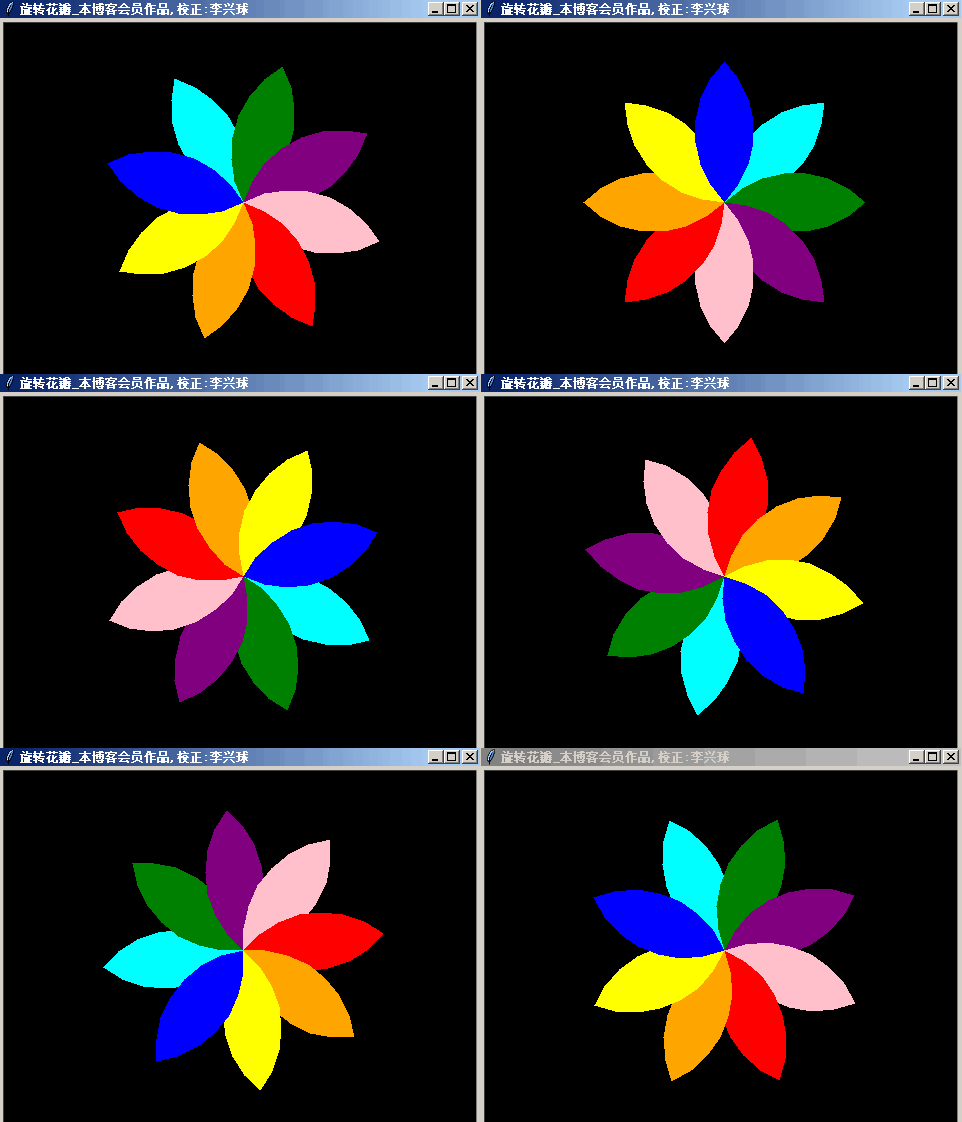
八彩旋转大风车动画源代码

python eight color rotating windmill animation八彩旋转大风车动画

python eight color rotating windmill animation八彩旋转大风车动画


画个画儿动起来,神笔马良叹不如。这是用Python的海龟画图块制作的一个动画。
代码预览如下所示:

"""
    八彩旋转大风车动画,
    这是用Python的海龟画图制作的一个动画。
    
"""
from turtle import *

cs = ['red','orange','yellow','green',
      'cyan','blue','purple','pink']

screen = Screen()
screen.tracer(0,0)
screen.bgcolor('black')
screen.title('八彩旋转大风车动画by李兴球')

t = Turtle(visible=False)

 
需要查看完整代码请

成为会员后,登陆才能继续浏览!联系微信scratch8即可办理会员。
(会员专属:能浏览所有文章,下载所有带链接的Python资源。)

发表在 python, turtle | 八彩旋转大风车动画源代码已关闭评论

正弦曲线动画源代码

python sin amplitude  animation正弦曲线动画

python sin amplitude animation正弦曲线动画

简易的正弦曲线多帧动画源代码。代码预览如下所示:

"""
   正弦曲线动画
"""
import math
from turtle import *

screen = Screen()
screen.tracer(0,0)
screen.bgcolor('white')
screen.setup(480,360)
screen.title("正弦曲线动画")

t = Turtle(visible=False)
t.penup()
t.pensize(10)
t.color('dodger blue')

 
如需要完整代码请

成为会员后,登陆才能继续浏览!联系微信scratch8即可办理会员。
(会员专属:能浏览所有文章,下载所有带链接的Python资源。)

发表在 python, turtle | 正弦曲线动画源代码已关闭评论

可缩放图案的跟随泡泡源代码


按鼠标滚动会缩放图案的一个跟随鼠标交互动画。用到了鼠标滚动事件,这是tkinter里面的,不过turtle是tkinter开发的,所以也能调用鼠标滚动事件。以下是代码预览:

"""
    可缩放图案的跟随泡泡
    本程序调用了鼠标滚动事件和鼠标移动事件。
"""

from turtle import *
from time import sleep

cs = ['red','orange','yellow','green','cyan',
      'blue','purple','brown','pink','brown']

screen = Screen()
screen.bgcolor('black')
screen.tracer(0,0)

def move_to_mouse(event):
    """移到鼠标坐标"""
    x, y = (screen.cv.canvasx(event.x)/screen.xscale,
             -screen.cv.canvasy(event.y)/screen.yscale)
    t.goto(x,y)   


如需查看完整代码请

成为会员后,登陆才能继续浏览!联系微信scratch8即可办理会员。
(会员专属:能浏览所有文章,下载所有带链接的Python资源。)

发表在 python, turtle | 可缩放图案的跟随泡泡源代码已关闭评论

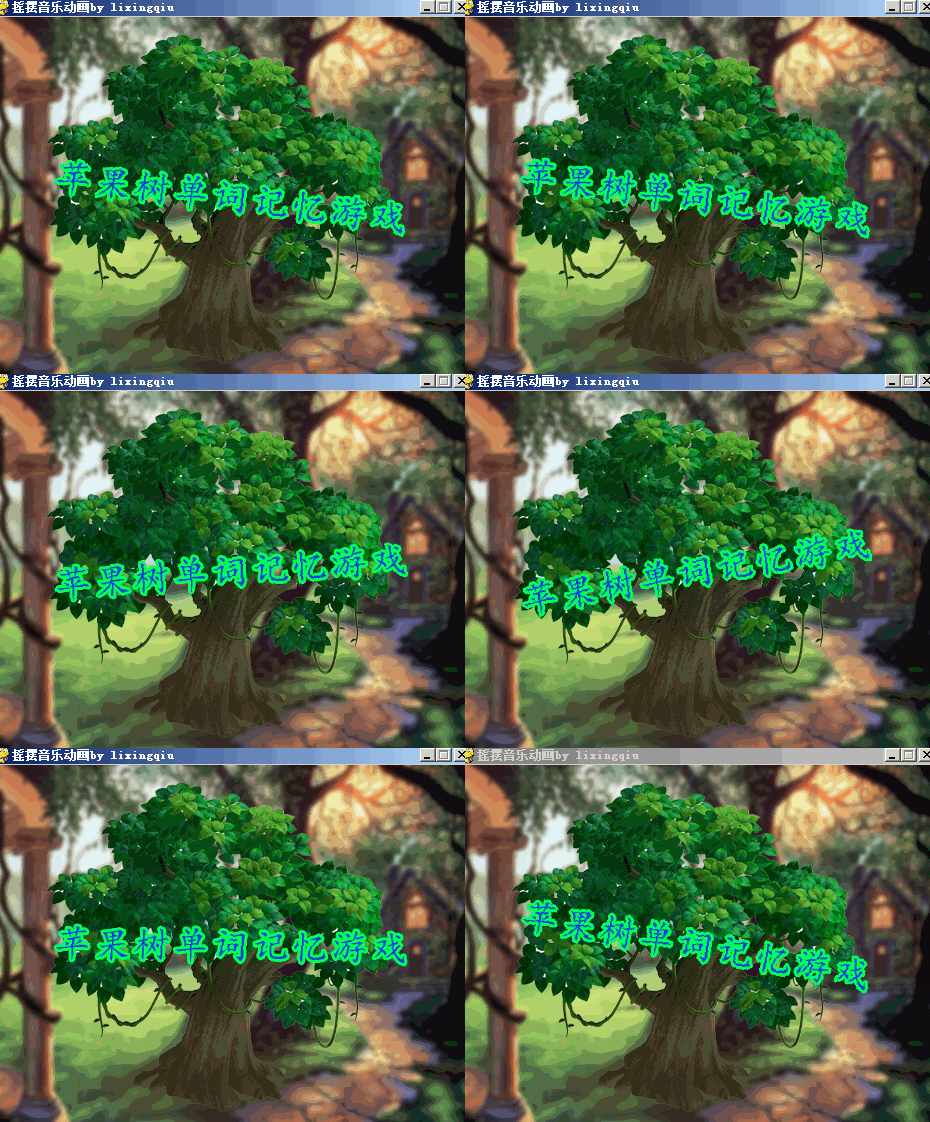
摇摆音乐动画源代码

python game start interface swing music animation摇摆音乐动画

python game start interface swing music animation摇摆音乐动画

可以做为一个作品的开始界面的pygame程序。旋转图形用的是正弦函数,所以有摇摆效果。以下是代码预览:

"""
   摇摆音乐动画,一个标题摇啊摇。
   配了音乐的一个游戏的开始界面。
   
"""
import math
import pygame
from pygame.locals import *

def rotate(surface,angle,pos):
    """
       旋转图像,surface:图层,angle:角度,pos:坐标
    """
    s =  pygame.transform.rotate(surface,angle) # 旋转图形
    r = s.get_rect(center=pos)                  # 获取矩形对象
    return s,r                                  # 返回
    
width,height = 480,360
screen = pygame.display.set_mode((width,height)) # 新建窗口
pygame.display.set_caption("摇摆音乐动画by lixingqiu")# 设置标题


下载完整源代码与素材,请

成为会员后,登陆才能继续浏览!联系微信scratch8即可办理会员。
(会员专属:能浏览所有文章,下载所有带链接的Python资源。)

发表在 pygame, python | 摇摆音乐动画源代码已关闭评论

露珠之诗源代码

python poem of dew露珠之诗

python poem of dew露珠之诗

用海龟画图制作的一个情景小动画。诗是我自己写的,也没有去改过来,保持原汁原味。背景图片来自于一位友人在萍乡聚龙公园所拍摄的相片。注意写的字有阴影效果,以下是代码预览:

"""
   露珠之诗.py
"""
import time
from turtle import *

def step_write(t,string,fontstyle,step):
    """
       逐字打印在海龟画图屏幕上
    """
    
    for c in string:
        t.color('black')
        t.write(c,align='center',font=fontstyle)
        t.setx(t.xcor()-2)
        t.sety(t.ycor()-2)
        t.color('cyan')
        t.write(c,align='center',font=fontstyle)
        t.setx(t.xcor()+2)
        t.sety(t.ycor()+2)        
        t.screen.update()
        t.fd(step)
        time.sleep(0.6)
    t.bk(len(string) * step)

width,height = 800,600
poem = [ '我是一颗露珠,',
         '清晨,我睁开眼睛,',
         '完成我的使命,',
         '又重回自然,',
         '上帝创造了我,',
         '我,创造了世界。',
         '   ',
         '    李兴球'
        ]

 
下载完整源代码与素材,请

成为会员后,登陆才能继续浏览!联系微信scratch8即可办理会员。
(会员专属:能浏览所有文章,下载所有带链接的Python资源。)

发表在 python, turtle | 露珠之诗源代码已关闭评论

三角旋转之星源代码

python rotated colorful tiangle star三角旋转之星

python rotated colorful tiangle star三角旋转之星


基于动画原理,用海龟画图制作的一个旋转动画。以下是代码预览:

"""
   三角旋转之星.py
   这个程序画了些偏移角度的三角形,
   让它们旋转起来。
"""
import time
from turtle import *

cs = ['red','yellow','cyan','dodger blue',
      'purple','pink','orange']
amounts = len(cs)

def draw_triangle(t,distance):
    t.left(30)
    for _ in range(3):
        t.fd(distance)
        t.right(120)
    t.right(30)
        
screen = Screen()
screen.bgcolor("black")
screen.tracer(0,0)
screen.title("三角旋转之星")

 
需要查看完整代码请

成为会员后,登陆才能继续浏览!联系微信scratch8即可办理会员。
(会员专属:能浏览所有文章,下载所有带链接的Python资源。)
发表在 python, turtle | 三角旋转之星源代码已关闭评论

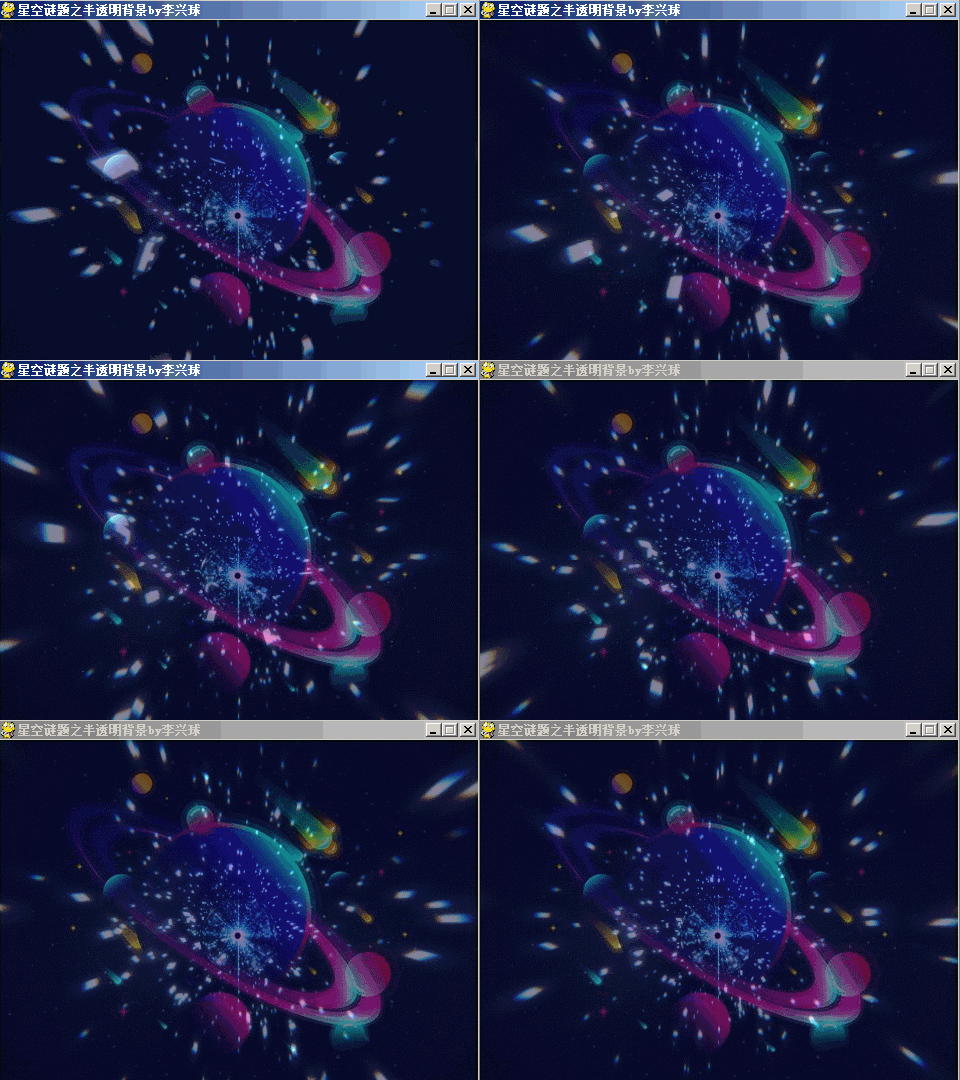
星空谜题之半透明背景源代码

python translucent dynamic background of  space星空谜题之半透明动态背景

python translucent dynamic background of space星空谜题之半透明动态背景


美轮美奂的星空孕育着很多谜题。本程序由pygame模块开发,可以做为一个作品的序幕动画。下面是代码预览:

"""
星空谜题之半透明背景
这个程序加载一个背景图片和一系列帧,
把每帧都变成半透明,合成到这个背景图片,
最后轮换显示出动态背景来。
"""
import pygame
from pygame.locals import *

width,height = 480,360
screen = pygame.display.set_mode((width,height))  # 新建窗口
pygame.display.set_caption("星空谜题之半透明背景by李兴球")


下载完整源代码与素材,请

成为会员后,登陆才能继续浏览!联系微信scratch8即可办理会员。
(会员专属:能浏览所有文章,下载所有带链接的Python资源。)

发表在 pygame, python | 星空谜题之半透明背景源代码已关闭评论

画有倾斜角度的椭圆旋转动画源代码

python turtle tilted ellipse animation画有倾斜角度的椭圆

python turtle tilted ellipse animation画有倾斜角度的椭圆

用Python的海龟画图模块画带有倾斜角度的椭圆形,然后把它变成一个旋转动画。以下是代码预览:

"""
   画有倾斜角度的椭圆,一切都是画出来的。
"""
import math
import turtle

screen = turtle.Screen()
screen.tracer(0,0)
screen.title("画有倾斜角度的椭圆")

turtle.speed(0)
turtle.up()
turtle.pensize(4)
turtle.shape('turtle')
turtle.color('dodger blue')
turtle.shapesize(2,4)

def ellipse(cx,cy,a,b,tilt_angle):
    """
       cx,cy:椭圆中心点
       a:长半轴,b:短半轴
       tilt_angle:倾斜角度
    """    
    for t in range(361):
        j = math.radians(t)
        k = math.radians(tilt_angle)   

 
需要完整代码请

成为会员后,登陆才能继续浏览!联系微信scratch8即可办理会员。
(会员专属:能浏览所有文章,下载所有带链接的Python资源。)

发表在 python, turtle | 画有倾斜角度的椭圆旋转动画源代码已关闭评论

ps2png转换器源代码

用画布的postscript方法可以把海龟所画的图形保存为ps格式。这是一种矢量图形模式,它实际上是文本文件,通过一种语言来描述一个图形。本程序把ps格式的图片转换为位图。以下是代码预览:

"""
   ps2png转换器.py
   tkinter画布有postscript方法。它的用途是生成ps矢量图形。
   这个程序把ps转为png图像。需要用到ghostscript。
"""
import os
import io
from PIL import Image

def ps2png(psfile,outfile):
    """
      转换ps矢量图像到位图
    """
    f = open(psfile,mode='rb')
    c = f.read()
    f.close()

    im = Image.open(io.BytesIO(c))# 打开图像
    im.save(outfile,format="PNG")                      # 保存图像
    im.close()

"下面变量需根据安装ghostscript的路径决定" 
ghostscrpit = 'C:\\Program Files\\gs\\gs9.26\\bin'    

"以下是添加搜索ghostscript的路径"
path = os.environ['path']
path = path.split(";")
path.append(ghostscrpit) 
path = ';'.join(path)
os.environ['path'] = path

images = [f"images/{i}.ps" for i in range(360)]
outims = [f"out/{i}.png" for i in range(360)]

[ps2png(infile,outfile) for infile,outfile in zip(images,outims)]


下载完整源代码与素材和ghostscript安装包,请

成为会员后,登陆才能继续浏览!联系微信scratch8即可办理会员。
(会员专属:能浏览所有文章,下载所有带链接的Python资源。)

发表在 pillow, python | ps2png转换器源代码已关闭评论

旋转的太极图动画源代码

python rotated yinyan animation旋转的太极图

python rotated yinyan animation旋转的太极图


这里用海龟画图turtle模块画了一个太级图,然后让它旋转起来了。以下是代码预览:

"""
   旋转的太极图.py
   一切都是画出来的。
"""
from turtle import *
from time import sleep

def draw_taiji(t,radius):
    "画太极图函数"""
    t.color('black','white')
    t.begin_fill()
    t.circle(radius,180)
    t.circle(2*radius,180)
    t.right(180)
    t.circle(-radius,180)
    t.end_fill()
    
    t.right(180)
    t.color('black')
    t.begin_fill()
    t.circle(radius,180)
    t.circle(2*radius,180)
    t.right(180)
    t.circle(-radius,180)
    t.end_fill()

 
需要完整代码请

成为会员后,登陆才能继续浏览!联系微信scratch8即可办理会员。
(会员专属:能浏览所有文章,下载所有带链接的Python资源。)

发表在 python, turtle | 旋转的太极图动画源代码已关闭评论

三星绕月源代码

python turtle 三星绕月动画

python turtle 三星绕月动画


三个图案绕着一个白色圆圈旋转,取名为三星绕月,可否?一切都是画出来的,有点诡异的是,图案还会不断地变幻。以下是代码预览:

"""
   三星绕月动画。
   本程序利用动画原理画以下旋转图形。
"""

from turtle import *

def draw_sprial(t,step):
    """画一个图案"""
    for r in range(0,50,5):
        c = colors[r%len(colors)]
        t.color(c)
        
        t.circle(r+5,360,step)
    for r in range(0,50,5):
        c = colors[r%len(colors)]
        t.color(c)        
        t.circle(-r-5,360,step)
            
colors = ('red','orange','yellow','green',
          'cyan','blue','purple','pink','brown')

screen = Screen()
screen.tracer(0,0)
screen.bgcolor('black')
screen.title("三星绕月by李兴球")

t = Turtle(visible=False)
t.width(3)
t.penup()
frame_counter = 0
step = 0
s = 10 - abs(step%14 -7)

while True:
    t.clear()
    frame_counter += 1
    if frame_counter % 20 == 0:
        step = step + 1
        s = 10 - abs(step%14 -7)        
    for  _ in range(3):
        t.dot(100,'white')
        t.fd(200)
        t.pendown()
        draw_sprial(t,s)
        t.penup()
        t.bk(200)
        
        t.right(120)

    t.right(1)
    
    screen.update()


需要完整代码请

成为会员后,登陆才能继续浏览!联系微信scratch8即可办理会员。
(会员专属:能浏览所有文章,下载所有带链接的Python资源。)

发表在 python, turtle | 三星绕月源代码已关闭评论

如意动感圈圈源代码


四个圆圈不断地变幻颜色及旋转。这是用turtle模块制作的一个动画。以下是前少部分代码:

"""
    如意动感圈圈.py
    要正确地运行以下程序,请先用cmd在命令提示符窗口里输入:
    pip install coloradd
    安装颜色增加模块
"""
from coloradd import *    # 从颜色增加模块导入所有命令
from turtle import *

def draw_four_circle(haigui,screen):
    """画4个圆圈"""
                
    c = (255,0,0)
    while True:        
        haigui.clear()       
        
        for x in range(360):
            haigui.color(c)
            haigui.lt(1)
            haigui.fd(1)
            c = coloradd(c,0.01)
        for x in range(360):
            haigui.color(c)
            haigui.rt(1)
            haigui.fd(1)
            c = coloradd(c,0.01)
        haigui.rt(90)
        for x in range(360):
            haigui.color(c)
            haigui.lt(1)
            haigui.fd(1)
            c = coloradd(c,0.01)

 
如果需要全部源代码,请

成为会员后,登陆才能继续浏览!联系微信scratch8即可办理会员。
(会员专属:能浏览所有文章,下载所有带链接的Python资源。)
发表在 python, turtle | 如意动感圈圈源代码已关闭评论

半透明粒子效果源代码


这是一个用pygame制作的粒子动画,背景是一名美丽的印度姑娘。由于录制的gif文件较大,所以只展示静态图形。下面是代码预览:

"""
   半透明粒子效果。本程序运行后会不断地产生泡泡粒子。
   今天看到AE片头的动画粒子效果比较酷炫,
   想用Python来模拟一下,结果出来是这个样子。
   和AE里的视频相比,差了一大截。
   对于我来说是没啥创意,不过对于初学者是有价值的。
   由于录的gif文件较大,所以没有只展示下静态图。
"""

import pygame
from pygame.locals import * 
from random import randint

class Particle(pygame.sprite.Sprite):
    """粒子类"""
    def __init__(self,radius,pos,screen):
        pygame.sprite.Sprite.__init__(self)
        self.image = pygame.Surface((2*radius,2*radius),SRCALPHA)
        r = randint(0,255)
        g = randint(0,255)
        b = randint(0,255)
        pygame.draw.circle(self.image,(r,g,b,128),(radius,radius),radius)
        self.rect = self.image.get_rect(center=pos)
        self.dx = randint(-5,5)
        self.dy = randint(-5,5)
        self.screen = screen   


下载完整源代码与素材,请

成为会员后,登陆才能继续浏览!联系微信scratch8即可办理会员。
(会员专属:能浏览所有文章,下载所有带链接的Python资源。)

发表在 pygame, python | 半透明粒子效果源代码已关闭评论

图像变黑技术处理_变暗渐变源代码

python图像变黑技术处理,图像变暗

python图像变黑技术处理,图像变暗


黑姑娘也是蛮漂亮的。本程序让图像变黑,然后在pygame的窗口中显示出来。这是渐变特效核心代码。以下是代码预览:

"""
   图像变黑技术处理_变暗渐变
   这个代码用来对图像进行黑化处理,使用的是pillow模块的Brightness类。
   然后把黑化的图像在pygame屏幕中显示出来   
   代码最简化,以方便会员阅读理解。
   可以把它很方便的做成一个由黑到白再由白到黑的渐变处理,
   这样在做一些效果时就方便了。
"""

import pygame
from PIL import Image
from PIL.ImageEnhance import Brightness

image = Image.open('印度女孩.png')     # 打开图像
..................................
screen.fill((255,255,255))
screen.blit(india,(0,0))
pygame.display.update()

 
需要查看全部代码请

成为会员后,登陆才能继续浏览!联系微信scratch8即可办理会员。
(会员专属:能浏览所有文章,下载所有带链接的Python资源。)

发表在 pillow, pygame | 图像变黑技术处理_变暗渐变源代码已关闭评论

海龟画图基本原理类pygame版_蟑螂画图源代码


本程序阐述了turtle的基本原理,用的是pygame模块开发。在程序中设计了Sprite类,它有前进,左转,右转等方法。就像turtle模块中的那些方法一样,当然,这只是一个非常简易的版本,好处是方便学习turtle模块的基本原理。以下是代码预览:

"""
   海龟画图基本原理类pygame版。
   本程序用pygame模块模拟了一个最基本的海龟画图模块雏形。
"""
   
import math
import pygame
from pygame.locals import *

class Sprite(pygame.sprite.Sprite):
    """
       继承自pygame之Sprite类的类,这个类定义了设置朝向,
       右转,左转,渲染等方法。设置了_pendown属性来描述
       是否落笔等。
    """

def main():
    """主要执行函数"""
    import time
    screen = pygame.display.set_mode((480,360))
    pygame.display.set_caption("海龟画图基本原理类pygame版by李兴球")
    
    beetle = pygame.image.load('beetle.png')
    beetle = Sprite(screen,beetle,(240,180))

    time.sleep(3)
    beetle.setheading(-45)          # 设置朝向为-45度
    for _ in range(8):              # 重复执行8次
        for _ in range(4):          # 重复执行4次
            beetle.forward(100)     # 前进100像素
            time.sleep(0.1)         # 等待0.1秒
            beetle.right(90)        # 右转90度
            time.sleep(0.1)         # 等待0.1秒
        beetle.right(45)            # 右转45度
        time.sleep(0.1)             # 等待0.1秒 
    
    # 按任意键退出pygame
    while not any(pygame.key.get_pressed()):
        pygame.event.poll()
    pygame.quit()


如需要查看所有源代码,请

成为会员后,登陆才能继续浏览!联系微信scratch8即可办理会员。
(会员专属:能浏览所有文章,下载所有带链接的Python资源。)
发表在 pygame, python, turtle | 海龟画图基本原理类pygame版_蟑螂画图源代码已关闭评论

旋转的三叶炫彩扇动画源代码

曾经做过一个叫三叶炫彩扇的程序。今天把它翻了出来,让扇子转动起来了。本程序要使用coloradd模块,请先在命令提示里输入 pip install colormode 安装coloradd模块。

Python three fan animation旋转的三叶炫彩扇

Python three fan animation旋转的三叶炫彩扇

以下是代码预览:

"""
旋转的三叶炫彩扇.py

"""
import turtle
from coloradd import *

screen = turtle.getscreen()              # 获取屏幕对象
screen.bgcolor((0,0,0))                  # 设定屏幕颜色 
screen.colormode(255)                    # 颜色模式为255
screen.title('旋转的三叶炫彩扇by李兴球') # 设定屏幕标题
color = (0,255,255)                      # 青色元组

turtle.ht()
turtle.pensize(5)                        # 画笔尺寸

 
如需要全部代码,请

成为会员后,登陆才能继续浏览!联系微信scratch8即可办理会员。
(会员专属:能浏览所有文章,下载所有带链接的Python资源。)

发表在 python, turtle | 旋转的三叶炫彩扇动画源代码已关闭评论

海龟画图基本原理tkinter版_螃蟹画图源代码

python海龟画图基本原理Sprite类

python海龟画图基本原理Sprite类

自制turtle模块,让它像海龟画图里的小海龟一样画图。本程序阐述了turtle模块的基本原理,用的是tkinter模块和pillow模块开发。在程序中设计了Sprite类,它有前进,左转,右转等方法。就像turtle模块中的那些方法一样,当然,这只是一个非常简易的版本,好处是方便学习turtle模块的基本原理。以下是代码预览:

"""
  海龟画图基本原理Sprite类。螃蟹也要来画图了。
  下面的Sprite类设计了设定朝向,前进,旋转等方法,
  用简明的代码阐明了海龟画图模块的基本原因。
  并且这个类运行图像的旋转。
  本程序需要安装pillow枕头模块,这样才能高枕无忧,
  否则无法运行哦。安装方法 pip install pillow
"""

__author__ = '李兴球'
__date__ = '2019/10/23'
__blog__ = 'www.lixingqiu.com'

import math
from tkinter import * 
from PIL import ImageTk
from PIL import Image
from time import sleep

def main():
    """主要执行函数"""
    
    screen = Tk()
    screen.title("海龟画图基本原理类by李兴球")
    sw = screen.winfo_screenwidth()     # 屏幕宽度
    sh = screen.winfo_screenheight()    # 屏幕高度
    width = 500
    height = 500

    x = (sw-width)//2
    y = (sh-height)//2
    screen.geometry("%dx%d+%d+%d" %(width,height,x,y))

    crab = Sprite(screen,'crab.png')   # 新建角色
    sleep(3)
    for _ in range(8):
        for _ in range(4):
            sleep(0.1)
            crab.forward(100)
            sleep(0.1)
            crab.left(90)
        crab.left(45)
        
    screen.mainloop()

class Sprite:
    def __init__(self,screen, filename, **kwargs):
        """
           初始化方法,filename:图像文件名
        """
        self.screen = screen
        self.filename = filename
        self.canvas = Canvas(self.screen, width=500, height=500,bg='#ffffff' )
        self.canvas.pack()


如需查看全部源代码,

成为会员后,登陆才能继续浏览!联系微信scratch8即可办理会员。
(会员专属:能浏览所有文章,下载所有带链接的Python资源。)

发表在 pillow, python, tkinter, turtle | 海龟画图基本原理tkinter版_螃蟹画图源代码已关闭评论

春之花音乐动画源代码


追忆往事,人生看重的是过程,而不是结果。或许,过程就是“结果”。这是一个配音画笔动画,在绕梁三日的音乐当中,静静地体会人生吧。
以下是代码预览:

"""
   春之花画笔音乐动画,
   本程序用到了三角函数及coloradd模块的colorset命令,
   在运行本程序前请先安装coloradd模块,方法为在命令提示符里输入
   pip install coloradd
"""
import math
import turtle
from coloradd import *
from winsound import *

PlaySound("Jacek_Darabasz-L.wav",SND_ASYNC|SND_LOOP)

k = 16
l = 6
n = 175

screen = turtle.getscreen()          # 获取海龟屏幕
screen.setup(480,360)                # 设置屏幕大小
screen.colormode(255)                # 设置颜色模式
screen.bgcolor(255,255,206)          # 设置背景颜色
screen.tracer(0,0)
screen.title('春之花画笔音乐动画by李兴球')

turtle.penup()
turtle.pensize(4)

 
下载完整源代码与素材,请

成为会员后,登陆才能继续浏览!联系微信scratch8即可办理会员。
(会员专属:能浏览所有文章,下载所有带链接的Python资源。)

发表在 python, turtle | 春之花音乐动画源代码已关闭评论

流光溢彩棒动画源代码

python Flash colorful stick animation 流光溢彩棒

python Flash colorful stick animation 流光溢彩棒

漂亮的一个动画,它是如何实现的呢?以下是代码预览:

"""
   流光溢彩棒动画,本程序需要安装coloradd模块,
   请在命令提示符下输入命令pip install coloradd先。
"""

from turtle import *
from coloradd import *

screen = Screen()          # 新建屏幕对象

screen.colormode(255)     # 设定屏幕颜色模式
screen.setup(480,780)     # 设定屏幕大小
screen.tracer(0,0)
screen.title("流光溢彩棒动画")

c = (255,0,0)            # 从红色开始

t = Turtle(visible=False)# 新建不可见对象
t.pensize(60)
t.penup()
t.seth(-90)
t.bk(300)
t.pendown()


如果需要查看全部源代码,请

成为会员后,登陆才能继续浏览!联系微信scratch8即可办理会员。
(会员专属:能浏览所有文章,下载所有带链接的Python资源。)

发表在 python, turtle | 流光溢彩棒动画源代码已关闭评论

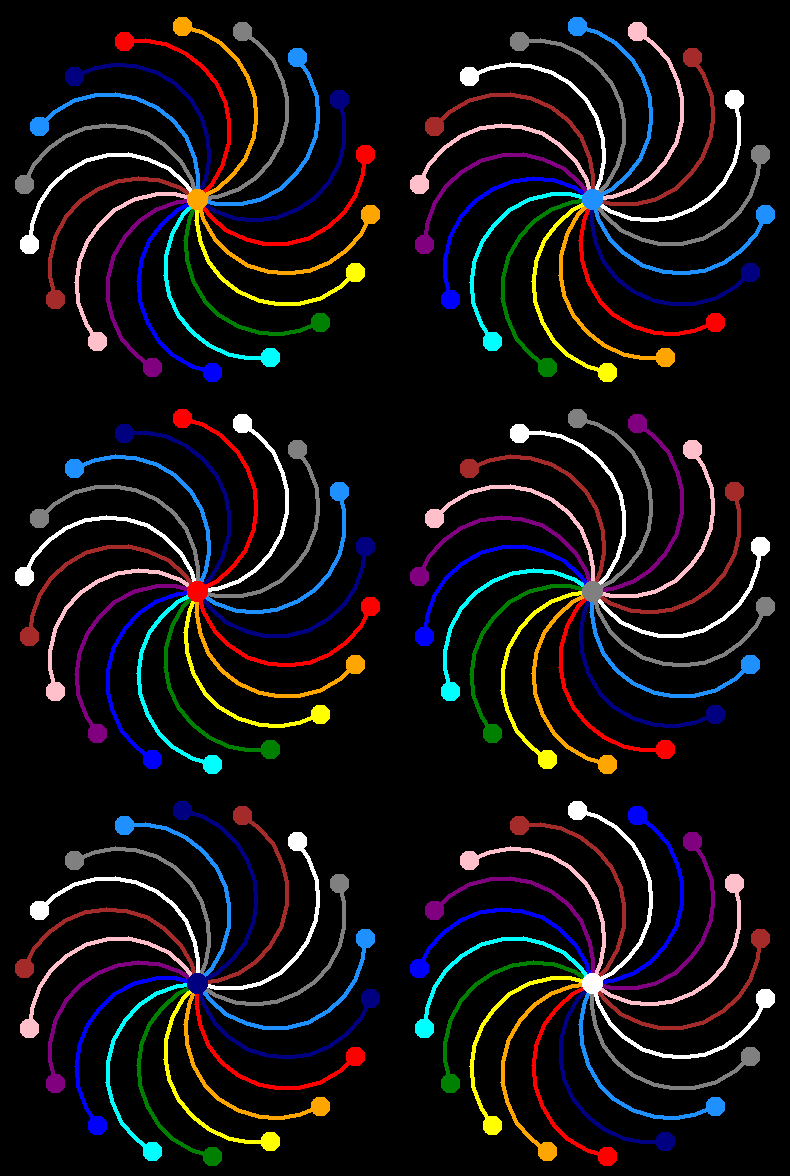
螺旋彩闪动画源代码

python sprial colorful flash animation螺旋彩闪动画

python sprial colorful flash animation螺旋彩闪动画

这个动画不知道如何取名,取名也是门学问。先就叫这个名字吧。以下是代码预览:

"""
    螺旋彩闪动画,本程序采用了circle画圆命令来画一个彩色的闪动图案。
    基本知识:在海龟画图中,会默认进行自动的刷新绘画,也就是说当
    画了一点后马上会显示出来,这样就能看到绘画的整个过程,方便初
    学者学习与演示,但是对于高级学者就没必要了。
    所以在下面的程序中通过screen.tracer(0,0)关闭了自动显示刷新和
    绘画延时。这样,不会显示绘画的过程了。程序在画完后通过
    screen.update命令进行了手动刷新,从而显示出来。
    显示出来后,等待了0.1秒,又进行下一次绘画,由于颜色在不断轮换,
    于是就有了动画闪烁的效果。
"""
from turtle import *
from random import *
from time import sleep

# 新建一个颜色表
cs = ['red','orange','yellow','green','cyan','blue','purple',
      'pink','brown','white','gray','dodger blue','navy']

screen = Screen()          # 新建屏幕
screen.bgcolor('black')    # 设定背景色
screen.tracer(0,0)         # 关闭自动刷新和设定绘画延时为0秒

t = Turtle(shape='circle')
t.width(4)                 # 设定笔宽也就是pensize为4
i = 0

 
如需要查看所有源代码,请

成为会员后,登陆才能继续浏览!联系微信scratch8即可办理会员。
(会员专属:能浏览所有文章,下载所有带链接的Python资源。)

发表在 python, turtle | 螺旋彩闪动画源代码已关闭评论

让画的轮子动起来源代码


画个轮子转起来,神笔马良叹不如。画图神器叫海龟,能做动画与游戏,如果你要学编程,不防先来学Python。
以下是代码预览:

"""
   画的轮子动起来,本程序自定义形状,然后让这个形状旋转。
"""
from turtle import *

def draw_square(t,d):
    """画正方形"""
    t.begin_fill()
    for _ in range(4):
        t.fd(d)
        t.rt(90)
    t.end_fill()
        
r = 100
screen = Screen()
screen.delay(1)
screen.bgcolor('yellow')
screen.setup(480,360)
screen.title("让画的轮子动起来")

 
如需要查看所有源代码,请

成为会员后,登陆才能继续浏览!联系微信scratch8即可办理会员。
(会员专属:能浏览所有文章,下载所有带链接的Python资源。)

发表在 python, turtle | 让画的轮子动起来源代码已关闭评论

画齿轮简易图形源代码

python draw gear画齿轮简易图形

python draw gear画齿轮简易图形


画一个齿轮,你可以让它旋转起来。以下是代码预览:

"""
   画齿轮简易图形
"""

from turtle import *

d = 25
screen = Screen()
screen.title('画齿轮简易图形')
screen.setup(480,360)
screen.bgcolor('white')

t = Turtle(visible=False)
t.penup()
t.pensize(20)
t.pencolor('dodger blue')
t.sety(100)
t.pendown()

 
如需要查看所有源代码,请

成为会员后,登陆才能继续浏览!联系微信scratch8即可办理会员。
(会员专属:能浏览所有文章,下载所有带链接的Python资源。)

发表在 python, turtle | 画齿轮简易图形源代码已关闭评论

turtle真正可移动背景_turtle moveble background_固定窗口大小源代码

python turtle 真正可移动背景

python turtle 真正可移动背景


海龟画图中背景是固定的。这个程序通过画布的move命令,让它动了起来。以下是代码预览:

"""
   turtle真正可移动背景
   本人以前实现的可移动背景是用海龟对象的造型移动实现的,
   而这个程序里没有海龟对象,就只有一张背景图片,通过代码实现了真正的移动背景。
   其原理是通过了画布的move功能直接移动背景图片了。
   从此为又Python的海龟画图世界里增添了移动背景的代码了。
"""
from turtle import *

screen = Screen()
screen.tracer(0,0)
screen.setup(480,360)
screen.bgpic('两倍宽度的背景.png')  # 两倍宽长
screen.title('turtle真正可移动背景by李兴球')
screen.cv.master.resizable(width=False,height=False)

 
如需要查看所有源代码,请

成为会员后,登陆才能继续浏览!联系微信scratch8即可办理会员。
(会员专属:能浏览所有文章,下载所有带链接的Python资源。)

发表在 python, turtle | turtle真正可移动背景_turtle moveble background_固定窗口大小源代码已关闭评论

鼠标牵引小眼珠画笔交互动画源代码

python牵引小眼珠画笔交互动画

python牵引小眼珠画笔交互动画


用鼠标牵引一个小眼珠移动的源代码。这个小眼珠是画出来的。你可以发挥想像力,把它制作成一个小游戏。以下是代码预览:

"""
   牵引小眼珠画笔交互动画。这个程序中的小眼珠是画出来的,
   当鼠标移动时,它会朝向鼠标的方向移动。   
"""

from turtle import *
..............     
def draw_eye(t):
    """画眼珠"""
    t.color('white')
    t.begin_fill()
    t.fd(25)
    t.left(90)
    t.circle(25)
    t.end_fill()
    t.right(90)
    t.color('black')
    ........

width,height = 480,360
screen = Screen()
screen.tracer(0,0)
screen.setup(width,height)
screen.bgcolor("dodger blue")
screen.title('牵引小眼珠画笔交互动画by李兴球')
......................

 
如需要查看所有源代码,请

成为会员后,登陆才能继续浏览!联系微信scratch8即可办理会员。
(会员专属:能浏览所有文章,下载所有带链接的Python资源。)

发表在 python, turtle | 鼠标牵引小眼珠画笔交互动画源代码已关闭评论

穿越山洞_简易的横版闯关游戏雏形程序源代码

python helicopter pass cave 穿越山洞横版闯关游戏雏形程序,

python helicopter pass cave 穿越山洞横版闯关游戏雏形程序,

这个turtle小游戏提供了核心代码,有点像飞扬小鸟是通过单击鼠标操作直升机角色的。以下是代码预览:

"""
   穿越山洞.py,简易的横版闯关游戏雏形程序,
   这是方便学习的一个交互小程序。
   可以给本程序再添加一些障碍物等等。
   让直升机碰到它们就爆炸,当然直升机碰到上边或下边的岩石,
   也要爆炸,这可以通过y坐标的判断进行。
"""
from turtle import *

width ,height = 960,720
bgs = ['bg/0.png','bg/1.png','bg/2.png','bg/3.png']

screen = Screen()
screen.bgcolor('black')
screen.title('穿越山洞by李兴球')
screen.tracer(0,0)

def heli_raise(x,y):
    heli.dy = 10
    
#helis = [f'heli/{i}.gif' for i in range(6)]
helis = ['heli/3.gif','heli/5.gif']  # 直升机造型表

w = Turtle(visible=False)            # 新建海龟对象用来标题
w.penup()
w.goto(0,200)
w.color('white')
w.write('穿越山洞横版闯关游戏雏形程序',align='center',font=('黑体',28,'normal'))

screen.onclick(heli_raise)           # 单击上升
heli.st()
i = 0                                # 造型索引号 
index = 0                            # 背景索引号
    

下载完整源代码与素材,请

成为会员后,登陆才能继续浏览!联系微信scratch8即可办理会员。
(会员专属:能浏览所有文章,下载所有带链接的Python资源。)

发表在 python, turtle | 穿越山洞_简易的横版闯关游戏雏形程序源代码已关闭评论

冰雪奇缘音乐动画源代码

python turtle frozen music animation冰雪奇缘音乐动画by李兴球

python turtle frozen music animation冰雪奇缘音乐动画by李兴球

奇妙的图章也能做动画!半透明的雪花不断地落下来,Let it go….放手吧!

"""
   冰雪奇缘音乐动画
   在这个动画中,有200个半透明的雪花不停地下落,
   当它们到了屏幕最下边某个距离又会瞬移
   到屏幕最上边的某个位置继续下落,可是在
   这个程序中可只有一只海龟对象,那这个美妙
   的动画是怎么做的呢?
"""

from turtle import *
from random import *
from winsound import * 

class Snow:
    """
       雪花类
    """

def main():
    """主要执行函数"""

    PlaySound("随风而去吧....wav",SND_ASYNC|SND_LOOP) 
        
    width,height = 470,734
    screen = Screen()
    screen.title("冰雪奇缘音乐动画by李兴球")
    screen.bgpic("girl.png")
    screen.addshape("snow.gif")
    screen.setup(width,height)
    screen.tracer(0,0)

    t = Turtle(visible=False)
    t.penup()
    t.shape('snow.gif')

    snows = [Snow(width,height) for _ in range(200)]

if __name__== "__main__":

    main()

 
下载完整源代码与素材,请

成为会员后,登陆才能继续浏览!联系微信scratch8即可办理会员。
(会员专属:能浏览所有文章,下载所有带链接的Python资源。)

发表在 python, turtle | 冰雪奇缘音乐动画源代码已关闭评论

600粒子绕中心旋转程序源代码

本程序只有一个海龟对象,但却有600个粒子?这是怎么实现的?
下面是代码预览:

"""
   600粒子绕中心旋转程序,
   本程序测试用python海龟画图制作粒子效果最多能有多少粒子。
   程序中所有粒子是画出来的。
"""
import math
from turtle import *
from random import *

class Particle:
    """粒子类"""
    def __init__(self):
        """
           radius:围绕中心点半径
           dangle:每次旋转的角度
        """
screen  = Screen()
screen.bgcolor('black')
screen.title("600粒子绕中心旋转程序")
screen.tracer(0,0)
screen.setup(480,360)

t = Turtle(shape='triangle')  # 新建三角形
t.penup()                     # 抬笔 
t.color("yellow")             # 黄色的
t.dot(50)                     # 打圆点
t.speed(0)                    # 速度最快
t.shapesize(0.15,0.15)        # 缩放 

ps = [Particle() for i in range(600)]


下载完整源代码与素材,请

成为会员后,登陆才能继续浏览!联系微信scratch8即可办理会员。
(会员专属:能浏览所有文章,下载所有带链接的Python资源。)

发表在 python, turtle | 600粒子绕中心旋转程序源代码已关闭评论

晚上睡前几分钟画的这玩意儿_都是画出来 的


不知道取什么名字。下面是部分代码:

"""
   晚上睡前几分钟画的这玩意儿,纯画笔动画
"""

from turtle import *

screen = Screen()
screen.colormode(255)
screen.tracer(0,0)

t = Turtle()
 
t.color('dodger blue')

t.begin_poly()

t.begin_fill()
t.fd(20)
t.left(90)
t.circle(20)
t.right(90)
t.bk(20)
t.end_fill()
screen.update()

for __ in range(4):
    t.fd(20)
    t.left(30)
    t.begin_fill()
    for _ in range(3):
        t.fd(100)
        t.rt(120)
    t.right(30)
    t.end_fill()

 
如需要查看所有源代码,请

成为会员后,登陆才能继续浏览!联系微信scratch8即可办理会员。
(会员专属:能浏览所有文章,下载所有带链接的Python资源。)
发表在 python, turtle | 晚上睡前几分钟画的这玩意儿_都是画出来 的已关闭评论